How to view system logs using journalctl
Reading the systemd journal is one of the fastest ways to see what happened during boot, service startup, hardware detection, and scheduled background work on a Linux host when a short status summary is not enough. It keeps the main system events in one place instead of sending the search across several text log files first.
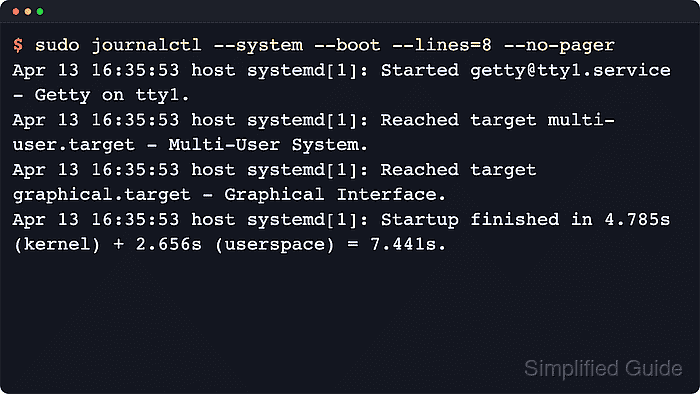
The systemd-journald service stores kernel and service messages in a structured journal, and journalctl can narrow that data by boot, time range, priority, and message source. Using --system keeps the view centered on system services and kernel events instead of mixing in per-user journal entries.
Most system journal queries require sudo unless the account already has read access through a distribution-specific admin group such as systemd-journal, adm, or wheel. journalctl opens a pager by default, so --no-pager is useful for direct terminal output, and earlier boots appear only when the host keeps journal files across reboots.
Related: How to view service logs using journalctl
Related: How to check systemd journal size
Related: How to clear old journal logs
Steps to view system logs using journalctl:
- Show the newest system log entries from the current boot.
$ sudo journalctl --system --boot --lines=5 --no-pager
Apr 22 05:47:36 host systemd[1]: Starting user@1000.service - User Manager for UID 1000...
Apr 22 05:47:36 host (systemd)[1234]: pam_unix(systemd-user:session): session opened for user user(uid=1000) by user(uid=0)
Apr 22 05:47:36 host systemd[1]: Started user@1000.service - User Manager for UID 1000.
Apr 22 05:47:36 host systemd[1]: Started session-c8.scope - Session c8 of User user.
Apr 22 05:47:36 host systemd[1]: Started session-c9.scope - Session c9 of User user.
--boot without a value means the current boot, and --lines limits how much recent output appears first.
- Confirm the host owns the journal before trusting an empty result.
Minimal containers, chroots, rescue shells, and non-systemd environments can show no journal files even when the userspace is Debian or another systemd-capable distribution. Run journalctl on the booted host or VM that owns the system journal.
- Limit the view to a recent incident window when the problem happened only a few minutes ago.
$ sudo journalctl --system --since="5 minutes ago" --lines=5 --no-pager
Apr 22 05:51:28 host systemd[1]: Finished user-runtime-dir@1000.service - User Runtime Directory /run/user/1000.
Apr 22 05:51:28 host systemd[1]: Starting user@1000.service - User Manager for UID 1000...
Apr 22 05:51:28 host (systemd)[1457]: pam_unix(systemd-user:session): session opened for user user(uid=1000) by user(uid=0)
Apr 22 05:51:28 host systemd[1]: Started user@1000.service - User Manager for UID 1000.
Apr 22 05:51:28 host systemd[1]: Started session-c18.scope - Session c18 of User user.
--since also accepts exact YYYY-MM-DD HH:MM:SS timestamps and keywords such as today, yesterday, and now.
- List the recorded boots before opening logs from an earlier startup.
$ sudo journalctl --system --list-boots --no-pager
IDX BOOT ID                          FIRST ENTRY                 LAST ENTRY
 -1 2197a44133f3453eb2747d0effab08fd Wed 2026-04-22 05:40:27 +08 Wed 2026-04-22 05:43:34 +08
  0 ad074c58606d471da49b224aa25fc730 Wed 2026-04-22 05:43:49 +08 Wed 2026-04-22 05:48:55 +08
The index in the first column is the value to use with --boot=. If only the current boot appears, older logs are not stored on disk.
Related: How to enable persistent journal storage in systemd - Open the previous boot directly when the failure happened before the latest restart.
$ sudo journalctl --system --boot=-1 --lines=5 --no-pager
Apr 22 05:43:33 host systemd[1]: Reached target reboot.target - System Reboot.
Apr 22 05:43:33 host systemd[1]: Shutting down.
Apr 22 05:43:33 host systemd-shutdown[1]: Syncing filesystems and block devices.
Apr 22 05:43:34 host systemd-shutdown[1]: Sending SIGTERM to remaining processes...
Apr 22 05:43:34 host systemd-journald[312]: Journal stopped
--boot=-1 means the previous boot, --boot=-2 means two boots ago, and --boot by itself returns to the current boot.
- Reduce the output to warning-level events and above when the goal is to find problems faster.
$ sudo journalctl --system --priority=warning..alert --lines=5 --no-pager
Apr 22 05:43:49 host kernel: ahci PRL4010:00: supply phy not found, using dummy regulator
Apr 22 05:43:49 host kernel: ahci PRL4010:00: supply target not found, using dummy regulator
Apr 22 05:43:51 host lvm[457]: PV /dev/sda3 online, VG ubuntu-vg is complete.
Apr 22 05:43:51 host lvm[457]: VG ubuntu-vg finished
Apr 22 05:43:53 host (cron)[1041]: cron.service: Referenced but unset environment variable evaluates to an empty string: EXTRA_OPTS
The range warning..alert includes priorities 4 through 1 and leaves out notice, info, and debug messages.
- Show only kernel messages when the issue looks like a boot, driver, storage, or hardware problem.
$ sudo journalctl -k --lines=5 --no-pager
Apr 22 05:43:51 host kernel: cfg80211: Loading compiled-in X.509 certificates for regulatory database
Apr 22 05:43:51 host kernel: Loaded X.509 cert 'sforshee: 00b28ddf47aef9cea7'
Apr 22 05:43:51 host kernel: Loaded X.509 cert 'wens: 61c038651aabdcf94bd0ac7ff06c7248db18c600'
Apr 22 05:43:53 host kernel: NET: Registered PF_QIPCRTR protocol family
Apr 22 05:43:53 host kernel: loop0: detected capacity change from 0 to 8
-k is the short form of --dmesg, and it implies --boot=0 unless another boot is specified.
- Follow new system log entries live while reproducing the issue.
$ sudo journalctl --system --follow --lines=3 --no-pager
Apr 22 05:50:45 host (systemd)[1413]: pam_unix(systemd-user:session): session opened for user user(uid=1000) by user(uid=0)
Apr 22 05:50:45 host systemd[1]: Started user@1000.service - User Manager for UID 1000.
Apr 22 05:50:45 host systemd[1]: Started session-c16.scope - Session c16 of User user.
Apr 22 05:50:46 host backup-job[1442]: backup destination unavailable
##### waits for new entries until Ctrl-C #####
Press Ctrl-C to stop the live stream. The initial lines come from --lines=3 before new messages arrive.