How to enable automatic updates in openSUSE and SLES
Automatic patching closes the gap between a security fix being published and that fix actually reaching the system. On openSUSE Leap and SLES, enabling unattended maintenance is useful for servers, desktops, and lab systems that need regular security coverage even when nobody is available to start a manual update session.
The current SUSE mechanism for scheduled patching is the yast2-online-update-configuration module. It writes the patch policy to /etc/sysconfig/automatic_online_update and schedules the packaged /usr/lib/YaST2/bin/online_update helper by placing the opensuse.org-online_update link in one of the cron.daily, cron.weekly, or cron.monthly directories. The helper applies zypper patch transactions, which keeps the automation aligned with maintenance repositories instead of turning it into a full distribution-upgrade workflow.
This workflow fits openSUSE Leap and SLES systems that receive maintenance patches from standard update repositories. It is not the right path for openSUSE Tumbleweed snapshot upgrades or transactional systems such as SLE Micro, and automatic online update does not reboot the machine after kernel or other reboot-required patches, so reboot handling still needs a separate operator policy.
Steps to enable automatic updates in openSUSE and SLES:
- Open a terminal session with a user account that can run sudo.
- Install the automatic online update module.
$ sudo zypper install yast2-online-update-configuration
The package name is the same on current openSUSE Leap and SLES systems. If zypper cannot find it, confirm that the system can reach its normal update repositories and that SLES registration is still valid.
- Back up the current automatic update settings file before changing it.
$ sudo cp /etc/sysconfig/automatic_online_update /etc/sysconfig/automatic_online_update.bak
If the file is missing, install the package in the previous step first so the default sysconfig template is created.
- Edit /etc/sysconfig/automatic_online_update and set the unattended patch policy.
$ sudoedit /etc/sysconfig/automatic_online_update
AOU_ENABLE_CRONJOB="true"
AOU_SKIP_INTERACTIVE_PATCHES="true"
AOU_AUTO_AGREE_WITH_LICENSES="false"
AOU_INCLUDE_RECOMMENDS="false"
AOU_PATCH_CATEGORIES="security"
Keeping AOU_PATCH_CATEGORIES limited to security matches current SUSE guidance for unattended patching. Add recommended only after confirming the system can absorb non-security maintenance automatically.
Leaving AOU_SKIP_INTERACTIVE_PATCHES set to false can stall unattended runs on kernel, license, or service-impacting patches that need confirmation.
- Remove any old schedule link so only one interval is active.
$ sudo rm -f /etc/cron.daily/opensuse.org-online_update /etc/cron.weekly/opensuse.org-online_update /etc/cron.monthly/opensuse.org-online_update
The module uses exactly one of these cron locations. Clearing all three first avoids accidentally running the job more often than intended.
- Create the schedule link for the preferred maintenance window. The example below enables a weekly run.
$ sudo ln -s /usr/lib/YaST2/bin/online_update /etc/cron.weekly/opensuse.org-online_update
Use /etc/cron.daily/ for daily patching or /etc/cron.monthly/ for a longer interval. Weekly security updates are usually the safest starting point for general systems.
This link is consumed by the system cron daemon. Minimal builds that do not run cron will not execute the automatic patch job until cron is installed and active.
- Verify the policy and the active schedule link.
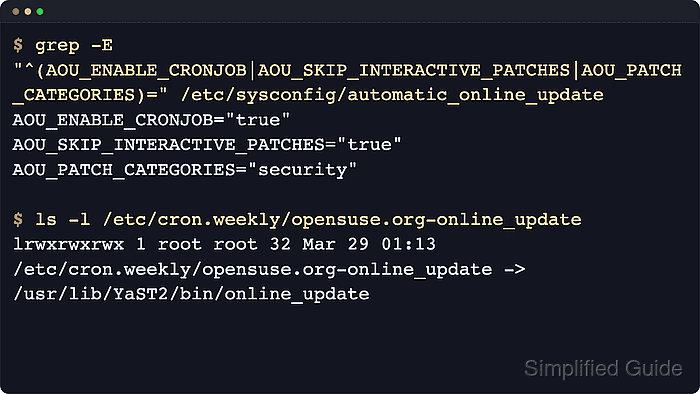
$ grep -E "^(AOU_ENABLE_CRONJOB|AOU_SKIP_INTERACTIVE_PATCHES|AOU_PATCH_CATEGORIES)=" /etc/sysconfig/automatic_online_update
AOU_ENABLE_CRONJOB="true"
AOU_SKIP_INTERACTIVE_PATCHES="true"
AOU_PATCH_CATEGORIES="security"

$ find /etc/cron.daily /etc/cron.weekly /etc/cron.monthly -maxdepth 1 -name opensuse.org-online_update -printf '%p -> %l\n'
/etc/cron.weekly/opensuse.org-online_update -> /usr/lib/YaST2/bin/online_update
The link location shows which schedule is active. Swap the directory name if daily or monthly is required instead.
- Check for pending manual work on a regular cadence even after automation is enabled.
$ sudo zypper patch-check
Automatic online update skips interactive patches when configured as above and never reboots the system automatically, so manual review is still needed for kernel updates, license prompts, and maintenance that requires service or system restarts.