How to access an SMB shared folder in openSUSE and SLES
Accessing an SMB shared folder from openSUSE or SLES makes it possible to work with files stored on a Windows PC, another Linux host, or a NAS without copying the data locally first. That is useful for team document shares, deployment drop zones, and central storage that needs to stay in one place on the network.
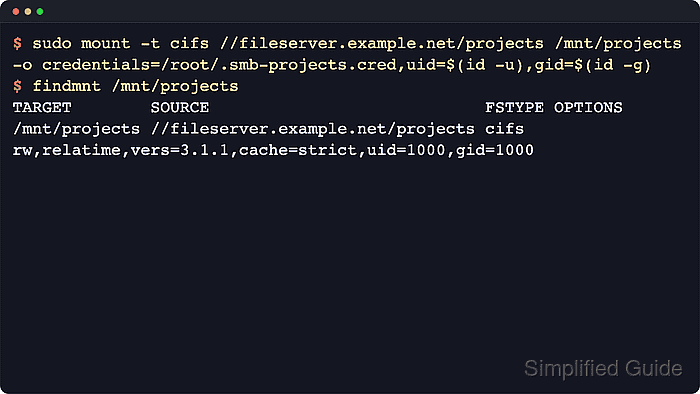
The standard Linux client path is the CIFS filesystem helper provided by the cifs-utils package. It mounts a remote path such as //fileserver.example.net/projects onto a local directory like /mnt/projects so the share can be accessed with normal shell commands and applications instead of a separate transfer tool.
Successful access depends on a reachable server, a share name that actually exists, and credentials that the remote host accepts. Current SUSE systems mount newer SMB protocol versions by default, so older SMB1-only servers can fail until an explicit vers=1.0 option is added, which weakens security and should only be used when the server cannot be upgraded.
Steps to access an SMB shared folder in openSUSE and SLES:
- Open a terminal session with a user account that can run sudo.
- Install the cifs-utils package if it is not already present.
$ sudo zypper install cifs-utils
The following NEW package is going to be installed:
  cifs-utils
1 new package to install.
##### snipped #####
- Create a local mount point for the remote share.
$ sudo mkdir -p /mnt/projects
Any empty directory can be used as the mount point, but /mnt/projects keeps the example predictable and easy to recognize later.
- Create a credentials file for the SMB account.
$ sudo vi /root/.smb-projects.cred
username=shareuser
password=SHARE_PASSWORD
domain=EXAMPLE
Omit the domain line when the share uses a local server account instead of domain or Active Directory authentication.
- Restrict the credentials file so other local users cannot read the password.
$ sudo chmod 600 /root/.smb-projects.cred
Leaving the credentials file world-readable exposes the SMB password to any local account that can read the file.
Tool: chmod Calculator
- Mount the SMB shared folder to the local mount point.
$ sudo mount -t cifs //fileserver.example.net/projects /mnt/projects -o credentials=/root/.smb-projects.cred,uid=$(id -u),gid=$(id -g)
Add domain=EXAMPLE to the mount options instead of the credentials file when the environment prefers keeping the domain value on the command line.
If the server only supports legacy SMB1, add vers=1.0 to the mount options only as a last resort because that protocol has weaker security.
- Confirm the remote share is mounted at the expected path.
$ findmnt /mnt/projects
TARGET        SOURCE                            FSTYPE OPTIONS
/mnt/projects //fileserver.example.net/projects cifs   rw,relatime,vers=3.1.1,cache=strict,uid=1000,gid=1000
- List the files in the mounted share to confirm the contents are accessible.
$ ls -la /mnt/projects
total 16
drwxr-xr-x 1 user user    0 Mar 29 08:30 .
drwxr-xr-x 1 root root    0 Mar 29 08:29 ..
-rw-r--r-- 1 user user 5312 Mar 28 17:04 budget.xlsx
drwxr-xr-x 1 user user    0 Mar 28 17:05 reports
- Unmount the shared folder when the session is finished.
$ sudo umount /mnt/projects
Close shells, editors, and file managers that still point into the mounted share before unmounting so the device is not reported as busy.