How to allow a port through firewalld in openSUSE and SLES
Allowing a port through firewalld is what makes a network service reachable from outside the host instead of being dropped at the firewall boundary. This is the last step that turns a listening application into something clients can actually connect to over the network.
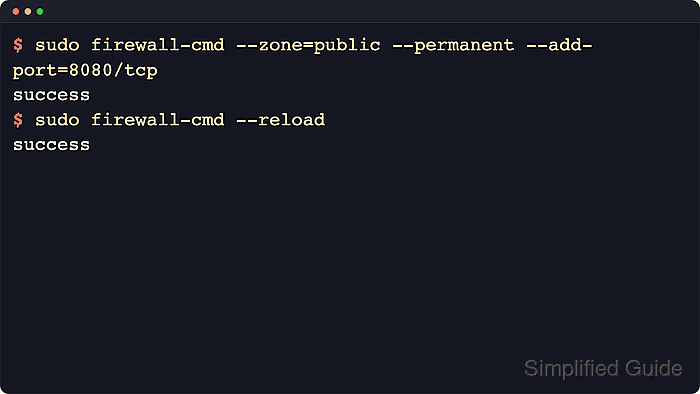
On openSUSE and SLES, firewalld manages inbound access through named zones such as public, and each zone carries its own allowed services and ports. Opening a custom port with firewall-cmd adds a rule to the zone that handles the target interface, so the correct zone matters just as much as the port number and protocol.
Administrative privileges are required, and the target service still has to be listening on the same port after the firewall rule is added. The examples below use TCP port 8080 in the public zone because that is the common default on SUSE systems, but the port, protocol, or zone may need to change for a different application or interface.
Steps to allow a port through firewalld in openSUSE and SLES:
- Open a terminal session with a user account that can run sudo.
- Confirm that firewalld is running before changing any rules.
$ sudo firewall-cmd --state
running
If the command reports not running, start the daemon with sudo systemctl enable --now firewalld before continuing.
- Check which zone handles inbound traffic for the target interface.
$ sudo firewall-cmd --get-active-zones
public
  interfaces: enp1s0
Use the zone shown for the interface that receives the connection. Many openSUSE and SLES systems use public by default, but multi-homed servers and custom firewall policies often do not.
- Add the required port to the permanent rules for that zone, replacing 8080/tcp with the port and protocol that the application actually uses.
$ sudo firewall-cmd --zone=public --permanent --add-port=8080/tcp
success
Use a range such as 5000-5005/udp when the application needs multiple contiguous ports.
If firewalld already provides a named service such as http, https, or ssh, using --add-service is usually clearer than opening a raw port.
Tool: Port List Checker
- Reload firewalld so the permanent rule becomes active immediately.
$ sudo firewall-cmd --reload
success
A reload replaces runtime-only changes with the permanent rules on disk, so saving the new port first keeps the change from being discarded.
- List the allowed ports in the same zone to confirm that the new rule is present.
$ sudo firewall-cmd --zone=public --list-ports
8080/tcp
Use sudo firewall-cmd --zone=public --list-all when a full zone summary is more useful than the short ports list.
- Verify that the target application is listening on the port locally.
$ sudo ss -ltn '( sport = :8080 )'
State  Recv-Q Send-Q Local Address:Port Peer Address:PortProcess
LISTEN 0      128          0.0.0.0:8080      0.0.0.0:*
An open firewall rule only permits traffic through the host firewall. Remote clients still cannot connect until the service binds to the same port.
- Test the port from another host on the same network path.
$ nc -vz 192.0.2.10 8080
Connection to 192.0.2.10 8080 port [tcp/http-alt] succeeded!
If the connection still fails, check the service bind address, upstream network policy, and any cloud or perimeter firewall before adding more host-level rules.