How to clean up disk space in openSUSE and SLES
Running out of space on openSUSE or SLES can block zypper updates, interrupt logging, and prevent snapshot creation on systems that rely on btrfs recovery points. Recovering space quickly keeps package management, system services, and routine administration from failing under pressure.
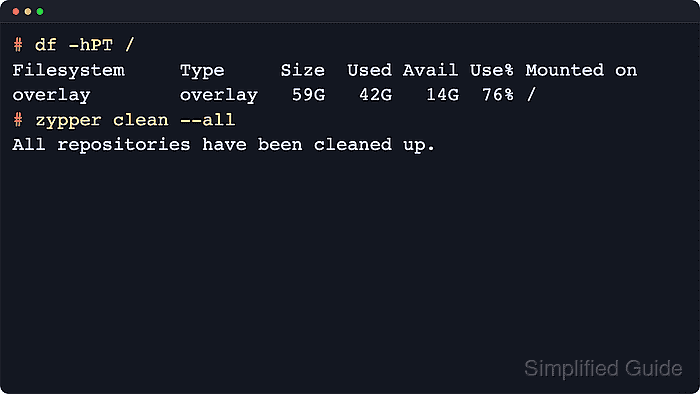
Disk usage on openSUSE and SLES is usually concentrated in a few predictable areas: the active filesystem mount point, downloaded package payloads under /var/cache/zypp, archived journals under /var/log/journal, and, on btrfs roots, snapshot storage managed through snapper. A short pass with df, du, zypper, and journalctl identifies the real space consumer before anything is removed.
Blind deletion under paths such as /.snapshots, /var/lib/rpm, or application data directories can break package state or remove recovery history that may still be needed. Safe cleanup starts with caches and retained logs, continues with carefully reviewed package removals, and uses snapper itself when snapshots are the reason the filesystem is full.
Steps to clean up disk space in openSUSE and SLES:
- Check which filesystem is actually full before removing anything.
$ df -hPT / /var /home 2>/dev/null
Focus on the mount point where Use% is highest; if /var or /home is on a separate filesystem, run the next inspection steps against that mount point instead of always using the root filesystem.
- Summarize the largest top-level directories on the affected filesystem to find the real space consumer.
$ sudo du -xhd1 / 2>/dev/null | sort -h
The -x option keeps the scan on one filesystem so other mounts do not distort the results.
- Clear cached package files and repository metadata that zypper can rebuild.
$ sudo zypper clean --all
All repositories have been cleaned up.
This removes downloaded package payloads and cached metadata under /var/cache/zypp without uninstalling any currently installed packages.
- List packages that the dependency resolver currently marks as unneeded before removing any software.
$ zypper packages --unneeded
Review the list carefully; packages that were renamed, moved between patterns, or installed for occasional workflows can still be important even when zypper marks them as unneeded.
- Remove only the reviewed unneeded packages and their now-unused dependencies.
$ sudo zypper remove --clean-deps <package_name>
Replace <package_name> with one or more packages confirmed in the previous step, and stop at the transaction summary if core tools or expected services appear unexpectedly.
- Check journal size and trim archived logs if /var/log/journal is contributing to the shortage.
$ sudo journalctl --disk-usage
$ sudo journalctl --vacuum-size=200M
Adjust 200M to the retention target that fits the system; the vacuum command removes only archived journal files until usage drops below that size.
Reducing journal retention removes older troubleshooting history, so avoid aggressive limits on systems where incident forensics or compliance logging matter.
- Verify that free space has increased on the affected filesystem after cleanup.
$ df -hPT / /var /home 2>/dev/null
Compare the final Use% and Avail values with the first check to confirm that the cleanup changed the filesystem that was actually under pressure.