Table of Contents
How to add, change, or remove an SSH key passphrase
An SSH private key passphrase decides whether a copied key file can be used immediately or must be unlocked first. Updating that passphrase is a local key-file change, so it is useful when a workstation changes owners, a passphrase is known by too many people, or an automation key is deliberately left unencrypted.
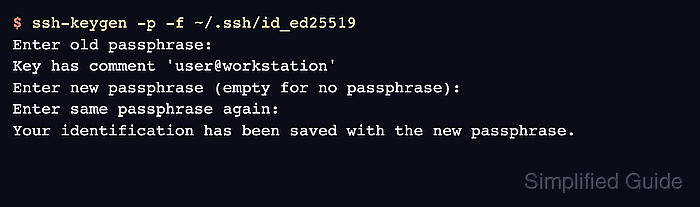
OpenSSH stores the public key separately from the private key. The ssh-keygen -p command rewrites the private key with new passphrase protection while keeping the same key material and comment, so servers that already trust the matching public key do not need new authorized_keys entries.
Keep a backup before rewriting a private key, and remove a passphrase only when the key file is protected by account permissions, disk encryption, hardware storage, or another control. If ssh-agent has already cached the key, remove and add the identity again after the change so future sessions use the current passphrase state.
Related: How to create an SSH key pair
Related: How to configure passwordless SSH login
Tool: SSH Key Fingerprint Checker
Methods to manage an SSH key passphrase:
Steps to add a passphrase to an SSH key:
Use this method when the private key currently opens without a passphrase and should require one before use.
- Back up the private key file before rewriting it.
$ cp -p ~/.ssh/id_ed25519 ~/.ssh/id_ed25519.backup
The backup is also a private key. Keep it owner-readable only and remove it after confirming the passphrase change.
- Record the current public key fingerprint.
$ ssh-keygen -lf ~/.ssh/id_ed25519.pub
256 SHA256:vv7+dudMUC5ug11b0SJM7JErZn1vvK5FeUdvZYuLN1k user@workstation (ED25519)
The fingerprint identifies the public key that servers already trust. It should stay the same after the private key is re-encrypted.
- Add the new passphrase to the private key.
$ ssh-keygen -p -f ~/.ssh/id_ed25519
Key has comment 'user@workstation'
Enter new passphrase (empty for no passphrase):
Enter same passphrase again:
Your identification has been saved with the new passphrase.
The -f option names the private key explicitly, which avoids changing a different default key by mistake.
- Confirm that the key now asks for a passphrase before printing the public key.
$ ssh-keygen -y -f ~/.ssh/id_ed25519
Enter passphrase for "~/.ssh/id_ed25519":
ssh-ed25519 AAAAC3NzaC1lZDI1NTE5AAAAIHbe3AdFxFsytQyYz0EVjNSpwEoiW1h3UyXj9PybQFLM user@workstation
A passphrase prompt followed by the public key line confirms that the private key can be decrypted with the new passphrase.
- Check that the public key fingerprint is unchanged.
$ ssh-keygen -lf ~/.ssh/id_ed25519.pub
256 SHA256:vv7+dudMUC5ug11b0SJM7JErZn1vvK5FeUdvZYuLN1k user@workstation (ED25519)
If ssh-agent already holds this identity, reload it so the agent prompts for the current passphrase state.
Related: How to add an SSH key to ssh-agent - Remove the backup after confirming the protected key works.
$ rm ~/.ssh/id_ed25519.backup
Steps to change an SSH key passphrase:
Use this method when the private key already has a passphrase and the old passphrase should be replaced.
- Back up the private key file before rewriting it.
$ cp -p ~/.ssh/id_ed25519 ~/.ssh/id_ed25519.backup
Keep the backup private. It still unlocks with the old passphrase until it is removed.
- Record the current public key fingerprint.
$ ssh-keygen -lf ~/.ssh/id_ed25519.pub
256 SHA256:vv7+dudMUC5ug11b0SJM7JErZn1vvK5FeUdvZYuLN1k user@workstation (ED25519)
- Change the private key passphrase.
$ ssh-keygen -p -f ~/.ssh/id_ed25519
Enter old passphrase:
Key has comment 'user@workstation'
Enter new passphrase (empty for no passphrase):
Enter same passphrase again:
Your identification has been saved with the new passphrase.
An incorrect old passphrase prevents ssh-keygen from opening the private key. Stop and confirm the file path before retrying repeatedly.
- Confirm that the key opens with the new passphrase.
$ ssh-keygen -y -f ~/.ssh/id_ed25519
Enter passphrase for "~/.ssh/id_ed25519":
ssh-ed25519 AAAAC3NzaC1lZDI1NTE5AAAAIHbe3AdFxFsytQyYz0EVjNSpwEoiW1h3UyXj9PybQFLM user@workstation
- Check that the public key fingerprint is unchanged.
$ ssh-keygen -lf ~/.ssh/id_ed25519.pub
256 SHA256:vv7+dudMUC5ug11b0SJM7JErZn1vvK5FeUdvZYuLN1k user@workstation (ED25519)
Changing the passphrase does not change the public key, so remote authorized_keys entries do not need to be replaced.
- Remove the backup after confirming the changed passphrase works.
$ rm ~/.ssh/id_ed25519.backup
Steps to remove a passphrase from an SSH key:
Use this method only when the private key must open without an interactive passphrase prompt.
- Back up the private key file before rewriting it.
$ cp -p ~/.ssh/id_ed25519 ~/.ssh/id_ed25519.backup
- Record the current public key fingerprint.
$ ssh-keygen -lf ~/.ssh/id_ed25519.pub
256 SHA256:vv7+dudMUC5ug11b0SJM7JErZn1vvK5FeUdvZYuLN1k user@workstation (ED25519)
- Start the passphrase change on the private key.
$ ssh-keygen -p -f ~/.ssh/id_ed25519
Enter old passphrase:
Key has comment 'user@workstation'
Enter new passphrase (empty for no passphrase):
Enter same passphrase again:
Your identification has been saved with the new passphrase.
At the new passphrase prompts, press Enter twice without typing a passphrase. The key file will then authenticate without local passphrase protection.
- Confirm that the key no longer asks for a passphrase.
$ ssh-keygen -y -f ~/.ssh/id_ed25519
ssh-ed25519 AAAAC3NzaC1lZDI1NTE5AAAAIHbe3AdFxFsytQyYz0EVjNSpwEoiW1h3UyXj9PybQFLM user@workstation
No prompt before the public key line means the private key is no longer encrypted with a passphrase.
- Check that the public key fingerprint is unchanged.
$ ssh-keygen -lf ~/.ssh/id_ed25519.pub
256 SHA256:vv7+dudMUC5ug11b0SJM7JErZn1vvK5FeUdvZYuLN1k user@workstation (ED25519)
If ssh-agent already holds the older protected identity, reload it so later commands do not depend on cached decrypted key material.
Related: How to add an SSH key to ssh-agent - Remove the backup after confirming the unprotected key state is intentional.
$ rm ~/.ssh/id_ed25519.backup