How to enable or disable X11 forwarding on an SSH server
Remote graphical programs only open over SSH when the server permits X11 forwarding and the client requests it for the session. A server-side X11Forwarding setting that does not match the intended policy either blocks legitimate GUI tools or leaves a display path available to users who do not need it.
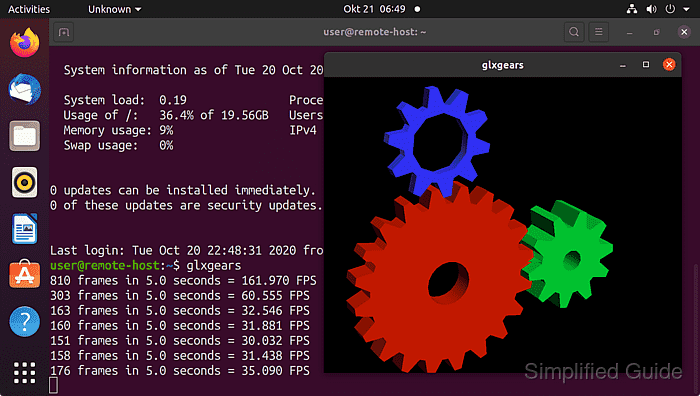
OpenSSH reads the server setting from /etc/ssh/sshd_config and any included server configuration files. The effective configuration reported by sshd -T shows the value sshd will use because package defaults, drop-in files, and earlier directives can change which X11Forwarding value wins.
When forwarding is enabled, the server also needs xauth so sshd can create the temporary authorization cookie used by the forwarded display. Keep X11UseLocalhost set to yes unless there is a specific legacy X11 client requirement, because loopback binding keeps the proxy display off the wider network.
Steps to enable or disable SSH X11 forwarding:
- Keep an existing administrator session or console path open before changing the SSH server configuration.
A bad sshd configuration or a policy change that blocks the only working login method can prevent new remote access.
- Check the current effective X11 forwarding settings.
$ sudo sshd -T
##### snipped #####
x11forwarding yes
x11uselocalhost yes
xauthlocation /usr/bin/xauth
##### snipped #####
sshd -T prints the configuration that sshd would use after parsing the main file, included files, and defaults.
- Install xauth on the server when X11 forwarding will be enabled.
$ sudo apt update && sudo apt install --assume-yes xauth
##### snipped #####
xauth is already the newest version (1:1.1.2-1build1).
On RHEL, Fedora, and similar systems, install the xorg-x11-xauth package instead.
- Open a local server configuration override.
$ sudoedit /etc/ssh/sshd_config.d/60-x11-forwarding.conf
Use this drop-in path when /etc/ssh/sshd_config includes /etc/ssh/sshd_config.d/*.conf. Otherwise, edit /etc/ssh/sshd_config directly.
- Set the desired X11 forwarding policy.
# Allow X11 forwarding for users who request it with ssh -X or ssh -Y.
X11Forwarding yes
X11UseLocalhost yes
Use X11Forwarding no to disable server-approved X11 forwarding. Leave X11UseLocalhost as yes unless a known legacy X11 client cannot use the loopback proxy display.
- Test the SSH daemon configuration.
$ sudo sshd -t
No output means the configuration parsed successfully.
Related: How to test SSH server configuration - Reload the SSH server service.
$ sudo systemctl reload ssh
Use sudo systemctl reload sshd on distributions that package OpenSSH as the sshd unit. If reload is unsupported, restart the unit during a maintenance window.
Related: How to manage the SSH server service with systemctl - Verify the effective setting after the reload.
$ sudo sshd -T
##### snipped #####
x11forwarding yes
x11uselocalhost yes
xauthlocation /usr/bin/xauth
##### snipped #####
If the output still shows the old value, another earlier server configuration file is taking precedence.
- Confirm an enabled server creates a forwarded display for a new client session.
$ ssh -X user@host.example.net 'echo "$DISPLAY"'
localhost:10.0
The client must have a local X server available. Use -Y only for trusted servers that need trusted X11 forwarding.
- Confirm a disabled server refuses a new X11 forwarding request.
$ ssh -X user@host.example.net 'echo "${DISPLAY:-unset}"'
X11 forwarding request failed on channel 0
unset