How to disable SSH password authentication
Password logins on an SSH server create a remote guessing surface even when account passwords are strong. Disabling the OpenSSH password authentication method keeps new sessions from accepting a remote account password directly, so administrators must use keys, certificates, or another approved method that was tested before the change.
Current Debian and Ubuntu OpenSSH packages load /etc/ssh/sshd_config.d/*.conf near the start of the main daemon configuration. Because sshd usually uses the first value it reads for a global directive, an early local drop-in is a clearer hardening point than editing a commented default later in /etc/ssh/sshd_config.
The PasswordAuthentication directive does not by itself remove every password-like prompt on every server. Keyboard-interactive authentication can still support PAM-backed password or one-time-code prompts when it is enabled, so key-only policy checks should also review KbdInteractiveAuthentication and any AuthenticationMethods rules before closing the recovery session.
Steps to disable SSH password authentication:
- Keep one administrator session open on the server before changing SSH authentication.
A bad authentication change can block new remote logins. Keep a separate console path or a second session until the final login test passes.
- Confirm key-based login works from a separate client.
$ ssh user@host.example.net 'echo key login accepted'
key login accepted
- Inspect the main sshd configuration for an included drop-in directory.
$ sudo less /etc/ssh/sshd_config
##### snipped #####
Include /etc/ssh/sshd_config.d/*.conf
##### snipped #####
If the server does not include /etc/ssh/sshd_config.d/*.conf, place the same directive in /etc/ssh/sshd_config before any later PasswordAuthentication line.
- Create an early local drop-in file for the password-authentication override.
$ sudoedit /etc/ssh/sshd_config.d/00-disable-password-authentication.conf
The low numeric prefix keeps the local value ahead of later package or cloud snippets in the include order.
- Set PasswordAuthentication to no in the drop-in file.
PasswordAuthentication no
This disables only the password authentication method. Disable keyboard-interactive separately when PAM-backed password or OTP prompts must also be removed.
Related: How to disable keyboard-interactive authentication in SSH - Test the sshd configuration syntax.
$ sudo sshd -t
No output means the daemon parsed the active configuration tree successfully.
Related: How to test SSH server configuration - Reload the SSH service.
$ sudo systemctl reload ssh
Reloading applies the authentication change to new sessions. Keep the existing administrator session open, and use sudo systemctl reload sshd on distributions where the service unit is sshd instead of ssh.
Related: How to manage the SSH server service with systemctl - Confirm the SSH service is active after the reload.
$ systemctl is-active ssh
active
Use sshd as the unit name on distributions that package the server as sshd.service.
- Verify the effective password-authentication setting.
$ sudo sshd -T
port 22
addressfamily any
listenaddress [::]:22
listenaddress 0.0.0.0:22
usepam yes
##### snipped #####
pubkeyauthentication yes
passwordauthentication no
kbdinteractiveauthentication no
##### snipped #####
The passwordauthentication no line shows the daemon is using the disabled password setting. If kbdinteractiveauthentication reports yes, challenge-style prompts may still be offered.
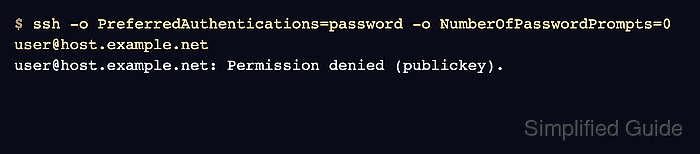
- Probe the server from a client using only password authentication.
$ ssh -o PreferredAuthentications=password -o NumberOfPasswordPrompts=0 user@host.example.net
user@host.example.net: Permission denied (publickey).
The command is expected to fail. The offered-method list should not include password; if it does, review include order or any matching Match block.
- Confirm key-based login still works from a separate client.
$ ssh user@host.example.net 'echo key login accepted'
key login accepted