How to back up and restore snap data snapshots
Snap data snapshots preserve user, system, and configuration data managed by snapd for one or more installed snaps. They provide a recovery point before removal, migration, risky refreshes, or host replacement when the application stores state under snap-managed paths.
The snap save command creates a snapshot set, snap check-snapshot verifies integrity, and snap restore writes the saved data back to an installed snap. Snapshots can also be exported to a zip file and imported on another host for a recovery test.
A completed recovery workflow should create a snapshot, verify it, export it when portability matters, restore it onto an installed snap, and confirm that the application data or service behavior matches the saved state. Stop service snaps before restoring their data so running processes do not write conflicting state during the restore.
Related: How to remove a snap package
Related: How to revert a snap package
Related: How to control snap services
Steps to back up and restore snap data snapshots:
- Save a snapshot for one snap.
$ sudo snap save vlc
Set  Snap  Age    Version  Rev   Size   Notes
30   vlc   1.00s  3.0.20   3777  882kB  -
Run sudo snap save without a snap name to snapshot all installed snaps.
- List the saved snapshot set.
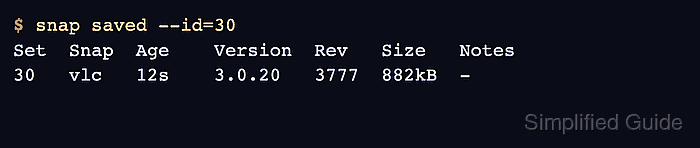
$ snap saved --id=30
Set  Snap  Age    Version  Rev   Size   Notes
30   vlc   12s    3.0.20   3777  882kB  -
- Verify snapshot integrity.
$ sudo snap check-snapshot 30
Snapshot #30 verified successfully.
- Export the snapshot when it needs to leave the host.
$ sudo snap export-snapshot 30 vlc-snapshot-30.zip
Exported snapshot #30 into "vlc-snapshot-30.zip"
- Stop snap services before restoring service data.
$ sudo snap stop vlc
error: snap "vlc" has no services
For service snaps, stop the affected services first.
Related: How to control snap services
- Restore the snapshot.
$ sudo snap restore 30 vlc
Restored snapshot #30.
Restore overwrites current snap-managed data for the selected snap. Export or save a new snapshot first if the current state may be needed later.
- Confirm that the snapshot remains available after restore.
$ snap saved --id=30
Set  Snap  Age    Version  Rev   Size   Notes
30   vlc   5m12s  3.0.20   3777  882kB  -
- Delete the snapshot when it is no longer needed.
$ sudo snap forget 30
Snapshot #30 forgotten.