Removing a snap package unmounts the application revision and removes the package from the installed snap list. The operation may also create an automatic data snapshot unless the remove command uses --purge.
The package removal only targets the named snap. Base snaps such as core22, content snaps, and other application snaps remain installed when another package still depends on them or when they were installed separately.
A completed removal should leave snap list <name> without the package and any snap-owned services absent from snap services. Check snap saved after removal when application data might need to be restored later.
Related: How to back up and restore snap data snapshots
Related: How to check a snap service status
Related: Remove snapd from Ubuntu
Steps to remove a snap package:
- Check the package before removing it.
$ snap list hello-world
Name         Version  Rev  Tracking       Publisher  Notes
hello-world 6.4      29   latest/stable  canonical  -
- Check whether the snap provides services.
$ snap services hello-world
error: snap "hello-world" has no services
Stop service snaps during a maintenance window when clients depend on them.
Related: How to control snap services
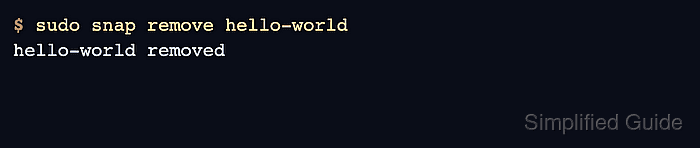
- Remove the snap package.
$ sudo snap remove hello-world
hello-world removed
Without --purge, snapd may keep an automatic data snapshot for a limited retention period.
- Confirm that the package is no longer installed.
$ snap list hello-world
error: no matching snaps installed
- Check for an automatic removal snapshot.
$ snap saved
Set  Snap         Age    Version  Rev  Size   Notes
12   hello-world  2m40s  6.4      29   4.0kB  auto
Use snap restore <set-id> only after reinstalling a compatible snap.
- Remove a snap without keeping a snapshot when data recovery is not needed.
$ sudo snap remove hello-world --purge
hello-world removed
--purge skips the automatic snapshot and removes recoverable snap data for that package.

Mohd Shakir Zakaria is a cloud architect with deep roots in software development and open-source advocacy. Certified in AWS, Red Hat, VMware, ITIL, and Linux, he specializes in designing and managing robust cloud and on-premises infrastructures.


