How to check a snap service status
Some snaps provide background services in addition to user-facing commands or desktop launchers. Checking snap service status shows whether those daemons are enabled at startup and whether they are currently active, inactive, socket-activated, or timer-activated.
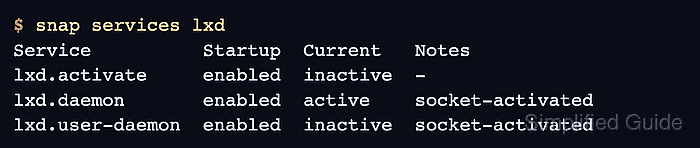
The snap services command reports the service view managed by snapd. It is narrower than a full systemctl unit list because it groups services by snap name and uses snapd's startup and current-state labels.
A completed check should identify the exact service name and the expected Startup and Current values. Use snap logs next when a service is inactive or failing unexpectedly.
Related: How to control snap services
Related: How to view snap service logs
Related: How to check snap changes and tasks
Steps to check a snap service status:
- List snap services on the system.
$ snap services
Service                    Startup  Current   Notes
lxd.activate               enabled  inactive  -
lxd.daemon                 enabled  active    socket-activated
lxd.user-daemon            enabled  inactive  socket-activated
nextcloud.apache           enabled  active    -
nextcloud.mysql            enabled  active    -
- Check services for one snap.
$ snap services lxd
Service          Startup  Current   Notes
lxd.activate     enabled  inactive  -
lxd.daemon       enabled  active    socket-activated
lxd.user-daemon  enabled  inactive  socket-activated
- Check one service by its full snap service name.
$ snap services lxd.daemon
Service     Startup  Current  Notes
lxd.daemon  enabled  active   socket-activated
- Read recent logs when the state is not expected.
$ sudo snap logs lxd.daemon
2026-06-24T09:30:12+08:00 lxd.daemon[1482]: => LXD is ready
Related: How to view snap service logs
- Inspect snapd change records when a service state changed after a refresh or restart.
$ snap changes
ID   Status  Spawn               Ready               Summary
45   Done    today at 09:29 +08  today at 09:30 +08  Restart "lxd.daemon" snap service
Related: How to check snap changes and tasks