Snap service logs show the recent output from daemons shipped inside installed snaps. They are useful when a service is inactive, restarting, failing after a refresh, or accepting connections but not behaving as expected.
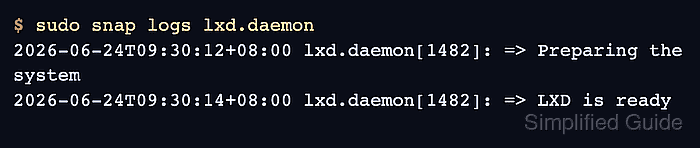
The snap logs command reads logs for all services in a snap or for one full service name. By default it prints a small recent tail, while -n=all expands the output and -f follows new entries as they arrive.
A completed log check should narrow the output to the snap or service that owns the symptom. Pair logs with snap services and snap changes when the failure may be tied to a service state change or refresh task.
Related: How to check a snap service status
Related: How to control snap services
Related: How to check snap changes and tasks
Steps to view snap service logs:
- Identify the snap service name.
$ snap services lxd
Service          Startup  Current   Notes
lxd.activate     enabled  inactive  -
lxd.daemon       enabled  active    socket-activated
lxd.user-daemon  enabled  inactive  socket-activated
Related: How to check a snap service status
- View recent logs for all services in the snap.
$ sudo snap logs lxd
2026-06-24T09:30:12+08:00 lxd.daemon[1482]: => Preparing the system
2026-06-24T09:30:14+08:00 lxd.daemon[1482]: => LXD is ready
- View logs for one service.
$ sudo snap logs lxd.daemon
2026-06-24T09:30:14+08:00 lxd.daemon[1482]: => LXD is ready
- Increase the number of displayed lines.
$ sudo snap logs -n=50 lxd.daemon
2026-06-24T09:28:01+08:00 lxd.daemon[1482]: Starting up
##### snipped #####
2026-06-24T09:30:14+08:00 lxd.daemon[1482]: => LXD is ready
- Follow new log entries during a restart or test.
$ sudo snap logs -f lxd.daemon
2026-06-24T09:41:18+08:00 lxd.daemon[1482]: => LXD is ready
Stop the follow view with Ctrl+C after the expected event appears.

Mohd Shakir Zakaria is a cloud architect with deep roots in software development and open-source advocacy. Certified in AWS, Red Hat, VMware, ITIL, and Linux, he specializes in designing and managing robust cloud and on-premises infrastructures.


