How to connect a snap interface
Snap interfaces grant or deny a confined snap's access to host resources such as cameras, removable media, audio recording, hardware devices, and shared services. When an application cannot see a resource that the host can see, the interface connection is often the first place to check.
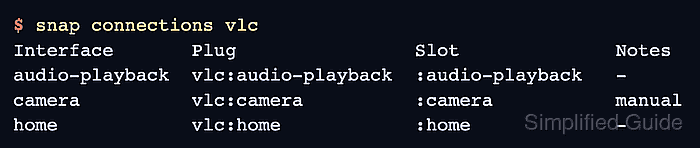
Interfaces connect a snap plug to a slot. Many safe interfaces connect automatically during installation, while others require a manual snap connect command because they expose hardware, private files, or another sensitive host capability.
A completed connection should appear in snap connections <snap> with the expected plug and slot. The final proof is the application using the resource, because a visible connection only proves the access rule was applied.
Related: How to check snap package information
Related: How to install a snap package
Steps to connect a snap interface:
- List the snap's current interface connections.
$ snap connections vlc
Interface       Plug                Slot              Notes
audio-playback  vlc:audio-playback  :audio-playback   -
camera          vlc:camera          -                 -
home            vlc:home            :home             -
A dash in the Slot column means the plug is not connected.
- Inspect the interface before granting access.
$ snap interface camera
name:    camera
summary: allows access to all cameras
plugs:
  - vlc
slots:
  - snapd
- Connect the snap plug to the system slot.
$ sudo snap connect vlc:camera :camera
Connect only the interface needed for the task. Interfaces such as camera, audio-record, and removable-media expose real host resources.
- Confirm that the plug is connected.
$ snap connections vlc
Interface       Plug                Slot              Notes
audio-playback  vlc:audio-playback  :audio-playback   -
camera          vlc:camera          :camera           manual
home            vlc:home            :home             -
- Test the application access that previously failed.
$ vlc v4l2:///dev/video0
VLC media player opens the camera input
Use the application action that triggered the missing-access symptom, such as opening a camera, recording audio, or browsing removable media.
- Disconnect the interface when temporary access is no longer needed.
$ sudo snap disconnect vlc:camera :camera