How to install snapd on Debian
Installing snapd on Debian adds the daemon and command-line client needed to install and manage snap packages. Debian does not normally ship snap support enabled in the same way as Ubuntu desktops, so the supported path starts with the distribution package and finishes with a simple snap install test.
The snapd package provides the snap command, the snapd.socket activation unit, and the local service that talks to the Snap Store. Current Snap documentation also recommends installing the snapd snap after the Debian package so systems can receive the latest daemon features through snap itself.
The shell path may not include /snap/bin until the user logs out and back in, opens a new login shell, or restarts. A completed setup should show snap and snapd versions, have the socket listening, and run a small test snap from the store.
Related: How to install a snap package
Related: How to check snap package information
Steps to install snapd on Debian:
- Open a terminal with sudo privileges.
- Refresh the APT package index.
$ sudo apt update
- Install the snapd package.
$ sudo apt install snapd
If sudo is not installed on the Debian host, switch to root with su - and run the same apt commands without sudo.
- Enable the snapd socket.
$ sudo systemctl enable --now snapd.socket
Created symlink '/etc/systemd/system/sockets.target.wants/snapd.socket' -> '/lib/systemd/system/snapd.socket'.
- Confirm that the socket is listening.
$ systemctl is-active snapd.socket
active
snapd is socket-activated, so the service can start on demand when the snap command talks to /run/snapd.socket.
- Install the snapd snap.
$ sudo snap install snapd
snapd 2.75.2 from Canonical installed
This step updates the daemon path through snap itself after the Debian package has bootstrapped snap support.
- Open a new login shell if /snap/bin was not added to the command path.
$ echo "$PATH"
/usr/local/bin:/usr/bin:/bin:/usr/local/games:/usr/games:/snap/bin
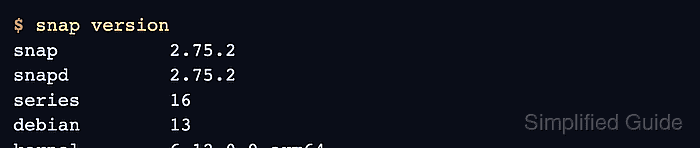
- Verify the installed snap components.
$ snap version
snap          2.75.2
snapd         2.75.2
series        16
debian        13
kernel        6.12.0-9-arm64
- Install and run a small test snap.
$ sudo snap install hello-world
hello-world 6.4 from Canonical installed
$ hello-world
Hello World!
If the install succeeds but the command is not found, open a new login shell and check that /snap/bin is present in PATH.