How to require SMB server signing
Unsigned SMB sessions can let a client and file server exchange packets without the message signatures used to detect tampering. Requiring server signing on a Samba file server makes new clients negotiate signed SMB sessions before they can use shared folders.
Samba controls this with the global server signing setting in /etc/samba/smb.conf. Current Samba defaults already require signing for an Active Directory domain controller, while ordinary standalone file servers need an explicit mandatory setting when every new session must be signed.
Existing client connections keep the protection they already negotiated until they reconnect. Test representative clients before forcing the setting on a mixed network, because old clients or appliances that cannot sign SMB traffic may stop connecting; use SMB encryption when file content confidentiality is also required.
Steps to require SMB server signing in Samba:
- Check the configured Samba server role.
$ sudo testparm -s --parameter-name='server role'
standalone server
If this host is an Active Directory domain controller, current Samba requires server signing by default. A standalone file server still needs an explicit requirement when unsigned sessions must be rejected.
- Check the current server signing mode.
$ sudo testparm -s --parameter-name='server signing'
default
default follows the server role. On a standalone file server, set server signing to mandatory when every new SMB session must be signed.
- Back up the Samba configuration file.
$ sudo cp --archive /etc/samba/smb.conf /etc/samba/smb.conf.before-signing
A malformed /etc/samba/smb.conf can block new client sessions after reload. Keep the backup until a signed client connection succeeds.
- Open the Samba configuration file.
$ sudoedit /etc/samba/smb.conf
- Set server signing in the existing [global] section.
- /etc/samba/smb.conf
[global]
    server signing = mandatory
Replace any existing server signing line in [global] instead of adding a duplicate. Keep share-specific sections unchanged unless the server has another documented policy requirement.
- Validate the parsed server signing value.
$ sudo testparm -s --parameter-name='server signing'
required
testparm accepts mandatory and may print the normalized value as required. Fix any parse error before reloading Samba.
Related: How to validate Samba configuration with testparm - Reload the running smbd configuration.
$ sudo smbcontrol smbd reload-config
Existing SMB sessions keep their current negotiation state. New or reconnected sessions use the reloaded signing policy.
Related: How to check Samba service status - Open a signed client session and leave it connected.
$ smbclient //files.example.net/team -U alex --client-protection=sign
Password for [WORKGROUP\alex]:
Try "help" to get a list of possible commands.
smb: \> ls
  .                                   D        0  Tue Jun 16 09:40:00 2026
  ..                                  D        0  Tue Jun 16 09:40:00 2026

        123530212 blocks of size 1024. 107930900 blocks available
smb: \>
Replace files.example.net, team, and alex with the server, share, and account used by the file server. Leave the prompt open for the server-side status check.
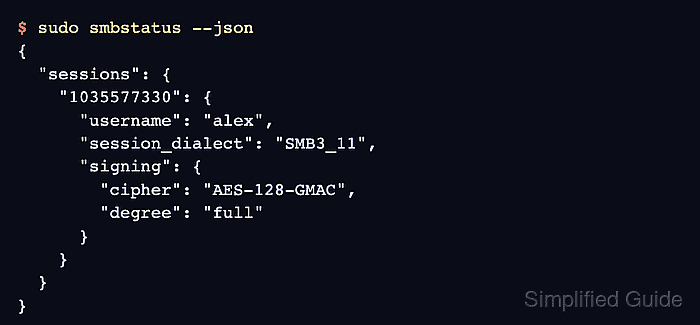
- Verify the live session is fully signed from the server.
$ sudo smbstatus --json
{
  "sessions": {
    "1035577330": {
      "username": "alex",
      "session_dialect": "SMB3_11",
      "signing": {
        "cipher": "AES-128-GMAC",
        "degree": "full"
      }
    }
  },
  "tcons": {
    "2524944953": {
      "service": "team",
      "signing": {
        "cipher": "AES-128-GMAC",
        "degree": "full"
      }
    }
  }
}
Run this while the smbclient prompt is still connected. The session and tree connection should show signing with degree set to full.
Related: How to check active Samba connections with smbstatus - Exit the test client session.
smb: \> exit