How to click a button with Selenium
Modern web pages can render a button before JavaScript makes it ready for interaction. A reliable Selenium test waits for the intended control, sends a normal WebDriver click, and observes the page state produced by that action.
Python's EC.element_to_be_clickable() condition returns a WebElement after it is visible and enabled. The click can still be intercepted when another element covers the button's center, so overlays, dialogs, and frame context must already permit the same interaction a user would make.
The local page starts with a disabled button, enables it after a short delay, and changes a status element only when the click handler runs. Its status text therefore distinguishes a completed browser action from a click attempted too early; an application test can keep that wait-click-result boundary while using its own URL, stable locator, and meaningful result element.
Steps to click a button with Selenium:
- Create button-page.html to expose a disabled button that enables after a short delay.
- button-page.html
<!doctype html>
<html lang="en">
<meta charset="utf-8">
<title>Selenium button click demo</title>
<button id="place-order" disabled
  onclick="document.querySelector('#status').textContent='clicked'">Place order</button>
<p id="status">waiting</p>
<script>
  setTimeout(() => {
    document.querySelector("#place-order").disabled = false;
  }, 300);
</script>
</html>
- Start selenium-click-button.py with the dependency imports plus local page URL.
- selenium-click-button.py
from pathlib import Path
import shutil

from selenium import webdriver
from selenium.webdriver.chrome.options import Options
from selenium.webdriver.chrome.service import Service
from selenium.webdriver.common.by import By
from selenium.webdriver.support import expected_conditions as EC
from selenium.webdriver.support.ui import WebDriverWait


page_url = (Path(__file__).parent / "button-page.html").resolve().as_uri()
- Extend selenium-click-button.py after page_url with headless Chrome setup that prefers installed binaries.
options = Options()
options.add_argument("--headless=new")
options.add_argument("--window-size=1280,720")

browser_path = shutil.which("google-chrome") or shutil.which("chromium")
if browser_path:
    options.binary_location = browser_path

driver_path = shutil.which("chromedriver")
service = Service(driver_path) if driver_path else Service()

driver = webdriver.Chrome(service=service, options=options)
An installed ChromeDriver is used when it is on PATH. Otherwise, the empty Service() lets Selenium Manager resolve a compatible driver on supported systems.
- Append the browser-interaction block after driver creation.
try:
    driver.get(page_url)

    wait = WebDriverWait(driver, 10)
    button = wait.until(EC.element_to_be_clickable((By.ID, "place-order")))
    button_text = button.text
    button.click()
A locator-based condition finds the current element after a redraw. Prefer a stable id or data-testid over generated class names or button text.
- Finalize selenium-click-button.py with the complete status-checking program.
- selenium-click-button.py
from pathlib import Path
import shutil

from selenium import webdriver
from selenium.webdriver.chrome.options import Options
from selenium.webdriver.chrome.service import Service
from selenium.webdriver.common.by import By
from selenium.webdriver.support import expected_conditions as EC
from selenium.webdriver.support.ui import WebDriverWait


page_url = (Path(__file__).parent / "button-page.html").resolve().as_uri()

options = Options()
options.add_argument("--headless=new")
options.add_argument("--window-size=1280,720")

browser_path = shutil.which("google-chrome") or shutil.which("chromium")
if browser_path:
    options.binary_location = browser_path

driver_path = shutil.which("chromedriver")
service = Service(driver_path) if driver_path else Service()

driver = webdriver.Chrome(service=service, options=options)
try:
    driver.get(page_url)

    wait = WebDriverWait(driver, 10)
    button = wait.until(EC.element_to_be_clickable((By.ID, "place-order")))
    button_text = button.text
    button.click()

    wait.until(EC.text_to_be_present_in_element((By.ID, "status"), "clicked"))
    status = driver.find_element(By.ID, "status")

    print(f"title: {driver.title}")
    print(f"button_text: {button_text}")
    print(f"status: {status.text}")
finally:
    driver.quit()
The result wait is independent of click() returning. A timeout or any status other than clicked exposes a missing application response.
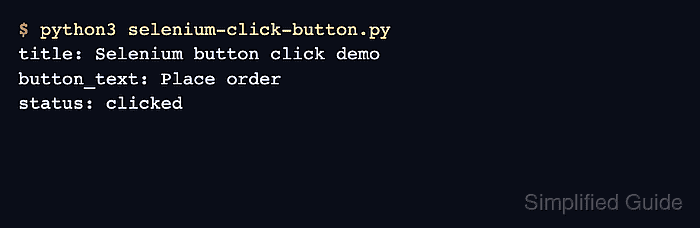
- Run selenium-click-button.py to confirm the click changes the status to clicked.
$ python3 selenium-click-button.py
title: Selenium button click demo
button_text: Place order
status: clicked