A stale element error in Selenium means a test is trying to reuse a WebElement after the browser has lost the original DOM node or the active browsing context has changed. The failure usually appears after JavaScript redraws a control, a page navigation replaces the document, or a frame or window switch leaves the old element reference outside the current context.
Selenium stores an element reference for the DOM node that was found at that moment. It does not automatically rerun the locator when that node disappears, so clicking or reading the old object can keep failing even when a visually identical button, link, or input is already visible on the page.
In Python, WebDriverWait, EC.staleness_of(), and locator-based expected conditions separate the old element from the replacement element. Other bindings use different class names, but the fix still depends on a stored locator rather than a stored WebElement.
Steps to troubleshoot Selenium stale element errors:
- Reproduce the stale element failure from a single test run.
$ python3 test_checkout.py
selenium.common.exceptions.StaleElementReferenceException: Message: stale element reference: stale element not found
##### snipped #####
Keep the first application stack frame from the failure. Runner-level retry summaries usually hide the page-object method or test helper that reused the stale WebElement.
- Classify what changed after the element was located.
If the page URL changed, navigate back to the expected page before locating the element. If a frame or window changed, switch back to that context first. If the same page still shows a matching control, treat it as a DOM replacement and relocate the element.
- Remove cached WebElement reuse from the failing path.
# Avoid this pattern across a DOM redraw.
save_button = driver.find_element(By.ID, "save")
driver.find_element(By.ID, "replace").click()
save_button.click()
A saved WebElement is only safe while the same DOM node remains attached in the same browser context. Storing it in a page-object field can make stale references repeat across multiple test methods.
- Store the locator instead of the element.
wait = WebDriverWait(driver, 10)
save_button = (By.ID, "save")
The locator must identify the replacement element after the redraw, not only the original element before the action.
- Wait for the old element to detach when the UI is expected to redraw.
old_button = driver.find_element(*save_button)
driver.find_element(By.ID, "replace").click()
wait.until(EC.staleness_of(old_button))
EC.staleness_of() proves that the old node is gone; it does not locate the replacement node.
Related: How to use explicit waits in Selenium - Relocate the element before the next action.
fresh_button = wait.until(EC.element_to_be_clickable(save_button))
fresh_button.click()
Locator-based expected conditions return a fresh WebElement when the condition is met.
- Switch back to the correct context before relocating when the failure follows a frame or window change.
driver.switch_to.default_content()
wait.until(EC.frame_to_be_available_and_switch_to_it((By.ID, "checkout-frame")))
fresh_button = wait.until(EC.element_to_be_clickable((By.ID, "save")))
Relocating in the wrong context repeats the failure because the element does not exist in the active frame or window.
Related: How to switch into an iframe with Selenium
Related: How to switch windows and tabs in Selenium - Retest the stale-element path after the locator change.
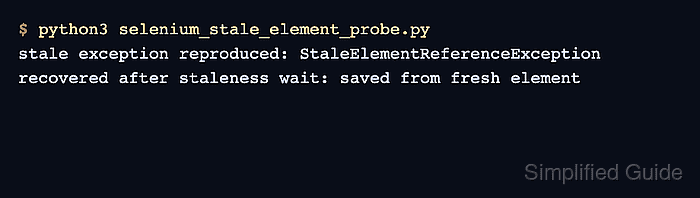
$ python3 selenium_stale_element_probe.py
stale exception reproduced: StaleElementReferenceException
recovered after staleness wait: saved from fresh element

Mohd Shakir Zakaria is a cloud architect with deep roots in software development and open-source advocacy. Certified in AWS, Red Hat, VMware, ITIL, and Linux, he specializes in designing and managing robust cloud and on-premises infrastructures.


