How to rename a Screen session
A Screen session name chosen at startup can become misleading after the work changes. Renaming the session lets later screen -ls and screen -r commands use the label that matches the job still running inside it.
Screen's sessionname command changes the label stored for the running session without closing its windows. The old shell processes continue, and commands that target the session must use the new name after the rename.
The session list is the proof source because it shows the name Screen will accept for later attach and control commands. Existing windows can keep the old $STY environment value after an external rename, and Screen can leave two sessions with the same short name, so verify the final label with screen -ls before handing the name to another operator or script.
Related: How to list Screen sessions
Related: How to attach to a Screen session
Steps to rename a Screen session:
- List sessions and identify the old name.
$ screen -ls
There is a screen on:
        18.oldname     (06/05/26 07:10:22)     (Detached)
1 Socket in /run/screen/S-admin.
Use the name after the process prefix as the -S target. Use the full identifier, such as 18.oldname, when more than one row shares the same short name.
- Rename the target session to the new label.
$ screen -S oldname -X sessionname newname
The command returns no output when Screen accepts it. Choose a new label that is not already in the list, because Screen can otherwise leave two sessions with the same short name.
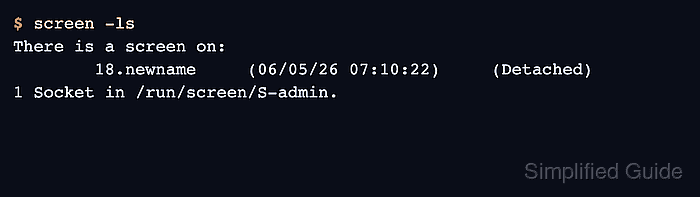
- List sessions again to confirm the same process now shows the new name.
$ screen -ls
There is a screen on:
        18.newname     (06/05/26 07:10:22)     (Detached)
1 Socket in /run/screen/S-admin.
The process number stays the same while the name after the dot changes. Use newname for later screen -r or screen -S … -X commands, and do not use $STY inside old windows as the rename proof.