How to save Screen scrollback to a file
When a command has already filled a Screen window, copying from the terminal or enabling logging after the fact can miss the lines that matter. The Screen hardcopy command can write the current window to a file, and the -h option expands that capture to include the scrollback buffer.
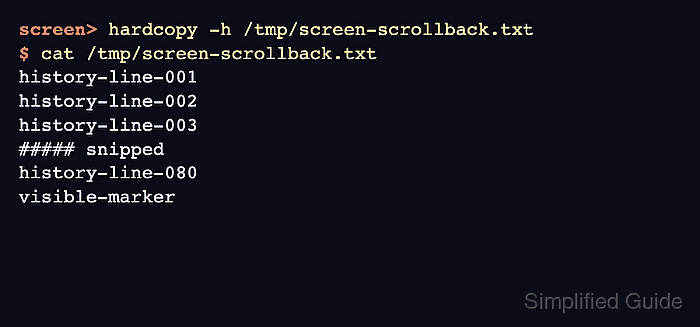
Hardcopy runs inside the selected Screen window. The default C-a h binding writes only the visible screen to hardcopy.n, while the command prompt form lets you choose a path and add -h when older lines are needed.
Use a file path you can inspect from another terminal before closing or changing the session. Screen normally overwrites an existing hardcopy file, but sessions with hardcopy_append enabled append instead, so save to a fresh path when the file is evidence for a ticket or handoff.
Related: How to enable output logging in Screen
Related: How to use copy mode in Screen
Related: How to configure Screen scrollback
Steps to save Screen scrollback to a file:
- Attach to the target Screen session.
$ screen -r work
Replace work with the session name shown by screen -ls.
Related: How to attach to a Screen session
- Select the window whose scrollback should be saved.
C-a 1
Replace 1 with the target window number or title.
Related: How to select a window in Screen
- Open the Screen command prompt from inside the selected window.
C-a :
C-a is the default command character. Use the configured prefix when the session changed it.
Related: How to use the Screen command prompt
- Write the window plus its scrollback buffer to an explicit file.
hardcopy -h /tmp/screen-scrollback.txt
Use an absolute path when the saved file must be easy to find from another terminal. Without -h, hardcopy saves only the visible screen.
- Verify that the saved file contains the expected older lines and the recent visible line.
$ cat /tmp/screen-scrollback.txt
history-line-001
history-line-002
history-line-003
##### snipped
history-line-080
visible-marker
If the file contains only the visible lines, confirm that the command included -h. If older output is still missing, the window's scrollback depth did not retain it.
Related: How to configure Screen scrollback
- Move the file to the handoff location after verifying its contents.
$ cp /tmp/screen-scrollback.txt ./screen-scrollback.txt
Keep the original file until the copied file has been attached, archived, or reviewed.