How to enable output logging in Screen
Long-running work inside Screen can scroll past before someone collects the output needed for review, incident notes, or a handoff. Window logging captures new output from one Screen window into a file while the process keeps running in the session.
Screen logging is scoped to the current window. The log command, also bound to C-a H by default, starts or stops logging for that window, and logfile changes the destination from the default screenlog.%n name to a path chosen before logging starts.
Logging starts with output that appears after it is enabled, not with text already sitting in scrollback. Set a specific file name before turning logging on, shorten the flush interval when another process must read the file immediately, and turn logging off after the capture so an unattended job does not keep appending to disk.
Related: How to save Screen scrollback to a file
Related: How to use copy mode in Screen
Steps to enable Screen output logging:
- Attach to the target Screen session.
$ screen -r work
Replace work with the session name shown by screen -ls.
Related: How to attach to a Screen session
- Select the window whose new output should be captured.
C-a 1
Replace 1 with the target window number or title.
Related: How to select a window in Screen
- Open the Screen command prompt from inside the selected window.
C-a :
C-a is the default command character. Use the configured prefix when the session changed it. The prompt runs one Screen command and then closes, so reopen it before each logfile or log command below.
Related: How to use the Screen command prompt
- Set an explicit log file path for the selected window.
logfile /tmp/screen-output.log
Without this command, Screen writes to screenlog.%n in the window's default directory and appends if that file already exists.
- Reopen the Screen command prompt and make the log file flush quickly while checking the capture.
logfile flush 1
The default flush delay is 10 seconds. A shorter interval makes the verification step reflect new output sooner.
- Reopen the Screen command prompt and enable logging for the selected window.
log on
The default C-a H binding toggles the same log state. The explicit log on command avoids accidentally turning an existing capture off.
- Produce or wait for the output that must be captured in that same Screen window.
$ echo screen log enabled
screen log enabled
Use the real command or process output that matters for the handoff. Existing scrollback is not copied into the log when logging starts.
- Verify from another terminal that the log file contains the new window output.
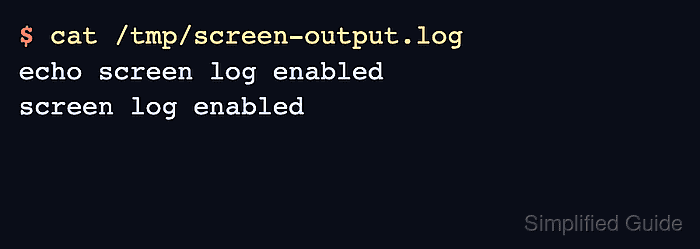
$ cat /tmp/screen-output.log
echo screen log enabled
screen log enabled
Seeing both the typed command and its output confirms that Screen logging is active for the selected window.
- Reopen the Screen command prompt and turn logging off when the capture is complete.
log off
Pressing C-a H in the logged window toggles the same logging state, but log off avoids accidentally starting a new capture when logging is already off.