How to enable mouse support in Screen
Mouse support in GNU Screen is focused on selecting visible split regions with a click. Enable it when a session has several regions open and moving focus with the pointer is faster than cycling through regions with C-a Tab.
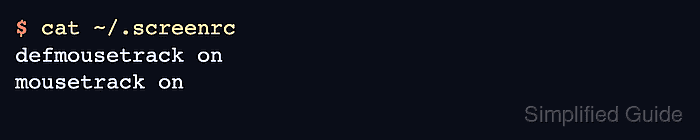
The setting is controlled by mousetrack for the active context and defmousetrack for the default used by new windows and regions. Keeping both lines in the screenrc file lets a running session apply mouse tracking when the file is sourced and keeps the behavior available after new windows are created.
Screen mouse tracking is not the same as tmux mouse mode. Text selection, mouse-wheel scrolling, and full-screen application mouse handling can still belong to the terminal emulator or to the program running inside the active window, and some Screen builds cannot report the setting through a detached screen -Q query, so the final check should be an attached click test.
Steps to enable mouse support in Screen:
- Open the Screen config file.
$ vi ~/.screenrc
Use the file selected by $SCREENRC or screen -c when your sessions do not read ~/.screenrc.
- Enable mouse tracking for new and current Screen contexts.
defmousetrack on
mousetrack on
defmousetrack sets the default state, while mousetrack on enables mouse tracking when the file is sourced into an already running session.
- Open the Screen command prompt from the attached session.
C-a :
The Screen command prompt accepts Screen commands such as source. It is separate from the shell prompt running inside a window.
- Source the config file into the running Screen session.
source ~/.screenrc
Reloading from the Screen command prompt keeps any warnings visible in the active display. From another shell, use screen -S work -X source ~/.screenrc, then still run the click test because this setting may not have a reliable detached status query.
Related: How to reload the Screen config
- Create a temporary horizontal split if the session has only one visible region.
C-a S
C-a S creates a lower split region from the focused region.
- Move focus into the blank region.
C-a Tab
C-a Tab cycles focus through visible regions.
- Create a shell in the focused region.
C-a c
The new shell gives the click test a second visible command area.
- Click a different visible region and run a harmless command.
$ pwd
/home/user
The command should appear in the region that was clicked. If the click only selects terminal text or does nothing, keep C-a Tab as the focus fallback and check whether the terminal and Screen build pass mouse events to Screen.