How to use copy mode in Screen
Long output inside a Screen window can scroll away while the command keeps running, and terminal scrollback is not always available after detach, reattach, or nested remote work. Screen copy mode freezes the window history so text can be searched, marked, copied into Screen's paste buffer, and pasted into another window.
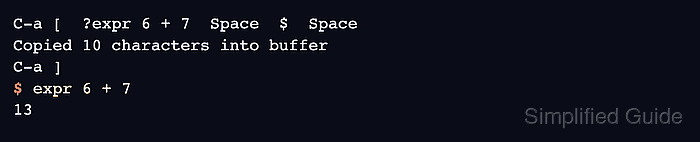
The default copy-mode binding is C-a [, with C-a Esc available as an equivalent key sequence. Inside copy mode, Screen uses vi-style movement keys, search prompts, and two Space marks to define the copied range.
Screen's paste buffer is separate from the desktop clipboard. Use the configured prefix instead of C-a if the session changed it, and paste copied text into a safe editor or empty prompt first when the selected text contains shell syntax, because C-a ] writes the buffer into the current window exactly as input.
Related: How to configure Screen scrollback
Related: How to save Screen scrollback to a file
Related: How to create a window in Screen
Steps to use copy mode in Screen:
- Enter copy mode in the active Screen window.
C-a [
The equivalent default binding C-a Esc enters the same copy and scrollback mode. Press Esc to leave copy mode without copying. Use the configured prefix when the session no longer uses C-a.
Related: How to change the Screen prefix key
- Move through the scrollback with vi-style keys or search from the current cursor position.
h j k l
C-b C-f
/ ?
C-b and C-f move by pages. The slash key searches forward, and ? searches backward.
- Set the start of the copy range.
Space
Screen highlights the range after the first mark is set.
- Move to the end of the text and set the second mark.
Space
Setting the second mark copies the highlighted range into Screen's paste buffer and exits copy mode.
- Paste the buffer into a safe target.
C-a ]
Paste into an editor or an empty prompt first when the copied text might include a trailing newline or runnable command.
- Run a harmless copied command when you need to confirm the pasted text before using it in a real shell.
$ expr 6 + 7
13
Copy expr 6 + 7 from Screen scrollback, paste it with C-a ], and run it only after the prompt contains the intended text.