How to limit rsync bandwidth during a transfer
Shared network links often carry backup traffic, interactive sessions, monitoring, and application requests at the same time. An unrestricted rsync copy can consume the available path capacity and increase latency for the other traffic even when the transfer itself is proceeding normally.
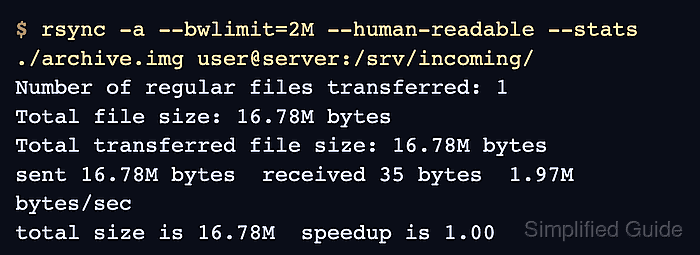
The --bwlimit option caps the rate of data sent over the rsync transfer socket. The sender writes data in blocks and pauses when necessary to bring the average rate toward the requested ceiling, so the cap can be applied to an ordinary local, SSH, or daemon transfer without changing its file-selection rules.
Short progress readings can rise above or fall below the cap because rsync buffers data internally. Measure a sufficiently large transfer by its byte count and elapsed time, then compare a source and destination checksum to confirm that the rate-limited copy finished with identical file content.
Steps to limit rsync bandwidth during a transfer:
- Choose a rate that leaves capacity for other traffic while still fitting the transfer window.
A single-letter suffix uses powers of 1024, so --bwlimit=2M means 2 MiB/s. A two-letter suffix ending in B uses powers of 1000, so --bwlimit=2MB means 2,000,000 bytes/s. An unsuffixed value means KiB/s, fractional values are accepted, and --bwlimit=0 removes the limit. Rsync rounds the rate to the nearest KiB/s and cannot set a lower ceiling than 1024 bytes/s.
- Run a transfer large enough for the rate limit to settle, and time the command.
$ time rsync -a --bwlimit=2M --stats ./archive.img backup@backup.example.net:/srv/incoming/

Number of files: 1 (reg: 1)
Number of created files: 1 (reg: 1)
Number of deleted files: 0
Number of regular files transferred: 1
Total file size: 16,777,216 bytes
Total transferred file size: 16,777,216 bytes
Literal data: 16,777,216 bytes
Matched data: 0 bytes
##### snipped #####

real    0m8.068s
user    0m0.060s
sys     0m0.049s
Dividing 16,777,216 transferred bytes by 8.068 seconds gives an average of 1.98 MiB/s, about 99% of the requested 2 MiB/s ceiling. Repeat the measurement with a representative file when storage speed, encryption, latency, or competing traffic can become the slower part of the path.
An unnecessarily low ceiling can push a backup or migration beyond its completion window. Estimate the duration before applying the cap to a production schedule.
- Calculate the source file checksum.
$ sha256sum ./archive.img
411b87c93ae60fa85e95a38273de1ccd52b0e8c96f10afcbc48911131b307301  ./archive.img
- Calculate the checksum of the remote file and confirm it matches the source hash.
$ ssh backup@backup.example.net 'sha256sum /srv/incoming/archive.img'
411b87c93ae60fa85e95a38273de1ccd52b0e8c96f10afcbc48911131b307301  /srv/incoming/archive.img
Matching SHA-256 values confirm that the destination contains the same file bytes after the rate-limited transfer.