How to log time in Redmine
Redmine time entries record how much work was spent on an issue or project. Logging time from an issue keeps the hours tied to the ticket, the user, the work date, the activity, and a short comment that explains what was done.
The issue page Log time action opens the Spent time form with the issue already selected. The project must have the Time tracking module enabled, and the signed-in user needs a project role that allows time entries.
Use the issue-level path when the work belongs to a specific ticket. After the entry is saved, Redmine adds the hours to the issue's Spent time total and lists the same row on the project's Spent time details page.
Related: How to enable Redmine time tracking
Related: How to create a Redmine issue
Related: How to add members to a Redmine project
Steps to log time in Redmine:
- Open the target issue in Redmine.
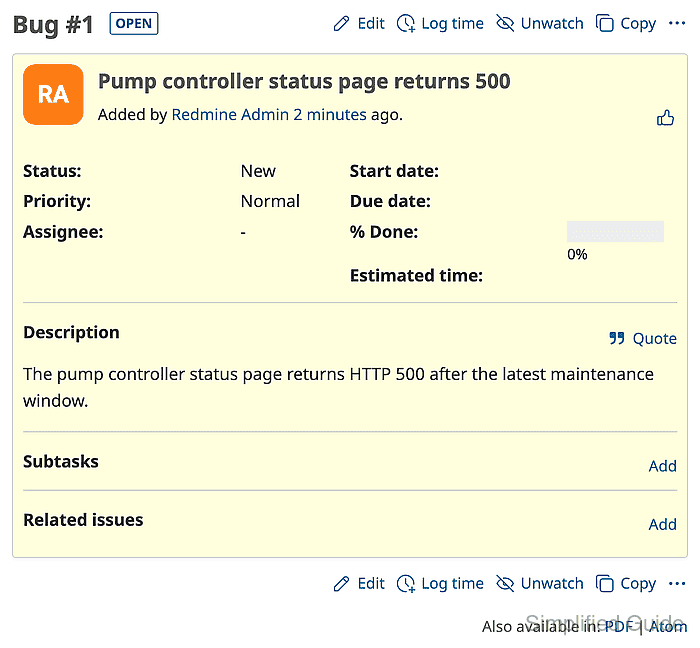
The issue should belong to a project where Time tracking is enabled.
- Click Log time.
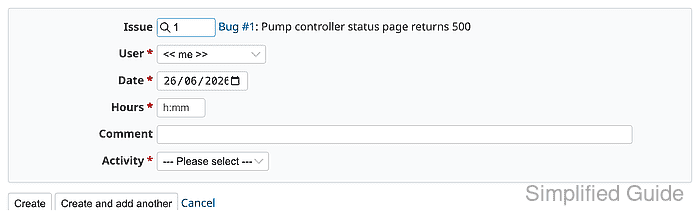
- Complete the time-entry fields with the work date, hours, activity, and comment.
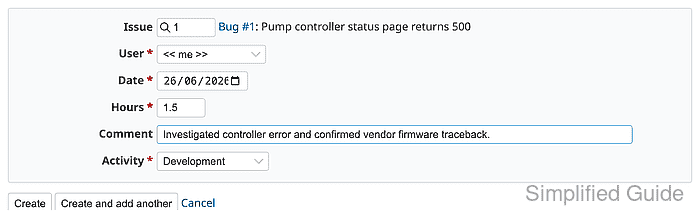
Redmine accepts decimal hours such as 1.5 and hour-minute formats such as 1:30. The saved issue view displays the accumulated time as hours and minutes.
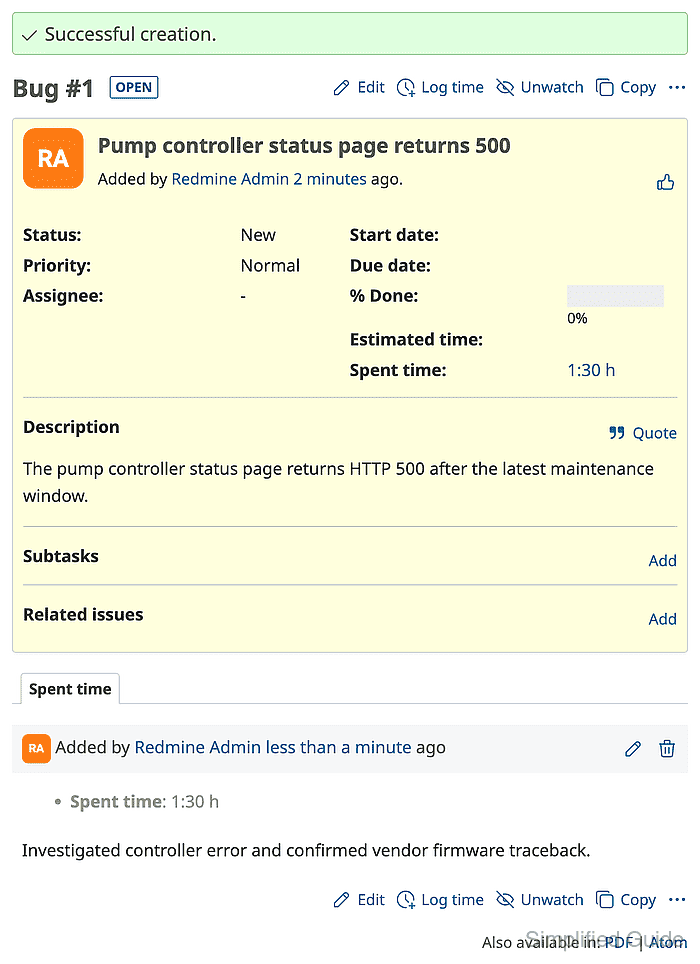
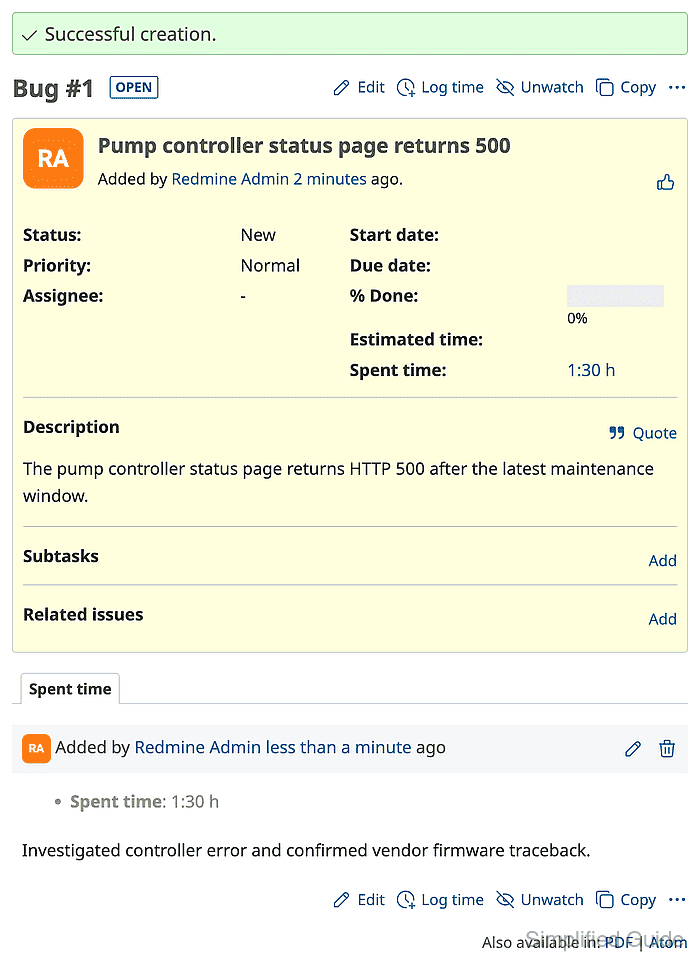
- Click Create and confirm that the issue page shows Successful creation, the saved Spent time total, and the comment.
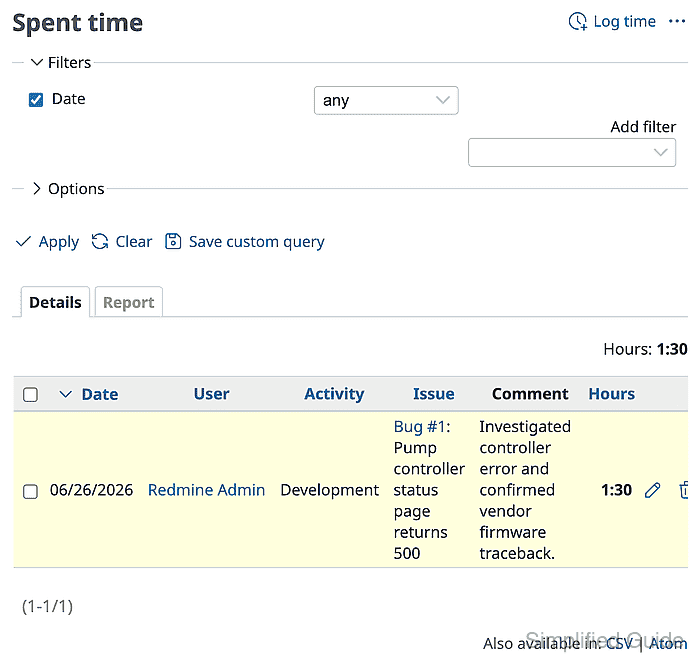
- Open the project Spent time details page and verify the row for the issue, user, activity, comment, and hours.