How to install a Redmine theme
A Redmine theme changes the web interface by replacing or extending the application stylesheet. The theme files must be available to the running Rails application before an administrator can choose the theme from the Display settings.
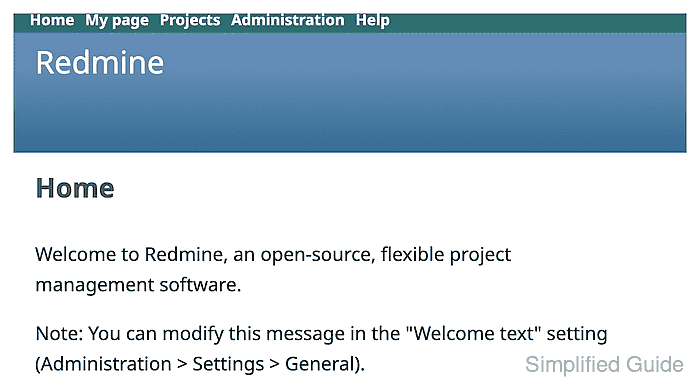
For Redmine 6.x, theme directories live under themes/ in the application root and must contain stylesheets/application.css. Redmine 5 and older used public/themes/, so check the running major version before copying files from older installation notes.
A completed install leaves the theme under the application root that serves the active site, not under an unused copy of the code. The theme should appear in Administration → Settings → Display and the reloaded UI should request the selected theme stylesheet.
Related: How to install a Redmine plugin
Related: How to back up and restore Redmine
Related: How to upgrade Redmine
Steps to install a Redmine theme:
- Open a shell on the Redmine host as the application user.
- Change to the Redmine application root.
$ cd /usr/src/redmine
Replace /usr/src/redmine with the root directory for the running instance. The official container image uses /usr/src/redmine, source installs often use /opt/redmine or /var/www/redmine, and package installs may use /usr/share/redmine.
- Confirm the active Redmine root and theme directory.
$ ls config.ru Gemfile themes/README
Gemfile
config.ru
themes/README
On Redmine 5 and older, use public/themes/ instead of themes/.
- Copy the extracted theme directory into themes/.
$ cp -a /tmp/field-service-theme themes/field-service
Replace /tmp/field-service-theme with the extracted theme release. Avoid copying an extra wrapper directory; themes/field-service/stylesheets/application.css should exist after the copy.
- Confirm the required theme stylesheet exists.
$ ls themes/field-service/stylesheets/application.css
themes/field-service/stylesheets/application.css
- Restart the Redmine application server.
Use the restart path for the deployment, such as the systemd unit for Puma, the web server that runs Passenger, or the Redmine container service. A restart lets Redmine reread the theme list.
- Open Administration → Settings → Display.
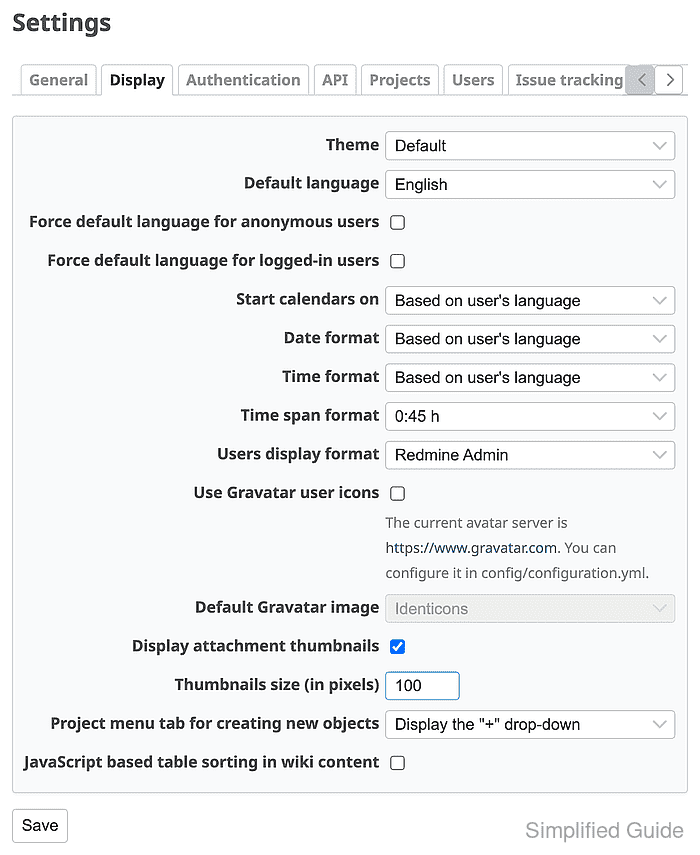
- Select the new theme in Theme.
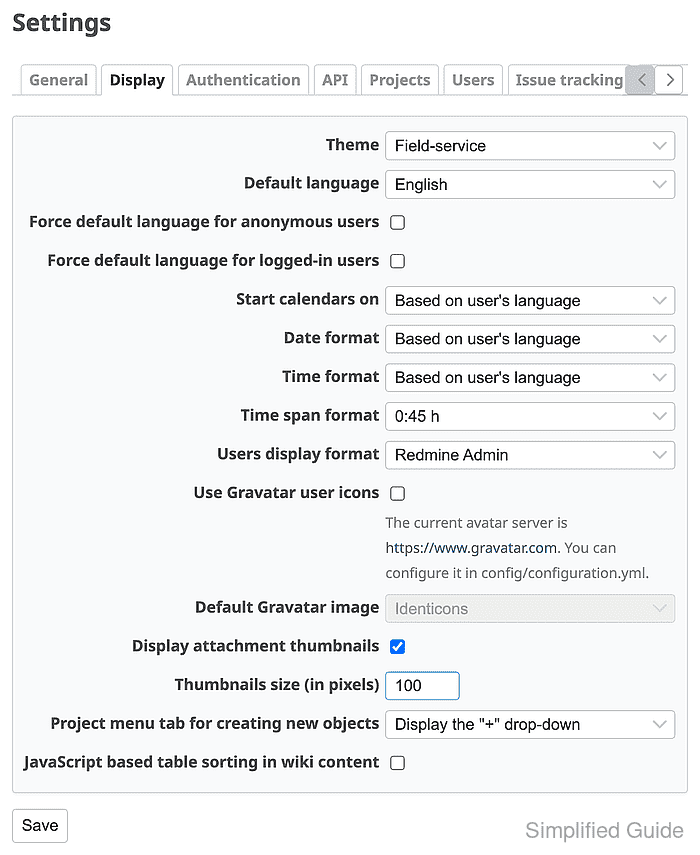
- Click Save.
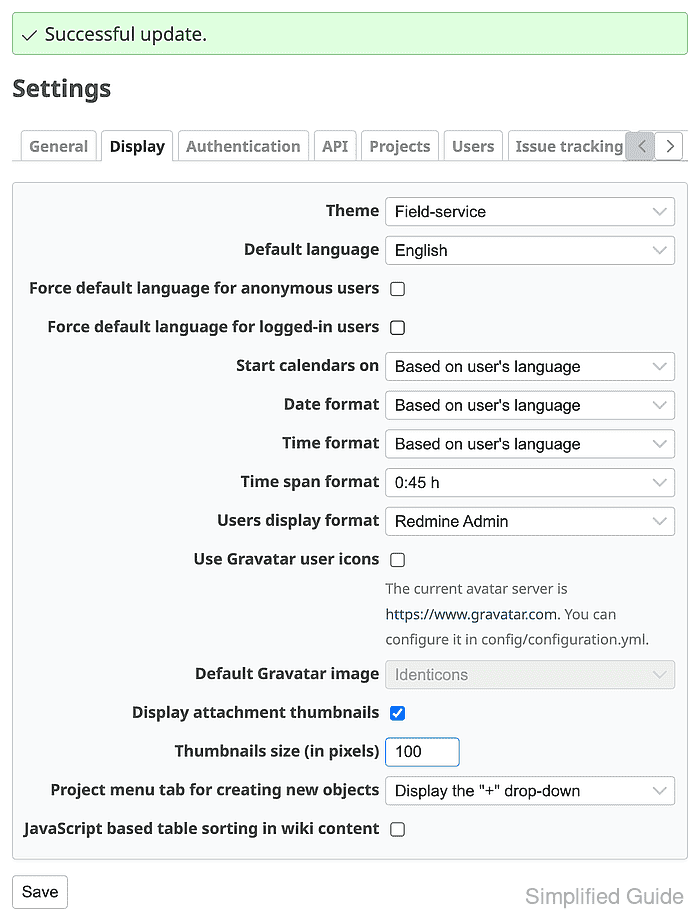
- Reload the Redmine home page and confirm the theme styling appears.
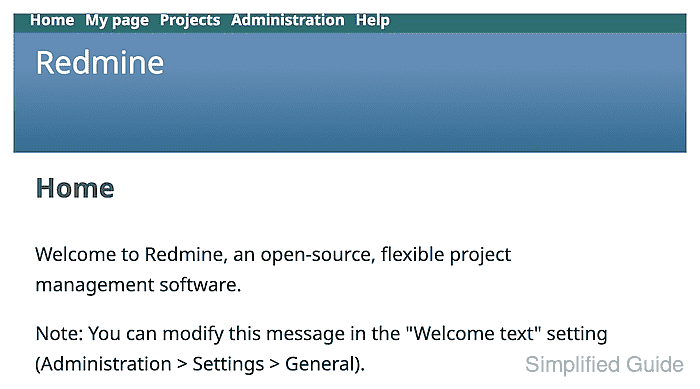
The applied page should load a stylesheet from the installed theme directory, such as /assets/themes/field-service/ on Redmine 6.x.