A Redmine upgrade replaces the Rails application code while keeping the production database, uploaded files, local configuration, plugins, and themes intact. The risky part is the handoff between the old application root and the new release root, because database migrations and plugin code can change state that a file copy alone cannot undo.
The release-archive path keeps the old Redmine tree available until the upgraded instance has passed a smoke test. Work from a maintenance shell or a staging copy first, and use the same application user, database adapter, plugin set, and attachment path that production uses.
The path placeholders use an active deployment symlink, an old release root, and a target release root. Replace them with the release pair being upgraded, and do not point production traffic at the new root until backups, migrations, and login checks have passed.
Related: How to back up and restore Redmine
Related: How to install a Redmine plugin
Related: How to install a Redmine theme
Steps to upgrade Redmine:
- Open a maintenance shell on the Redmine host as the application or deployment user.
- Resolve the active Redmine application root.
$ readlink --canonicalize /opt/redmine-current
/opt/redmine-6.0.10
If the deployment does not use a symlink, use the root configured in the Puma, Passenger, systemd, or container service that runs Redmine.
- Change to the current application root.
$ cd /opt/redmine-6.0.10
- Record the running Redmine version.
$ RAILS_ENV=production bundle exec rails runner 'puts Redmine::VERSION.to_s'
6.0.10.stable
- Check the target release requirements against the server runtime.
$ ruby -e 'puts RUBY_VERSION'
3.4.9
Redmine 6.1 supports Ruby 3.2, 3.3, and 3.4. Check the official requirements table for the target release, including the supported PostgreSQL, MySQL, SQL Server, or SQLite versions.
- Stop Redmine traffic for the maintenance window.
Stop the application server, disable the load balancer target, or put the site behind a maintenance page. Keep the database service running so backup and migration commands can connect.
- Create a restricted backup directory for the upgrade window.
$ sudo install --directory --mode=0750 /var/backups/redmine/upgrade-6.1.3
- Dump the Redmine database before changing application code.
$ pg_dump --username=redmine --host=localhost --format=custom --file=/var/backups/redmine/upgrade-6.1.3/redmine.dump redmine
Use the database name, host, and user from /opt/redmine-6.0.10/config/database.yml. pg_dump prompts for the password unless the database account uses peer authentication or a protected .pgpass file.
Related: How to back up and restore Redmine - Archive uploaded files, configuration, plugins, and themes from the old root.
$ sudo tar --create --gzip --file=/var/backups/redmine/upgrade-6.1.3/redmine-files-config.tar.gz --directory=/opt/redmine-6.0.10 files config plugins themes
The archive can contain database passwords, SMTP credentials, plugin configuration, and uploaded files. Store it where only Redmine administrators and backup operators can read it.
- Download the target Redmine release archive.
$ curl --location --remote-name https://www.redmine.org/releases/redmine-6.1.3.tar.gz
Use the exact stable release selected for the maintenance window.
- Extract the target release beside the old root.
$ sudo tar --extract --gzip --file=redmine-6.1.3.tar.gz --directory=/opt
- Copy the production database configuration into the target root.
$ sudo cp --archive /opt/redmine-6.0.10/config/database.yml /opt/redmine-6.1.3/config/database.yml
- Copy the production application configuration into the target root.
$ sudo cp --archive /opt/redmine-6.0.10/config/configuration.yml /opt/redmine-6.1.3/config/configuration.yml
Skip copying configuration.yml only when the deployment intentionally supplies those settings through another controlled mechanism. Do not overwrite /opt/redmine-6.1.3/config/settings.yml with the old file.
- Copy uploaded files into the target root.
$ sudo rsync --archive /opt/redmine-6.0.10/files/ /opt/redmine-6.1.3/files/
- Copy custom plugins into the target root.
$ sudo rsync --archive /opt/redmine-6.0.10/plugins/ /opt/redmine-6.1.3/plugins/
Only keep plugins that list compatibility with the target Redmine release. Remove or update incompatible plugins before running plugin migrations.
- Copy custom themes into the target root.
$ sudo rsync --archive /opt/redmine-6.0.10/themes/ /opt/redmine-6.1.3/themes/
Redmine 6.x uses /themes. For older source roots, review any custom themes under /public/themes and install a target-compatible theme in the current theme path.
Related: How to install a Redmine theme - Set ownership on writable directories in the target root.
$ sudo chown --recursive redmine:redmine /opt/redmine-6.1.3/files /opt/redmine-6.1.3/log /opt/redmine-6.1.3/tmp /opt/redmine-6.1.3/public/assets
Use the Unix user and group that run the Redmine application server.
- Set non-executable permissions on writable files.
$ sudo find /opt/redmine-6.1.3/files /opt/redmine-6.1.3/log /opt/redmine-6.1.3/tmp /opt/redmine-6.1.3/public/assets -type f -exec chmod -x {} + - Change to the target root.
$ cd /opt/redmine-6.1.3
- Configure Bundler to skip development and test gems.
$ bundle config set --local without 'development test'
- Install Ruby gem dependencies for the target release.
$ bundle install
Bundle complete! 53 Gemfile dependencies, 96 gems now installed.
Gems in the groups 'development' and 'test' were not installed.
The exact dependency count changes by Redmine release, database adapter, and any Gemfile.local entries.
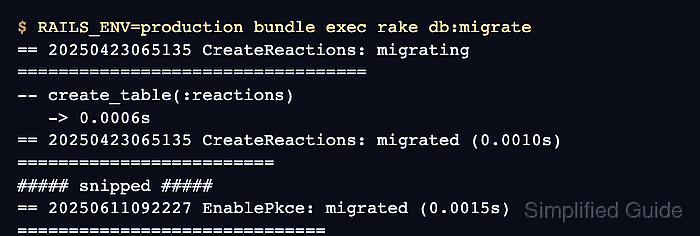
- Run the core database migrations from the target root.
$ RAILS_ENV=production bundle exec rake db:migrate
== 20250423065135 CreateReactions: migrating ==================================
-- create_table(:reactions)
   -> 0.0006s
== 20250423065135 CreateReactions: migrated (0.0010s) =========================
##### snipped #####
== 20250611092227 EnablePkce: migrated (0.0015s) ==============================
Database migrations change production tables. Stop here and restore from the database backup if migrations fail in a way that cannot be corrected during the maintenance window.
- Run plugin migrations.
$ RAILS_ENV=production bundle exec rake redmine:plugins:migrate
No output is normal when copied plugins have no pending migrations.
- Clear the Redmine cache.
$ RAILS_ENV=production bundle exec rake tmp:cache:clear
- Switch the deployment symlink to the target root.
$ sudo ln --symbolic --force --no-dereference /opt/redmine-6.1.3 /opt/redmine-current
If the application service points directly at a fixed directory, update that service or web-server root to the new release path instead of using a deployment symlink.
- Restart the Redmine application server.
Use the restart path for the deployment, such as the systemd unit for Puma, the web server that runs Passenger, or the container service.
- Confirm Redmine reports the target version from the active root.
$ RAILS_ENV=production bundle exec rails runner 'puts Redmine::VERSION.to_s'
6.1.3.stable
- Request the upgraded login page.
$ curl --head https://redmine.example.net/login
HTTP/2 200
content-type: text/html; charset=utf-8
x-frame-options: SAMEORIGIN
##### snipped #####
Use the production URL, staging URL, or load balancer health endpoint that normally fronts Redmine.
- Open Administration → Roles and permissions and review new permissions for the upgraded release.
Redmine recommends checking permissions after an upgrade because new features can add role-level controls.
- Run a project smoke test against known data.
$ RAILS_ENV=production bundle exec rails runner 'puts Project.find_by!(identifier: "field-service").name'
Field Service Portal
Replace field-service with a project identifier that should exist after the upgrade. A successful lookup confirms the upgraded application can read the migrated production database.

Mohd Shakir Zakaria is a cloud architect with deep roots in software development and open-source advocacy. Certified in AWS, Red Hat, VMware, ITIL, and Linux, he specializes in designing and managing robust cloud and on-premises infrastructures.


