How to test Redmine email notifications
Redmine email notifications depend on both the application settings screen and the mail delivery path behind the server. The built-in test email lets an administrator prove that the current site can hand a notification to the configured mail system before relying on issue updates, account alerts, and project messages.
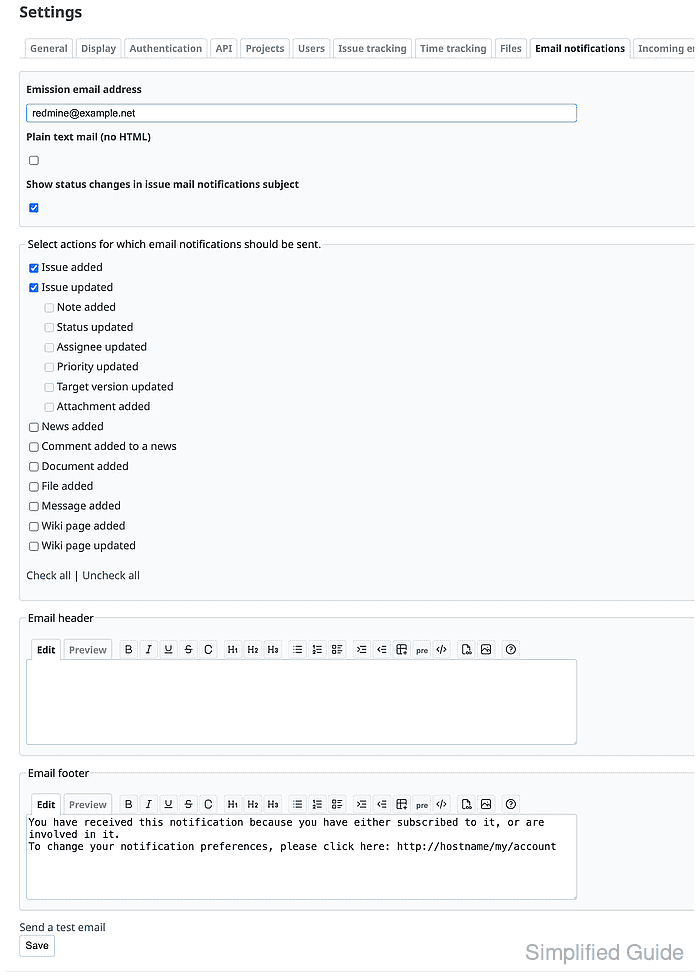
The test email is sent from Administration → Settings → Email notifications to the signed-in user's email address. Use an administrator account whose mailbox or mail catcher can be inspected, because the screen does not let you type a one-off recipient for the test.
A green Redmine notice confirms that the application handed the message to its configured delivery method. The mailbox or mail catcher receipt confirms the message left Redmine with the expected sender, subject, and Redmine headers; SMTP authentication, relay policy, and downstream filtering problems can still appear after the Redmine screen reports success.
Steps to send a Redmine test notification:
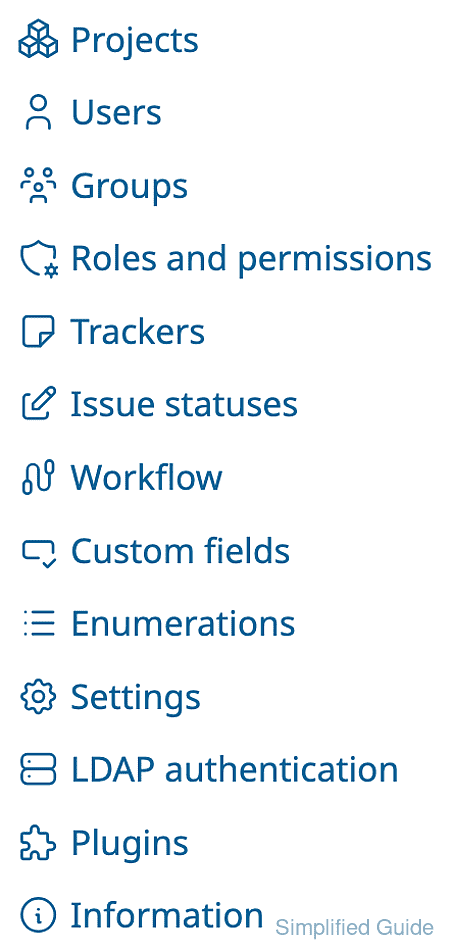
- Open Administration and click Settings.
- Select the Email notifications tab.
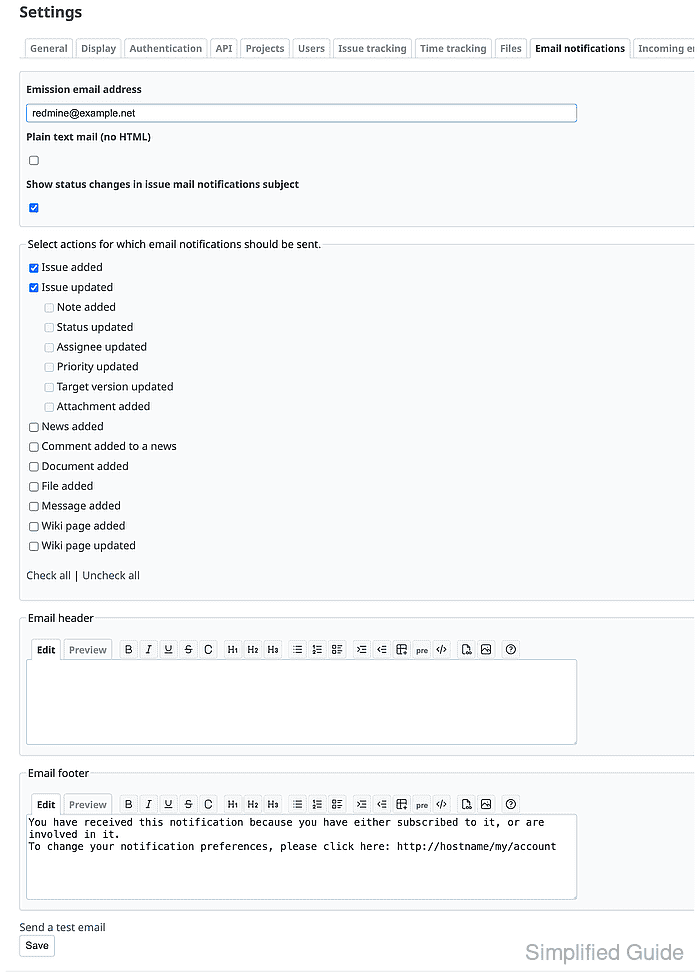
The Emission email address must match an address that the configured mail relay is allowed to send as. Fix mail delivery first if this screen reports SMTP authentication, TLS, timeout, or recipient errors.
Related: How to configure Redmine email delivery - Confirm the signed-in administrator account has a mailbox or mail catcher you can inspect.
Redmine sends the test message to the current user's saved email address, not to the Emission email address field.
- Click Send a test email.
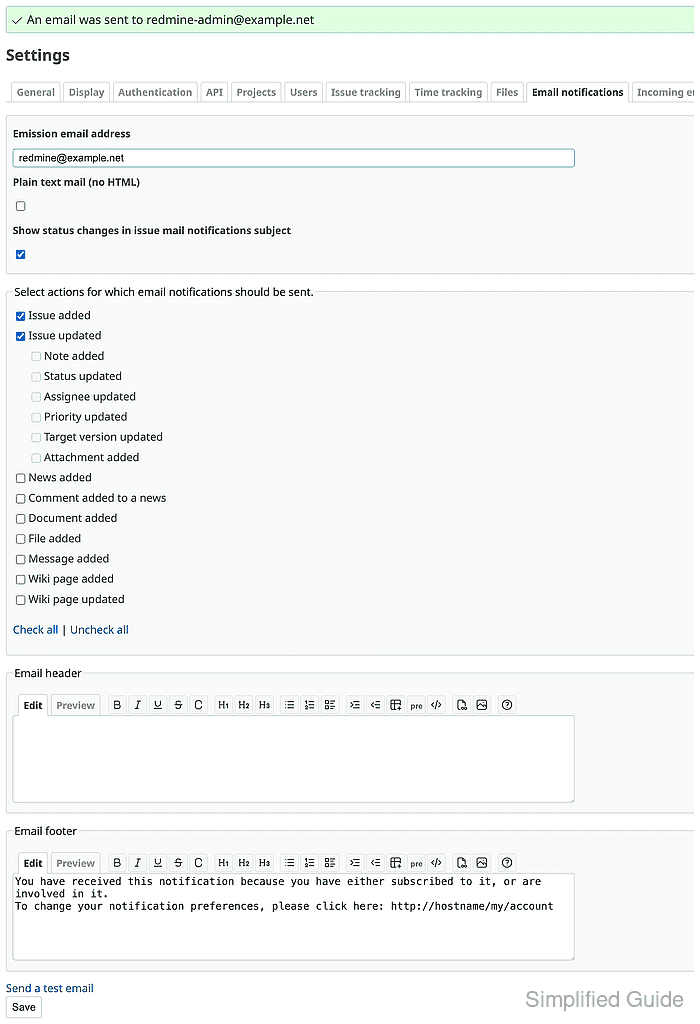
- Confirm the green notice names the expected recipient.
An email was sent to redmine-admin@example.net
- Confirm the mailbox or mail catcher received the Redmine test message.
From: Redmine <redmine@example.net>
To: redmine-admin@example.net
Subject: Redmine test
X-Mailer: Redmine
X-Redmine-Host: redmine.example.net
List-Id: <redmine.example.net>
If the Redmine notice appears but no message arrives, inspect the SMTP relay logs and recipient filtering before treating project notifications as working.
Tool: Email Header Analyzer