How to reset a Redmine administrator password
A lost Redmine administrator password blocks project, user, and workflow administration even when the application itself still runs. The login page can send a reset email only when mail delivery and the account email are already usable, so server-side recovery is needed when that path is unavailable.

Redmine is a Ruby on Rails application, and local account passwords should be changed through the Rails model instead of by editing password hash columns directly. Running the reset from the application directory lets Redmine apply its current password validation and hashing behavior.
The recovery should target an existing administrator login, activate the account if it was locked, and force the temporary password to be replaced on the next browser login. Keep the temporary password out of shared tickets and chat logs, and take a database backup first on production systems.
Steps to reset a Redmine administrator password:
- Open a shell in the Redmine application directory as the Redmine runtime user.
$ cd /usr/src/redmine
Use the directory that contains bin/rails for the target instance, such as /opt/redmine, /var/lib/redmine, or /usr/src/redmine in the official container.
- Inspect the target account before changing it.
$ bin/rails runner -e production "puts User.find_by!(login: 'admin').slice(:login, :admin, :status)"
{"login" => "admin", "admin" => true, "status" => 1}
Stop if admin is false; resetting a non-administrator account does not recover administrator access. In current Redmine releases, status value 1 means the account is active.
- Reset the account through the Redmine Rails model.
$ bin/rails runner -e production '
user = User.find_by!(login: "admin")
raise "admin flag is false" unless user.admin?
user.activate
user.password = "RedmineTemp!2026"
user.password_confirmation = "RedmineTemp!2026"
user.must_change_passwd = true
user.save!
puts "login=#{user.login}"
puts "admin=#{user.admin?}"
puts "active=#{user.active?}"
puts "must_change_passwd=#{user.must_change_passwd?}"
'
login=admin
admin=true
active=true
must_change_passwd=true
Replace the sample temporary password before running the command. Anyone who can read the shell command or terminal history can use that password until it is changed.
- Verify the temporary recovery state.
$ bin/rails runner -e production "puts User.find_by!(login: 'admin').slice(:login, :admin, :status, :must_change_passwd)"
{"login" => "admin", "admin" => true, "status" => 1, "must_change_passwd" => true}
must_change_passwd set to true makes Redmine prompt for a final password after the temporary login succeeds.
- Sign in to Redmine as admin with the temporary password.
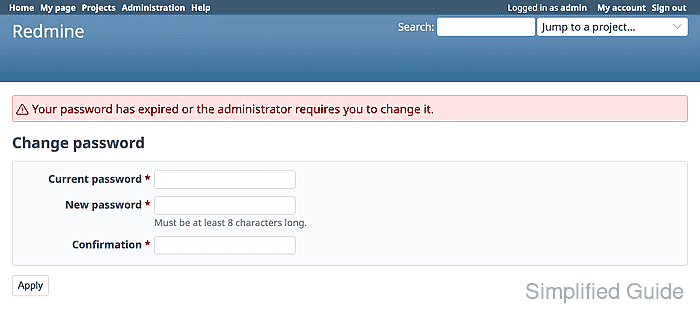
The forced Change password page confirms that Redmine accepted the temporary password.
- Enter the temporary password in Current password and type the final administrator password in both new password fields.
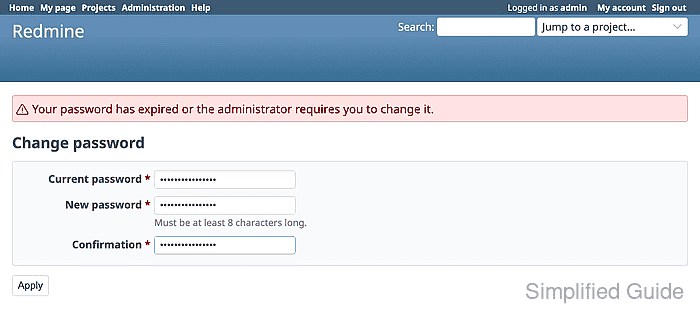
Do not leave the temporary password in place after recovery; replace it with a final administrator password immediately.
- Click Apply to save the final password.
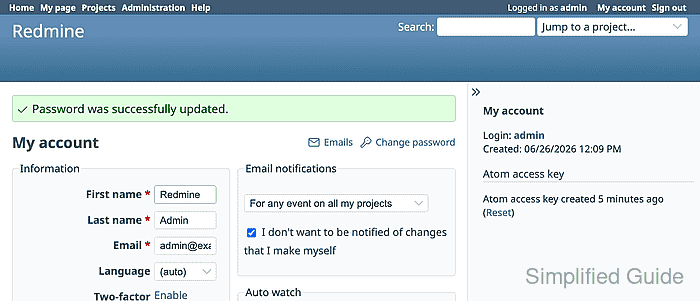
- Sign out, sign back in with the final password, and open Administration.