How to list installed Python packages
Listing installed Python packages gives a dependency inventory before an upgrade, removal, audit, or environment comparison. The package table shows what the current interpreter can already import and which distribution versions are present in that environment.
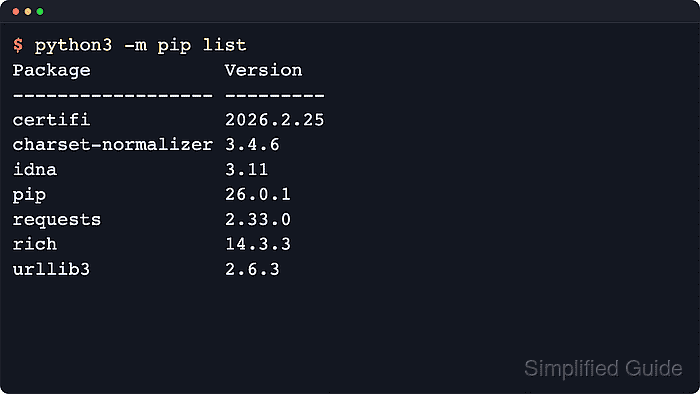
The python3 -m pip list command reads the installed distribution metadata for the selected interpreter and prints package names with their recorded versions. Running pip through python3 -m keeps the result attached to one concrete Python executable or virtual environment instead of whichever standalone pip command appears first in PATH.
Results vary between system installs, user-site installs, and virtual environments, so the first check is always interpreter context. On Windows, replace python3 -m pip with py -m pip when the launcher is available; inside a virtual environment created with python3 -m venv –system-site-packages, add –local to hide inherited global packages, and use pip freeze when the next task is a requirements snapshot.
Steps to list installed Python packages with pip:
- Confirm which interpreter will answer the package query.
$ python3 -c "import sys; print(sys.executable)"
/srv/apps/acme-api/.venv/bin/python3
Using python3 -m pip avoids mixing a different pip executable with the wrong interpreter on hosts that carry more than one Python installation.
- Confirm that pip belongs to the same interpreter.
$ python3 -m pip --version
pip 26.1.2 from /srv/apps/acme-api/.venv/lib/python3.14/site-packages/pip (python 3.14)
- List the installed packages in the default table format.
$ python3 -m pip list
Package            Version
------------------ ---------
certifi            2026.5.20
charset-normalizer 3.4.7
colorama           0.4.6
idna               3.18
markdown-it-py     4.2.0
mdurl              0.1.2
pip                26.1.2
Pygments           2.20.0
requests           2.34.2
rich               15.0.0
urllib3            2.7.0
Packages are listed in case-insensitive order, and editable installs add an extra column that shows the project location.
Use –user to show only user-site packages or --path /target/site-packages to inspect one installation path without changing interpreters.
- Add –not-required when only top-level packages are needed instead of every dependency underneath them.
$ python3 -m pip list --not-required
Package  Version
-------- -------
colorama 0.4.6
pip      26.1.2
requests 2.34.2
rich     15.0.0
–not-required hides distributions that were installed only as dependencies, which makes ownership reviews and smaller cleanup passes easier to scan.
- Add –local when a virtual environment inherits global site packages and only environment-specific packages should appear.
$ python3 -m pip list --local
Package        Version
-------------- -------
markdown-it-py 4.2.0
mdurl          0.1.2
pip            26.1.2
Pygments       2.20.0
rich           15.0.0
–local changes the output only inside a virtual environment with system-site access, such as one created with python3 -m venv –system-site-packages.
- Print JSON output when another tool needs to compare or parse the package inventory.
$ python3 -m pip list --format=json
[{"name": "certifi", "version": "2026.5.20"}, {"name": "charset-normalizer", "version": "3.4.7"}, {"name": "colorama", "version": "0.4.6"}, {"name": "idna", "version": "3.18"}, {"name": "markdown-it-py", "version": "4.2.0"}, {"name": "mdurl", "version": "0.1.2"}, {"name": "pip", "version": "26.1.2"}, {"name": "Pygments", "version": "2.20.0"}, {"name": "requests", "version": "2.34.2"}, {"name": "rich", "version": "15.0.0"}, {"name": "urllib3", "version": "2.7.0"}]
The supported pip list formats are columns, json, and freeze. Current pip releases do not allow –format=freeze together with –outdated.
Use pip freeze when the next step is writing a requirements snapshot, because it is the purpose-built export command and handles bootstrap packaging tools differently from pip list.