How to create a SOCKS proxy on Windows using PuTTY
Creating a local SOCKS5 proxy on Windows makes it possible to route selected application traffic through a remote SSH server without changing the entire system network path, which is useful for reaching restricted networks, testing from another egress IP, or protecting traffic on untrusted Wi-Fi.
Using PuTTY for dynamic port forwarding exposes a local SOCKS listener (for example, on 127.0.0.1:1080) and carries proxied connections inside the encrypted SSH session. Applications connect to the local port using the SOCKS protocol, and the remote server completes outbound connections on their behalf, so only applications configured for the proxy are affected.
The proxy only works while the PuTTY session remains connected, and the SSH server must allow TCP forwarding for dynamic tunnels to function. Keeping the listener bound to the local machine avoids creating an accidental open proxy on the LAN, and using proxy-aware DNS settings (where available) reduces DNS leakage outside the tunnel.
Related: How to create an SSH SOCKS proxy
Related: How to create a local port forward in PuTTY
Steps to create a SOCKS proxy on Windows using PuTTY:
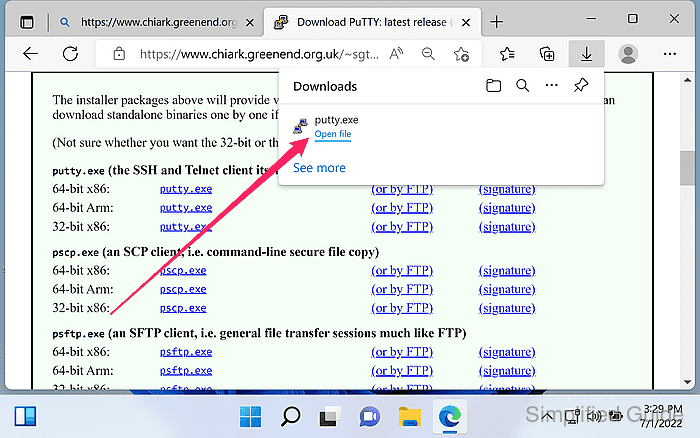
- Download PuTTY from the official website.
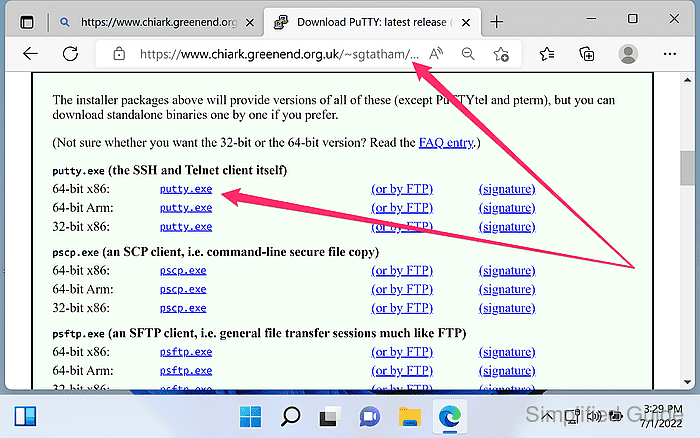
https://www.chiark.greenend.org.uk/~sgtatham/putty/latest.html
- Launch PuTTY.
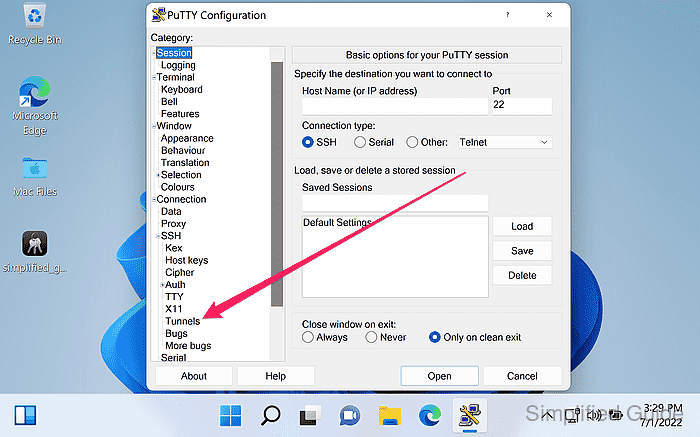
- Open Connection → SSH → Tunnels from the category menu.
- Enter the local listening port in the Source port field.
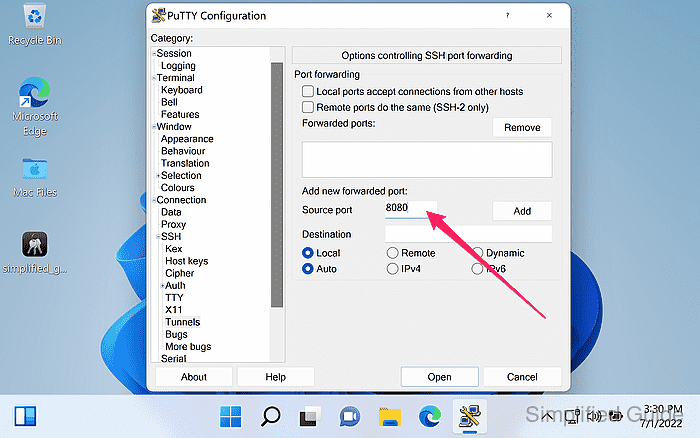
Use an unprivileged port in the 1024-65535 range (1080 is a common SOCKS port).
- Select Auto and Dynamic for the tunnel type.
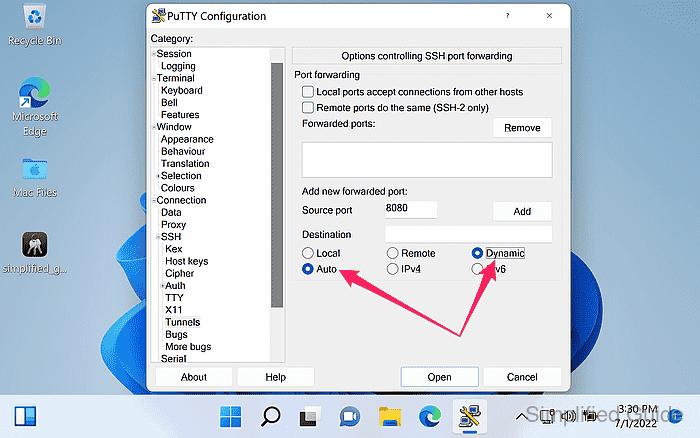
Keep Local ports accept connections from other hosts unchecked to avoid exposing an open proxy to the local network.
- Click Add to create the dynamic forwarding entry.
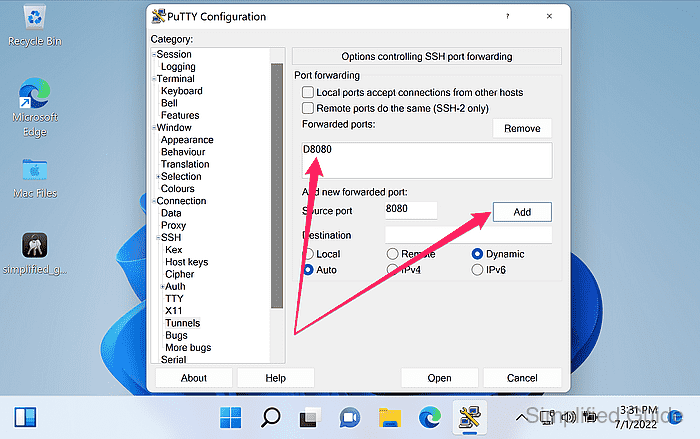
A forwarded port entry like D1080 should appear in the list.
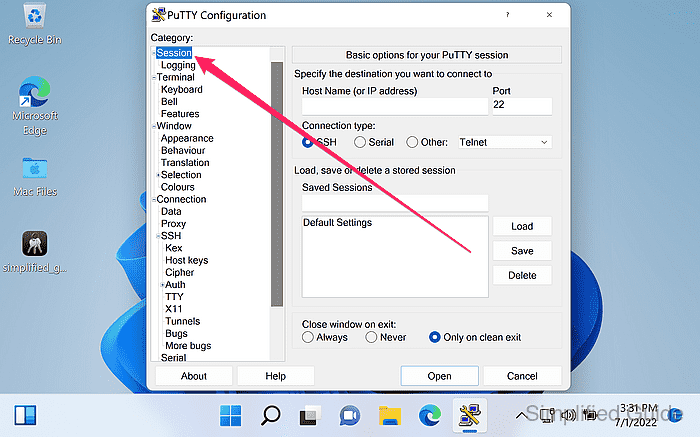
- Open Session from the category menu.
- Enter the server Host Name (or IP address) and Port fields.
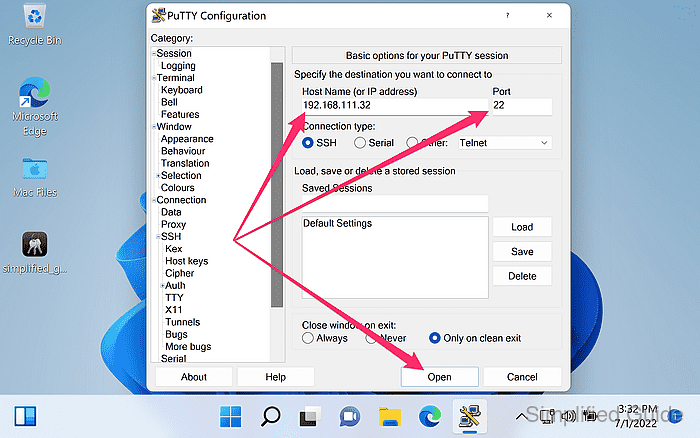
The default SSH port is 22.
- Click Open to start the SSH connection.
- Authenticate to the server when prompted.
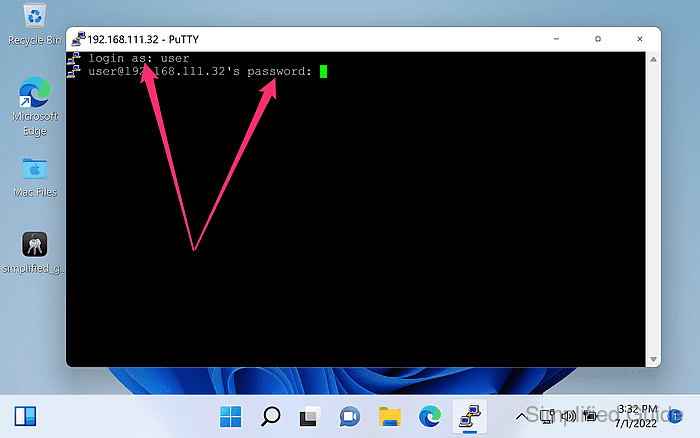
Verify the server host key fingerprint on first connect, and investigate host key change warnings instead of clicking through them.
- Keep the PuTTY session window open while the proxy is in use.
Closing the session (or letting Windows sleep) stops the local SOCKS5 port immediately.
- Configure the client application to use the local SOCKS5 proxy at 127.0.0.1 and the chosen port.
Use SOCKS v5 (not HTTP proxy), and enable proxy DNS options (for example, Proxy DNS when using SOCKS v5 in Firefox) when available.
- Verify the tunnel by making a request through the local SOCKS5 port.
PS> curl.exe --proxy socks5h://127.0.0.1:1080 https://api.ipify.org
203.0.113.42
Replace 1080 with the configured Source port, and prefer socks5h to proxy DNS lookups through the tunnel.