How to run a PromQL query in Prometheus
Running a PromQL query in Prometheus helps inspect the time series that the server has scraped before the expression is reused in an alert, recording rule, or dashboard panel. The built-in expression browser can show a target-state query such as up as a table and a rate expression as a graph.
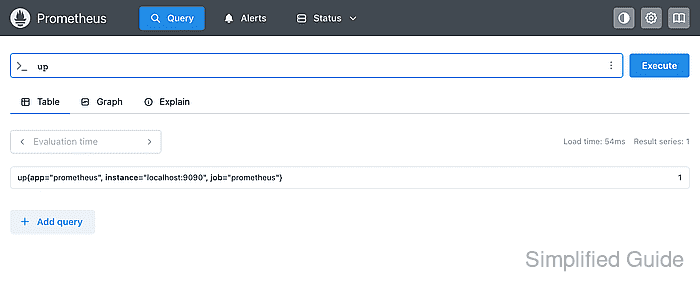
The Table tab evaluates an instant query at one timestamp. The Graph tab evaluates the same expression over a selected time window, which is why counter-rate expressions normally belong there instead of in a single-row table.
Start with a narrow selector, then add label filters or aggregation once the result set is small enough to read. A broad metric name can return many time series, so checking the labels in Table before graphing keeps the query tied to the intended job and instance.
Related: How to check Prometheus targets
Related: How to create a Prometheus recording rule
Steps to run a PromQL query in Prometheus:
- Open the Prometheus query page.
http://prometheus.example.net/query
Use the same scheme, host, port, reverse-proxy path, and authentication that operators use for the Prometheus web UI.
- Enter a simple target-state query and click Execute.
up
A value of 1 means the target was up at the evaluation time. A value of 0 means Prometheus scraped the target but marked it down.
- Check the returned labels in the Table result.
Use labels such as job and instance to confirm that the row belongs to the intended scrape target before relying on the value.
- Add label matchers when the query returns more series than needed.
up{job="prometheus"}Label matchers go inside braces after the metric name. Regex matchers such as job=~“api|worker” are fully anchored in Prometheus.
- Switch to Graph for a rate or trend query.
rate(prometheus_http_requests_total{handler="/api/v1/query"}[5m])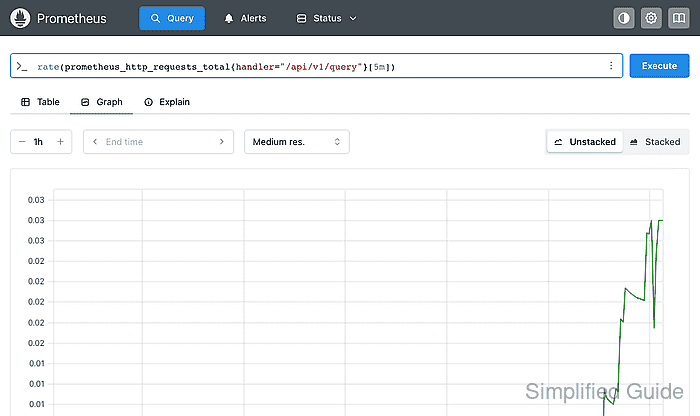
Range-vector selectors such as [5m] need a function like rate() before they can be graphed as a line.
- Set the graph range and resolution when the line is too flat or too noisy.
Short ranges show recent changes quickly. Longer ranges can hide short spikes unless the resolution is high enough for the selected query window.
- Verify that the displayed labels and value match the target and behavior being checked.
An empty result is not the same as zero. Check the metric name, label matchers, evaluation time, and target status before treating an empty result as a normal value.