How to run Playwright tests
A full Playwright Test run gives a project's browser checks one pass/fail signal before code moves to review or CI. The terminal command reads the project configuration, launches the configured browser projects, and returns a summary that shows whether every discovered test passed.
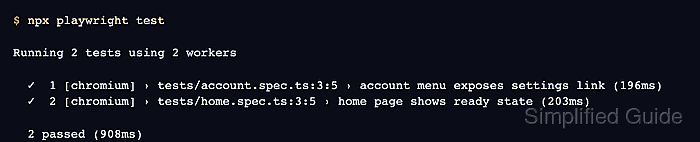
Playwright Test discovers specs from playwright.config.ts or playwright.config.js, then runs matching files through worker processes. The same npx playwright test command can cover one browser project or a matrix such as chromium, firefox, and webkit, depending on the project configuration.
The run should start from the repository root that owns the config, with the application URL, test data, and environment variables kept stable. A clean run should show the expected test count, project names when configured, and a final passed summary; any failure should be treated as a product, test, or environment signal before rerunning narrower subsets.
Steps to run Playwright tests:
- Open a terminal at the Playwright project root.
The project root is the directory that owns playwright.config.ts or playwright.config.js and the package scripts used by the test suite.
- List the tests discovered by the current configuration.
$ npx playwright test --list
Listing tests:
  [chromium] › account.spec.ts:3:5 › account menu exposes settings link
  [chromium] › home.spec.ts:3:5 › home page shows ready state
Total: 2 tests in 2 files
Use --list after switching branches, moving specs, or changing testDir and testMatch. Listing tests does not open browsers or execute assertions.
- Run the full Playwright test suite.
$ npx playwright test

Running 2 tests using 2 workers

  ✓  1 [chromium] › tests/account.spec.ts:3:5 › account menu exposes settings link (196ms)
  ✓  2 [chromium] › tests/home.spec.ts:3:5 › home page shows ready state (203ms)

  2 passed (908ms)
The same command runs every configured project. Use --project=chromium only when the run should target one browser project.
Related: How to run Playwright tests in Chromium - Confirm that the final summary matches the intended suite and reports no failures.
Do not treat a run as green when the test count, project name, base URL, or environment does not match the target being validated.