How to install the OpenNebula frontend on Ubuntu
The OpenNebula frontend is the control-plane host that runs the main daemon, command-line tools, and FireEdge Sunstone web interface. Installing it on Ubuntu prepares the cloud controller before KVM hosts, datastores, networks, and VM templates are added.
OpenNebula 7.2 packages for Ubuntu are delivered through the project repository, not the default distribution archive. The frontend package set installs the core daemon, FireEdge GUI server, OneGate server, and OneFlow service from the same repository so the control-plane components stay on the same release.
A fresh frontend can start with the packaged SQLite backend for evaluation, but production deployments should choose the database backend before the first service start. FireEdge Sunstone listens on TCP port 2616, and the first oneadmin login uses the password stored in /var/lib/one/.one/one_auth unless that file is changed before the initial start.
Steps to install the OpenNebula frontend on Ubuntu:
- Open a terminal with sudo privileges.
- Refresh the package index.
$ sudo apt update
- Install the repository helper packages.
$ sudo apt install --assume-yes ca-certificates gnupg wget apt-transport-https
- Create the APT keyring directory.
$ sudo install -d -m 0755 /etc/apt/keyrings
- Add the OpenNebula repository signing key.
$ wget -q -O- https://downloads.opennebula.io/repo/repo2.key | sudo gpg --dearmor --yes --output /etc/apt/keyrings/opennebula.gpg
- Add the OpenNebula 7.2 repository for Ubuntu 24.04.
$ echo "deb [signed-by=/etc/apt/keyrings/opennebula.gpg] https://downloads.opennebula.io/repo/7.2/Ubuntu/24.04 stable opennebula" | sudo tee /etc/apt/sources.list.d/opennebula.list
deb [signed-by=/etc/apt/keyrings/opennebula.gpg] https://downloads.opennebula.io/repo/7.2/Ubuntu/24.04 stable opennebula
For Ubuntu 22.04, replace Ubuntu/24.04 with Ubuntu/22.04 in the repository URL.
- Refresh package metadata from the OpenNebula repository.
$ sudo apt update
Get:1 https://downloads.opennebula.io/repo/7.2/Ubuntu/24.04 stable Release [2554 B]
Get:2 https://downloads.opennebula.io/repo/7.2/Ubuntu/24.04 stable/opennebula amd64 Packages [5430 B]
Reading package lists... Done
- Install the frontend packages.
$ sudo apt install --assume-yes opennebula opennebula-fireedge opennebula-gate opennebula-flow
Reading package lists... Done
Building dependency tree... Done
Reading state information... Done
The following NEW packages will be installed:
  opennebula opennebula-fireedge opennebula-flow opennebula-gate
##### snipped #####
Setting up opennebula (7.2.0-1) ...
Setting up opennebula-fireedge (7.2.0-1) ...
Setting up opennebula-flow (7.2.0-1) ...
Setting up opennebula-gate (7.2.0-1) ...
- Record the initial oneadmin credential before starting services.
$ sudo cat /var/lib/one/.one/one_auth
oneadmin:<initial-password>
Protect this password as an administrator credential. To set a custom initial password, change this file before the first OpenNebula service start; after the first start, change the account with oneuser passwd instead.
- Enable the frontend services and start them now.
$ sudo systemctl enable --now opennebula opennebula-fireedge opennebula-gate opennebula-flow
Created symlink /etc/systemd/system/multi-user.target.wants/opennebula.service -> /usr/lib/systemd/system/opennebula.service.
Created symlink /etc/systemd/system/multi-user.target.wants/opennebula-fireedge.service -> /usr/lib/systemd/system/opennebula-fireedge.service.
Created symlink /etc/systemd/system/multi-user.target.wants/opennebula-gate.service -> /usr/lib/systemd/system/opennebula-gate.service.
Created symlink /etc/systemd/system/multi-user.target.wants/opennebula-flow.service -> /usr/lib/systemd/system/opennebula-flow.service.
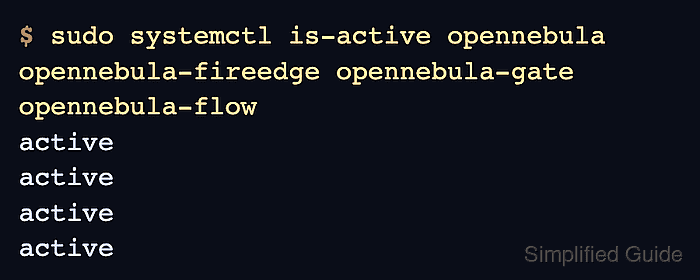
- Confirm that the frontend services are active.
$ sudo systemctl is-active opennebula opennebula-fireedge opennebula-gate opennebula-flow
active
active
active
active
If a unit is not active, inspect /var/log/one/oned.log, /var/log/one/fireedge.log, and the matching journald unit logs before retrying.
- Confirm that the OpenNebula CLI can reach the daemon as oneadmin.
$ sudo -u oneadmin oneuser show
USER 0 INFORMATION
ID              : 0
NAME            : oneadmin
GROUP           : oneadmin
AUTH_DRIVER     : core
ENABLED         : Yes

USER TEMPLATE
TOKEN_PASSWORD="<token-hash>"
##### snipped #####
- If UFW filters inbound traffic, allow access to FireEdge Sunstone.
$ sudo ufw allow 2616/tcp
Rules updated
Rules updated (v6)
Apply the equivalent rule in cloud security groups, router firewalls, nftables, or iptables when UFW is not the active firewall.
- Open the FireEdge Sunstone login page from a browser.
http://<frontend-address>:2616/fireedge/sunstone
Log in as oneadmin with the password from /var/lib/one/.one/one_auth.
Related: How to log in to OpenNebula Sunstone