How to install the OpenNebula frontend on Red Hat or AlmaLinux
The OpenNebula frontend is the control plane host that runs the main daemon, scheduler, and FireEdge web server for Sunstone. Installing it from RPM repositories on Red Hat Enterprise Linux or AlmaLinux prepares the host to manage hypervisor nodes, storage, and virtual networks from one service stack.
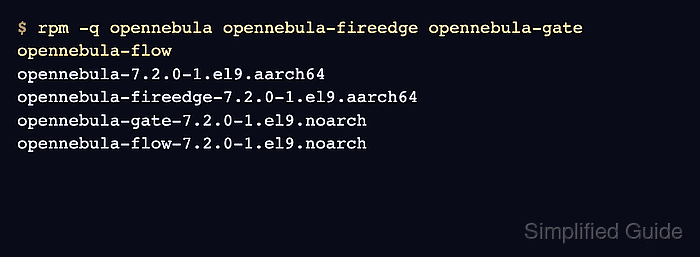
The RPM path uses the OpenNebula repository, CodeReady Linux Builder or CRB dependencies, and EPEL before installing the frontend package set. The current frontend packages are opennebula, opennebula-fireedge, opennebula-gate, and opennebula-flow.
The host should have its database plan chosen before the services are started. Evaluation systems can use the default local database path, but production deployments should configure MariaDB or MySQL first because changing the backend after the first start is harder than starting with the intended database.
Steps to install OpenNebula frontend on Red Hat or AlmaLinux:
- Open a terminal with sudo privileges.
- Install the DNF repository helper.
$ sudo dnf install --assumeyes dnf-plugins-core
- Enable the CRB repository on AlmaLinux.
$ sudo dnf config-manager --set-enabled crb
On Red Hat Enterprise Linux, enable the matching CodeReady Linux Builder repository through subscription-manager or the repository policy used by the host before installing EPEL packages.
- Install the EPEL release package.
$ sudo dnf install --assumeyes epel-release
On Red Hat Enterprise Linux hosts where epel-release is not in an enabled repository, install the matching EPEL release RPM from the Fedora EPEL project.
- Add the OpenNebula Community Edition RPM repository.
$ sudo tee /etc/yum.repos.d/opennebula.repo > /dev/null <<'EOT'
[opennebula]
name=OpenNebula Community Edition
baseurl=https://downloads.opennebula.io/repo/7.2/AlmaLinux/$releasever/$basearch
enabled=1
gpgkey=https://downloads.opennebula.io/repo/repo2.key
gpgcheck=1
repo_gpgcheck=1
EOT
Use RedHat instead of AlmaLinux in the baseurl path on Red Hat Enterprise Linux. Enterprise Edition repositories use a private URL plus customer credentials and should be configured from the subscription instructions instead.
- Refresh the package metadata.
$ sudo dnf makecache --assumeyes
OpenNebula Community Edition                    133 kB/s | 413 kB     00:03
Metadata cache created.
- Install the OpenNebula frontend packages.
$ sudo dnf install --assumeyes opennebula opennebula-fireedge opennebula-gate opennebula-flow
##### snipped #####
Installed:
  opennebula
  opennebula-fireedge
  opennebula-gate
  opennebula-flow

Complete!
- Confirm that the frontend packages are installed.
$ rpm -q opennebula opennebula-fireedge opennebula-gate opennebula-flow
opennebula-7.2.0-1.el9.aarch64
opennebula-fireedge-7.2.0-1.el9.aarch64
opennebula-gate-7.2.0-1.el9.noarch
opennebula-flow-7.2.0-1.el9.noarch
The architecture suffix can differ by host, but all four package names should report an installed RPM instead of package is not installed.
- Set the initial oneadmin password before the first service start.
$ sudo -u oneadmin sh -c 'umask 077; echo "oneadmin:change-this-password" > /var/lib/one/.one/one_auth'
Replace change-this-password before running the command. This file seeds the initial oneadmin account only before OpenNebula starts for the first time.
- Enable and start the frontend services.
$ sudo systemctl enable --now opennebula opennebula-fireedge opennebula-gate opennebula-flow
Created symlink /etc/systemd/system/multi-user.target.wants/opennebula.service -> /usr/lib/systemd/system/opennebula.service.
Created symlink /etc/systemd/system/multi-user.target.wants/opennebula-fireedge.service -> /usr/lib/systemd/system/opennebula-fireedge.service.
##### snipped #####
- Confirm that the frontend services are active.
$ systemctl is-active opennebula opennebula-fireedge opennebula-gate opennebula-flow
active
active
active
active
Inspect /var/log/one/oned.log and /var/log/one/fireedge.log if a unit reports failed or inactive.
Related: How to manage OpenNebula services with systemctl in Linux - Verify that the OpenNebula CLI can reach the daemon.
$ sudo -u oneadmin oneuser show
USER 0 INFORMATION
ID              : 0
NAME            : oneadmin
GROUP           : oneadmin
ENABLED         : Yes
##### snipped #####
- Allow FireEdge through firewalld when remote administrators need browser access.
$ sudo firewall-cmd --permanent --add-port=2616/tcp
success
Add the other OpenNebula ports only when those services must be reachable from outside the frontend host.
- Reload firewalld.
$ sudo firewall-cmd --reload
success
- Check the local FireEdge redirect to Sunstone.
$ curl --head http://127.0.0.1:2616/
HTTP/1.1 302 Found
Location: /fireedge/sunstone
##### snipped #####
- Open the Sunstone login page from an administrator workstation.
http://<frontend-address>:2616/fireedge/sunstone
Sign in as oneadmin with the password stored in /var/lib/one/.one/one_auth.