How to stitch images with OpenCV
Panorama stitching combines photographs that share enough recognizable scene detail for feature matching. OpenCV can align and blend those overlapping frames into one wider image while a Python script keeps the result easy to reproduce.
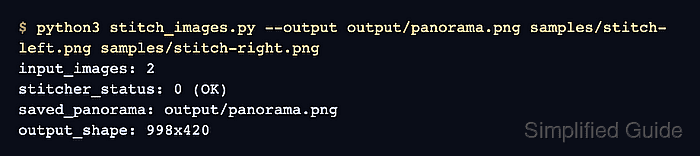
OpenCV's PANORAMA mode targets camera photographs related by perspective transformations. cv2.Stitcher.create() supplies the feature detection, matching, warping, and blending stages behind one stitch() call.
The stitcher status is the decisive success check: 0 (OK) permits the panorama to be saved, while a nonzero result stops the script before it writes a misleading output. Source photographs still need visible overlap, textured details, similar exposure, and limited subject movement for reliable alignment.
Steps to stitch images with OpenCV:
- Gather two or more overlapping photographs in the samples directory.
The example reads samples/stitch-left.png followed by samples/stitch-right.png; every source needs shared textured detail with the adjacent frame.
- Create stitch_images.py with the status mapping and image loader.
- stitch_images.py
#!/usr/bin/env python3
import argparse
from pathlib import Path

import cv2


STATUS_NAMES = {
    0: "OK",
    1: "ERR_NEED_MORE_IMGS",
    2: "ERR_HOMOGRAPHY_EST_FAIL",
    3: "ERR_CAMERA_PARAMS_ADJUST_FAIL",
}


def load_images(paths):
    images = []
    for path in paths:
        image = cv2.imread(str(path))
        if image is None:
            raise SystemExit(f"cannot_read: {path}")
        images.append(image)
    return images
- Define parse_args() in stitch_images.py.
def parse_args():
    parser = argparse.ArgumentParser()
    parser.add_argument("images", nargs="+", type=Path)
    parser.add_argument("--output", default=Path("output/panorama.png"), type=Path)
    args = parser.parse_args()
    if len(args.images) < 2:
        raise SystemExit("need_at_least_two_images")
    return args
- Add stitch_images() to stitch_images.py.
def stitch_images(paths):
    images = load_images(paths)
    stitcher = cv2.Stitcher.create(cv2.Stitcher_PANORAMA)
    status, panorama = stitcher.stitch(images)

    print(f"input_images: {len(images)}")
    print(f"stitcher_status: {status} ({STATUS_NAMES.get(status, 'UNKNOWN')})")
    if status != cv2.Stitcher_OK:
        raise SystemExit("stitch_failed")

    return panorama
- Complete stitch_images.py with the guarded output entry point.
def main():
    args = parse_args()
    panorama = stitch_images(args.images)

    args.output.parent.mkdir(parents=True, exist_ok=True)
    if not cv2.imwrite(str(args.output), panorama):
        raise SystemExit(f"cannot_write: {args.output}")

    height, width = panorama.shape[:2]
    print(f"saved_panorama: {args.output}")
    print(f"output_shape: {width}x{height}")


if __name__ == "__main__":
    main()
- Run stitch_images.py with the overlapping source photographs.
$ python3 stitch_images.py --output output/panorama.png samples/stitch-left.png samples/stitch-right.png
input_images: 2
stitcher_status: 0 (OK)
saved_panorama: output/panorama.png
output_shape: 1198x480
stitcher_status: 0 (OK) confirms that OpenCV completed the panorama. A nonzero status exits before the output-writing branch.
- Verify that output/panorama.png can be loaded as an image.
$ python3 -c 'import cv2; image=cv2.imread("output/panorama.png"); assert image is not None; print(f"panorama_shape: {image.shape[1]}x{image.shape[0]}")'
panorama_shape: 1198x480
The matching dimensions confirm that the saved file is readable and contains the completed stitch result.