How to capture frames from recorded video with OpenCV
A fixed video clip gives computer-vision code the same encoded frames on every run, which makes decoding failures easier to reproduce than with a live source. OpenCV can open a local recording as a capture stream and stop immediately when the file or a requested frame cannot be read.
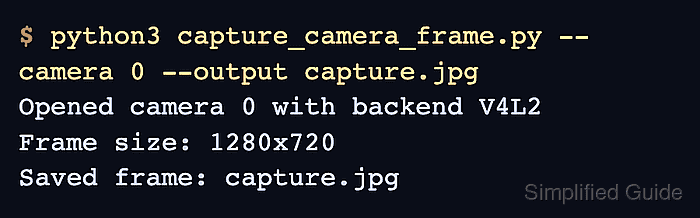
A filename passed to cv.VideoCapture selects a recorded-video source. The script checks isOpened() before reading, rejects an empty frame, and releases the capture object in a finally block after success or failure.
The bounded read keeps the decoded images in memory and reports their count and dimensions without writing extracted frames to disk. Use a clip with at least 60 decodable frames for the command shown here; shorter or damaged input exits before a success summary is printed.
Related: How to install OpenCV on Ubuntu
Related: How to display video with OpenCV
Related: How to write video files with OpenCV
Steps to capture frames from recorded video with OpenCV:
- Create capture_video.py with the input contract and insertion markers.
- capture_video.py
#!/usr/bin/env python3
import argparse
import sys
from pathlib import Path

import cv2 as cv


parser = argparse.ArgumentParser(description="Capture frames from a recorded video.")
parser.add_argument("video", type=Path, help="path to a recorded video file")
parser.add_argument("--frames", type=int, default=60, help="number of frames to capture")
args = parser.parse_args()

# VALIDATE_INPUT
# OPEN_VIDEO
# CAPTURE_FRAMES
# REPORT_RESULT
- Replace the VALIDATE_INPUT marker with the file and frame-count checks.
if not args.video.is_file():
    sys.exit(f"Video file not found: {args.video}")
if args.frames < 1:
    sys.exit("Frame count must be at least 1")
- Replace the OPEN_VIDEO marker with recorded-video initialization.
capture = cv.VideoCapture(str(args.video))
if not capture.isOpened():
    sys.exit(f"Cannot open video: {args.video}")

backend = capture.getBackendName()
VideoCapture selects a decoder from the video backends included in the local OpenCV build. A file can exist but still fail here when its container or codec is unsupported.
- Replace the CAPTURE_FRAMES marker with the bounded decoding loop.
frames_captured = 0
frame_size = None

try:
    while frames_captured < args.frames:
        ok, frame = capture.read()
        if not ok or frame is None:
            sys.exit(
                f"Cannot read frame {frames_captured + 1} from {args.video}"
            )

        frames_captured += 1
        frame_size = (frame.shape[1], frame.shape[0])
finally:
    capture.release()
capture.read() returns the decoded frame with a status value. End-of-file before the requested count and a decoder failure both stop the script instead of producing a partial success summary.
- Replace the REPORT_RESULT marker with the recorded-video summary.
width, height = frame_size
print(f"Video: {args.video}")
print(f"Backend: {backend}")
print(f"Frames captured: {frames_captured}")
print(f"Frame size: {width}x{height}")
- Compare the assembled script with the complete capture_video.py file.
- capture_video.py
#!/usr/bin/env python3
import argparse
import sys
from pathlib import Path

import cv2 as cv


parser = argparse.ArgumentParser(description="Capture frames from a recorded video.")
parser.add_argument("video", type=Path, help="path to a recorded video file")
parser.add_argument("--frames", type=int, default=60, help="number of frames to capture")
args = parser.parse_args()

if not args.video.is_file():
    sys.exit(f"Video file not found: {args.video}")
if args.frames < 1:
    sys.exit("Frame count must be at least 1")

capture = cv.VideoCapture(str(args.video))
if not capture.isOpened():
    sys.exit(f"Cannot open video: {args.video}")

backend = capture.getBackendName()
frames_captured = 0
frame_size = None

try:
    while frames_captured < args.frames:
        ok, frame = capture.read()
        if not ok or frame is None:
            sys.exit(
                f"Cannot read frame {frames_captured + 1} from {args.video}"
            )

        frames_captured += 1
        frame_size = (frame.shape[1], frame.shape[0])
finally:
    capture.release()

width, height = frame_size
print(f"Video: {args.video}")
print(f"Backend: {backend}")
print(f"Frames captured: {frames_captured}")
print(f"Frame size: {width}x{height}")
- Run capture_video.py against a recorded clip with at least 60 frames.
$ python3 capture_video.py sample.avi --frames 60
Video: sample.avi
Backend: FFMPEG
Frames captured: 60
Frame size: 768x576
The script prints all four lines only after VideoCapture opens the recording and decodes 60 nonempty frames. A missing file, unsupported video, or early read failure exits with an error instead.