How to back up and restore Open WebUI data
Open WebUI keeps chats, users, settings, uploads, knowledge files, and generated content outside the disposable container image. A volume backup gives an operator a recovery point before an update, host move, or storage change touches that persistent state.
The standard Docker deployment stores that state in the open-webui named volume mounted at /app/backend/data inside the application container. A short-lived alpine helper container can mount the same volume as /data, create a compressed archive on the host, and later unpack that archive into another volume.
Stop the container that writes to the volume before taking the archive, because the default SQLite database and vector data can change while users are active. Restore into a fresh test volume first, start Open WebUI with the restored data, and use the same WEBUI_SECRET_KEY value when the restored container is meant to replace an existing instance.
Related: How to update Open WebUI in Docker
Related: How to export a chat from Open WebUI
Steps to back up and restore Open WebUI data:
- Stop the Open WebUI container before reading the data volume.
$ docker stop open-webui
open-webui
For a Docker Compose deployment, stop the open-webui service with the Compose command used for that stack before running the same volume backup pattern.
- Create a host directory for the backup archive.
$ mkdir -p open-webui-backups
- Archive the open-webui volume into the host backup directory.
$ docker run --rm -v open-webui:/data -v "$PWD/open-webui-backups":/backup alpine tar czf /backup/openwebui-$(date +%Y%m%d).tar.gz /data
tar: removing leading '/' from member names
The archive keeps the top-level /data path because the volume is mounted at /data inside the helper container.
- Start the original container again after the archive is written.
$ docker start open-webui
open-webui
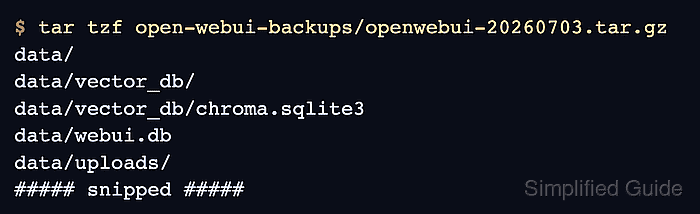
- List the archive contents before using it for a restore.
$ tar tzf open-webui-backups/openwebui-20260703.tar.gz
data/
data/vector_db/
data/vector_db/chroma.sqlite3
data/webui.db
data/uploads/
##### snipped #####
Replace 20260703 with the date in the backup filename created on your host. The listing should include data/webui.db plus upload or vector-database paths when those features have been used.
- Create a fresh volume for the restore test.
$ docker volume create open-webui-restore-test
open-webui-restore-test
- Restore the archive into the fresh volume.
$ docker run --rm -v open-webui-restore-test:/data -v "$PWD/open-webui-backups":/backup alpine sh -c "rm -rf /data/* && tar xzf /backup/openwebui-20260703.tar.gz -C /"
The restore command deletes everything already present in the target volume before extracting the archive. Use a new test volume first, and run it against the production open-webui volume only when recovering that instance is intentional.
- Start a temporary Open WebUI container with the restored volume.
$ docker run -d --name open-webui-restore-test -p 3001:8080 -v open-webui-restore-test:/app/backend/data -e WEBUI_SECRET_KEY="your-secret-key" ghcr.io/open-webui/open-webui:main
<container-id>
Use the same WEBUI_SECRET_KEY as the original deployment when this restored container is a replacement. A different value invalidates existing browser sessions.
- Check that the restored container reaches the health endpoint.
$ curl -fsS http://127.0.0.1:3001/health {"status":true} - Confirm that an existing account can sign in against the restored instance.
$ curl --silent --show-error --output /dev/null --write-out "%{http_code}\n" -X POST http://127.0.0.1:3001/api/v1/auths/signin -H "Content-Type: application/json" --data '{"email":"admin@example.com","password":"<admin-password>"}'
200
Use a trusted shell or browser sign-in for this check, because real account credentials can be captured by shell history or process monitoring.
- Remove the temporary restored container after the restore test is complete.
$ docker rm -f open-webui-restore-test
open-webui-restore-test
Keep the restored volume only when it will become the replacement data volume. Remove it after a rehearsal if it contains copied production data.