How to run package.json scripts in Node.js
Project tasks in Node.js often live in the scripts object of package.json. Running them through npm keeps build, test, lint, and start commands attached to the project instead of relying on each developer to remember the underlying shell command.
npm run reads the package manifest for the project and executes the selected script from the package root. During that script, npm adds local dependency executables from node_modules/.bin to the command path, so project tools can be called by name after dependencies are installed.
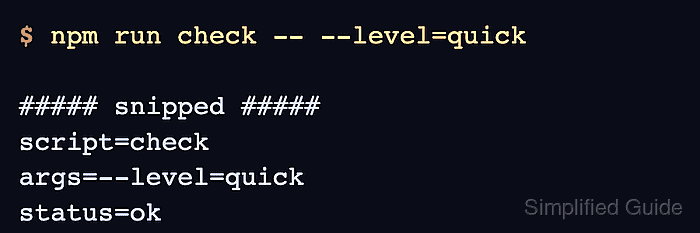
Script arguments need one extra separator because npm has its own command-line options. Put arguments for the underlying script after --, and expect matching hooks such as precheck or postcheck to run around check when the project defines them.
Steps to run package.json scripts with npm:
- Confirm the script name in package.json.
- package.json
{
  "scripts": {
    "check": "node scripts/check.js",
    "test": "node --test",
    "start": "node server.js"
  }
}
If package.json was edited by hand, validate it as strict JSON before rerunning npm.
Tool: JSON Validator - List the scripts npm can run in the current project.
$ npm run
Lifecycle scripts included in package-json-scripts-demo@1.0.0:
  test
    node --test
  start
    node server.js

available via `npm run-script`:
  check
    node scripts/check.js
Run npm run from the project root that contains package.json. If the project uses workspaces, use that project's workspace flag instead of running from an unrelated package.
- Run the selected script with npm run.
$ npm run check

> package-json-scripts-demo@1.0.0 check
> node scripts/check.js

script=check
args=(none)
status=ok
- Pass script arguments after the -- separator.
$ npm run check -- --level=quick

> package-json-scripts-demo@1.0.0 check
> node scripts/check.js --level=quick

script=check
args=--level=quick
status=ok
Arguments after -- go to the named script, not to matching precheck or postcheck hooks.
- Use lifecycle shortcuts only for scripts with standard names.
$ npm start

> package-json-scripts-demo@1.0.0 start
> node server.js

server script selected
npm start runs the start script, and npm test runs the test script. Use npm run for custom script names such as check, build, or lint.