How to detect an operating system with Nmap
Nmap OS detection fingerprints the way an authorized host answers TCP, UDP, and ICMP probes. It helps inventory reviews, exposure checks, and unknown-device investigations distinguish a Linux server from a router, printer, firewall, or workstation before deeper validation begins.
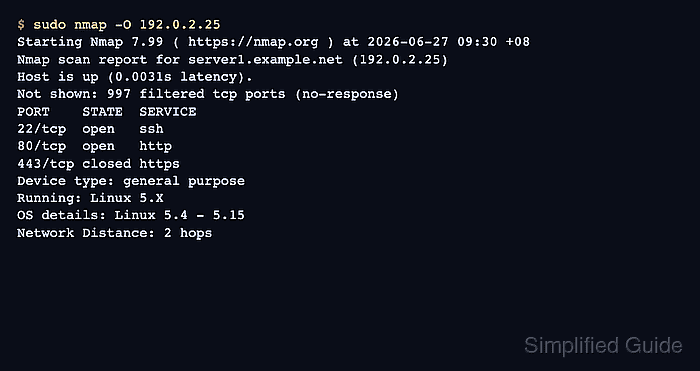
The -O option asks Nmap to compare probe responses with its OS fingerprint database. A clean result usually prints Device type, Running, OS details, optional OS CPE lines, and network distance. The match is strongest when the target has at least one open TCP port and one closed TCP port.
Run OS detection only against hosts that are in scope for scanning. If Nmap reports no exact match or warns that the scan conditions are weak, treat the result as a lead to verify with inventory data, console access, or service version checks instead of as a final asset record.
Related: How to install Nmap on Ubuntu or Debian
Related: How to discover live hosts with Nmap
Related: How to detect service versions with Nmap
Related: How to save Nmap scan output
Steps to detect an operating system with Nmap:
- Confirm that the target host is authorized for active scanning.
Do not run OS detection against Internet hosts, customer networks, or neighboring subnets unless the written scope explicitly includes them.
- Run OS detection against the approved host.
$ sudo nmap -O 192.0.2.25
Starting Nmap 7.99 ( https://nmap.org ) at 2026-06-27 09:30 +08
Nmap scan report for server1.example.net (192.0.2.25)
Host is up (0.0031s latency).
Not shown: 997 filtered tcp ports (no-response)
PORT    STATE  SERVICE
22/tcp  open   ssh
80/tcp  open   http
443/tcp closed https
Device type: general purpose
Running: Linux 5.X
OS details: Linux 5.4 - 5.15
Network Distance: 2 hops

OS detection performed. Please report any incorrect results at https://nmap.org/submit/ .
Nmap done: 1 IP address (1 host up) scanned in 8.42 seconds
sudo is normally required because OS detection uses raw packet probes. Replace 192.0.2.25 with the approved address or hostname. For larger approved ranges, add --osscan-limit so Nmap skips OS fingerprinting when it did not find enough open and closed TCP port signal.
Related: How to exclude targets from an Nmap scan - Read the OS fingerprint lines from the result.
Device type describes the likely hardware role, Running gives the broad OS family, and OS details is the more specific match. Missing or broad detail means Nmap did not collect enough distinctive responses.
- Retry with aggressive guesses only when the first scan does not produce an exact match.
$ sudo nmap -O --osscan-guess 192.0.2.25
Starting Nmap 7.99 ( https://nmap.org ) at 2026-06-27 09:36 +08
Nmap scan report for server1.example.net (192.0.2.25)
Host is up (0.0030s latency).
Not shown: 998 filtered tcp ports (no-response)
PORT   STATE SERVICE
22/tcp open  ssh
80/tcp open  http

Aggressive OS guesses: Linux 5.4 (95%), Linux 5.10 (93%), Linux 4.19 (91%)
No exact OS matches for host (test conditions non-ideal).
Nmap done: 1 IP address (1 host up) scanned in 10.18 seconds
--osscan-guess prints close matches with confidence percentages. Use the percentages to decide whether the result is enough for triage or needs confirmation from another source.