How to monitor a Windows host with NSClient++ in Nagios Core
Windows host metrics such as CPU load, disk usage, memory usage, and service state sit behind the operating system rather than on public TCP ports. Nagios Core can collect those private Windows checks through NSClient++ when an existing estate still exposes the legacy check_nt listener.
NSClientServer is the NSClient++ module that answers check_nt requests on TCP port 12489 by default. The monitoring server runs the check_nt plugin, sends a variable such as CPULOAD or SERVICESTATE, and stores the returned status line as an active host or service check result.
This method is best for maintaining an existing NSClient++ deployment, not for designing new Windows monitoring from scratch. Limit the listener to the Nagios Core server address, keep the agent password out of object files when possible, and use NCPA or another modern agent when the environment needs a token-protected HTTPS API.
Steps to monitor a Windows host with NSClient++ in Nagios Core:
- Install NSClient++ on the Windows host and enable the NSClientServer feature during setup.
https://nsclient.org/download/
NSClientServer provides the legacy check_nt protocol. Keep this path for existing NSClient++ estates; new Windows monitoring usually fits NCPA better.
Related: How to monitor a Windows host with NCPA in Nagios Core - Open the NSClient++ configuration file on the Windows host.
PS C:\> notepad 'C:\Program Files\NSClient++\nsclient.ini'
- Enable the local check modules and the check_nt listener.
- nsclient.ini
[/modules]
CheckSystem = enabled
CheckDisk = enabled
NSClientServer = enabled

[/settings/NSClient/server]
allowed hosts = 192.0.2.20
port = 12489
password = strong-agent-password
use ssl = false
Replace 192.0.2.20 with the Nagios Core server address. Current check_nt plugin syntax does not provide a TLS option, so use ssl = false belongs only behind a firewall rule that limits the listener to the monitoring server.
- Restart the NSClient++ service and confirm that it is running.
PS C:\> Restart-Service -Name nscp -PassThru

Status   Name               DisplayName
------   ----               -----------
Running  nscp               NSClient++ (x64)
- Allow the Nagios Core server to reach the NSClient++ listener in Windows Firewall.
PS C:\> New-NetFirewallRule `
  -DisplayName 'NSClient++ check_nt from Nagios' `
  -Direction Inbound `
  -Protocol TCP `
  -LocalPort 12489 `
  -RemoteAddress 192.0.2.20 `
  -Action Allow

DisplayName           : NSClient++ check_nt from Nagios
Enabled               : True
Direction             : Inbound
Action                : Allow
Use the monitoring server address from the allowed hosts setting. Do not expose TCP port 12489 to broad client networks.
- Run a manual CPU check from the Nagios Core server.
$ /usr/lib/nagios/plugins/check_nt \
  -H win01.example.net \
  -p 12489 \
  -s 'strong-agent-password' \
  -v CPULOAD \
  -l 5,80,90
CPU Load 7% (5 min average) | '5 min avg Load'=7%;80;90;0;100
Package installs on Debian and Ubuntu normally place plugins under /usr/lib/nagios/plugins. Source installs often use /usr/local/nagios/libexec.
Related: How to run a Nagios plugin manually - Store the NSClient++ password in a Nagios Core resource macro.
$ sudoedit /etc/nagios4/resource.cfg
- resource.cfg
$USER9$=strong-agent-password
Resource macros are still secrets. Restrict read access to resource.cfg and avoid pasting the agent password into screenshots, tickets, or shared command transcripts.
- Create an object file for the Windows host and NSClient++ checks.
$ sudoedit /etc/nagios4/conf.d/win01-nsclient.cfg
- Add a page-specific command object and the Windows host and service objects.
- win01-nsclient.cfg
define command {
    command_name    check_nsclient_nt
    command_line    $USER1$/check_nt -H '$HOSTADDRESS$' -p 12489 -s '$USER9$' -v '$ARG1$' $ARG2$
}

define host {
    use                     generic-host
    host_name               win01.example.net
    alias                   Windows Server 01
    address                 win01.example.net
    check_command           check_nsclient_nt!CLIENTVERSION
    max_check_attempts      3
    check_interval          5
    retry_interval          1
    contact_groups          admins
}

define service {
    use                     generic-service
    host_name               win01.example.net
    service_description     Windows CPU Load
    check_command           check_nsclient_nt!CPULOAD!-l 5,80,90
    contact_groups          admins
}

define service {
    use                     generic-service
    host_name               win01.example.net
    service_description     Windows C Drive
    check_command           check_nsclient_nt!USEDDISKSPACE!-l C -w 80 -c 90
    contact_groups          admins
}

define service {
    use                     generic-service
    host_name               win01.example.net
    service_description     Windows Spooler Service
    check_command           check_nsclient_nt!SERVICESTATE!-l Spooler -d SHOWALL
    contact_groups          admins
}
Current Debian and Ubuntu packages load /etc/nagios4/conf.d by default and set $USER1$ to /usr/lib/nagios/plugins. If the site already has a command for password-protected check_nt checks, reuse that command name instead of defining a duplicate.
Related: How to add a host in Nagios Core - Validate the Nagios Core configuration before applying the new objects.
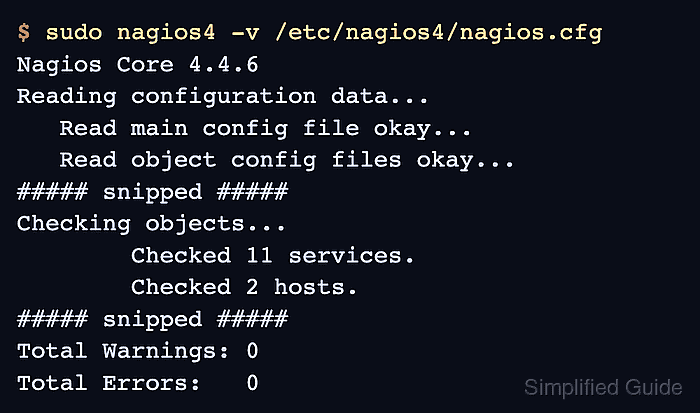
$ sudo nagios4 -v /etc/nagios4/nagios.cfg
Nagios Core 4.4.6
Reading configuration data...
   Read main config file okay...
   Read object config files okay...

Running pre-flight check on configuration data...

Checking objects...
	Checked 11 services.
	Checked 2 hosts.
	Checked 1 host groups.
	Checked 0 service groups.
	Checked 1 contacts.
	Checked 1 contact groups.
	Checked 181 commands.
	Checked 5 time periods.
##### snipped #####
Total Warnings: 0
Total Errors:   0

Things look okay - No serious problems were detected during the pre-flight check
Do not reload Nagios Core while Total Errors is greater than 0. Fix the first reported file and line, then run the pre-flight check again.
Related: How to validate the Nagios Core configuration - Reload Nagios Core after the pre-flight check reports zero errors.
$ sudo systemctl reload nagios4
Use the service name and control method from the local installation when Nagios Core was installed from source.
Related: How to manage the Nagios Core system service - Open the service status page for the Windows host.
http://monitor.example.net/nagios4/cgi-bin/status.cgi?host=win01.example.net&style=detail
- Confirm that the Windows service rows return OK or a meaningful non-OK plugin result.
Windows CPU Load          OK    CPU Load 7% (5 min average)
Windows C Drive           OK    C:\ - total: 120.00 Gb - used: 48.00 Gb (40%) - free 72.00 Gb (60%)
Windows Spooler Service   OK    Spooler: Running
Connection refused, Socket timeout, or an authentication failure points first to the Windows listener port, allowed hosts setting, password, or firewall rule.