How to create a Nagios Core time period
Time periods in Nagios Core define named windows when scheduled checks, notifications, escalations, and dependencies are allowed to operate. A reusable window keeps business-hour monitoring or alert routing in one object instead of repeating weekday ranges across hosts, services, contacts, and escalation rules.
Time period objects are loaded from the same object configuration tree as hosts and services. A define timeperiod block needs a timeperiod_name, an alias, and weekday or date ranges, while other objects reference that name through directives such as check_period, notification_period, escalation_period, or dependency_period.
On Debian and Ubuntu package installs, /etc/nagios4/conf.d is a safe local object directory when it is loaded by /etc/nagios4/nagios.cfg. The service object uses the packaged localhost host so the new time period is validated both as a standalone object and as a referenced check_period and notification_period. Regularly scheduled active checks obey check_period, but on-demand and passive checks are not restricted by that time period.
Steps to create a Nagios Core time period:
- Confirm that Nagios Core loads the local object directory.
$ grep '^cfg_dir=/etc/nagios4/conf.d' /etc/nagios4/nagios.cfg
cfg_dir=/etc/nagios4/conf.d
Debian and Ubuntu package installs commonly load /etc/nagios4/conf.d. Source installs often use /usr/local/nagios/etc/objects or another directory named by cfg_file or cfg_dir.
Related: How to add a Nagios Core object configuration directory - Open a local time period object file.
$ sudoedit /etc/nagios4/conf.d/timeperiods-local.cfg
- Add the time period definition.
- timeperiods-local.cfg
define timeperiod {
    timeperiod_name         weekday-business-hours
    alias                   Weekday Business Hours
    monday                  09:00-17:00
    tuesday                 09:00-17:00
    wednesday               09:00-17:00
    thursday                09:00-17:00
    friday                  09:00-17:00
}
Weekday ranges use 24-hour HH:MM-HH:MM values. Omitting saturday and sunday keeps those days outside the time period, and multiple ranges on one day can be separated with commas.
- Attach the time period to a monitored object.
- timeperiods-local.cfg
define service {
    use                     local-service
    host_name               localhost
    service_description     Business Hours Ping
    check_command           check_ping!100.0,20%!500.0,60%
    check_period            weekday-business-hours
    notification_period     weekday-business-hours
}
Use an existing host or service object instead when the time period should control a production check. check_period controls regularly scheduled active checks, and notification_period controls when this service can notify contacts.
- Validate the full Nagios Core configuration.
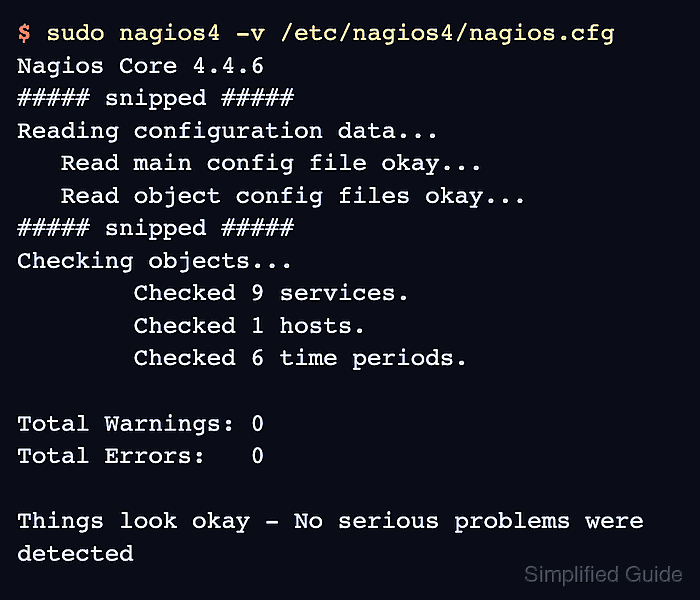
$ sudo nagios4 -v /etc/nagios4/nagios.cfg
Nagios Core 4.4.6
##### snipped #####
Reading configuration data...
   Read main config file okay...
   Read object config files okay...

Running pre-flight check on configuration data...

Checking objects...
	Checked 9 services.
	Checked 1 hosts.
	Checked 1 host groups.
	Checked 0 service groups.
	Checked 1 contacts.
	Checked 1 contact groups.
	Checked 180 commands.
	Checked 6 time periods.
	Checked 0 host escalations.
	Checked 0 service escalations.
##### snipped #####
Total Warnings: 0
Total Errors:   0

Things look okay - No serious problems were detected during the pre-flight check
Do not reload Nagios Core while Total Errors is greater than 0. Fix the first reported object or time period error, then run the verifier again.
Related: How to validate the Nagios Core configuration - Reload Nagios Core to apply the accepted object definitions.
$ sudo systemctl reload nagios4
Ubuntu and Debian package installs use the nagios4 service name. Source installs may use a different service name, init script, or SIGHUP reload method.
Related: How to manage the Nagios Core system service - Confirm that the time period and service references loaded into the runtime object cache.
$ sudo grep "weekday-business-hours" /var/lib/nagios4/objects.cache
	timeperiod_name	weekday-business-hours
	check_period	weekday-business-hours
	notification_period	weekday-business-hours
Use the object_cache_file path from /etc/nagios4/nagios.cfg when the installation stores the runtime object cache somewhere else.