How to configure PNP4Nagios performance graphs
Nagios Core shows the latest check state, but capacity and latency questions often need the metric history behind that state. PNP4Nagios reads plugin performance data, stores the values in RRD files, and serves graphs so service trends remain visible after the current check result changes.
Bulk with NPCD mode keeps graph processing outside the Nagios Core scheduler. Nagios Core writes host and service performance data files, file-processing commands move completed files into the PNP4Nagios spool directory, and NPCD calls process_perfdata.pl with -b for each queued file.
Start after PNP4Nagios is already installed on the monitoring server and Nagios Core is already producing plugin performance data. Current Debian and Ubuntu package sets may not provide a maintained PNP4Nagios package, so source or vendor installs commonly use /usr/local/pnp4nagios while packaged Nagios Core still uses /etc/nagios4.
Steps to configure PNP4Nagios performance graphs:
- Confirm the PNP4Nagios processor exists.
$ sudo test -x /usr/local/pnp4nagios/libexec/process_perfdata.pl
No output means the processor exists and is executable. Use the local PNP4Nagios prefix consistently if the install path is not /usr/local/pnp4nagios.
- Open the NPCD configuration file.
$ sudoedit /usr/local/pnp4nagios/etc/npcd.cfg
- Set the NPCD bulk-processing options.
user = nagios
group = nagios
log_type = file
log_file = /usr/local/pnp4nagios/var/npcd.log
log_level = 0

perfdata_spool_dir = /usr/local/pnp4nagios/var/spool/
perfdata_file_run_cmd = /usr/local/pnp4nagios/libexec/process_perfdata.pl
perfdata_file_run_cmd_args = -b
npcd_max_threads = 5
sleep_time = 15
pid_file = /run/npcd.pid
NPCD scans perfdata_spool_dir and runs process_perfdata.pl -b with each queued host or service performance data file.
- Create a Nagios Core object file for the PNP4Nagios file-processing commands.
$ sudoedit /etc/nagios4/conf.d/pnp4nagios.cfg
Debian and Ubuntu package installs load /etc/nagios4/conf.d from /etc/nagios4/nagios.cfg. Source installs commonly place object files under /usr/local/nagios/etc/objects.
- Add the Bulk with NPCD command definitions.
define command {
    command_name    process-service-perfdata-file-bulk-npcd
    command_line    /bin/mv /usr/local/pnp4nagios/var/service-perfdata /usr/local/pnp4nagios/var/spool/service-perfdata.$TIMET$
}

define command {
    command_name    process-host-perfdata-file-bulk-npcd
    command_line    /bin/mv /usr/local/pnp4nagios/var/host-perfdata /usr/local/pnp4nagios/var/spool/host-perfdata.$TIMET$
}
The command names must match the host_perfdata_file_processing_command and service_perfdata_file_processing_command settings in the main Nagios Core configuration.
- Open the active Nagios Core main configuration file.
$ sudoedit /etc/nagios4/nagios.cfg
- Set the PNP4Nagios performance data file directives.
process_performance_data=1

service_perfdata_file=/usr/local/pnp4nagios/var/service-perfdata
service_perfdata_file_template=DATATYPE::SERVICEPERFDATA\tTIMET::$TIMET$\tHOSTNAME::$HOSTNAME$\tSERVICEDESC::$SERVICEDESC$\tSERVICEPERFDATA::$SERVICEPERFDATA$\tSERVICECHECKCOMMAND::$SERVICECHECKCOMMAND$\tHOSTSTATE::$HOSTSTATE$\tHOSTSTATETYPE::$HOSTSTATETYPE$\tSERVICESTATE::$SERVICESTATE$\tSERVICESTATETYPE::$SERVICESTATETYPE$
service_perfdata_file_mode=a
service_perfdata_file_processing_interval=15
service_perfdata_file_processing_command=process-service-perfdata-file-bulk-npcd

host_perfdata_file=/usr/local/pnp4nagios/var/host-perfdata
host_perfdata_file_template=DATATYPE::HOSTPERFDATA\tTIMET::$TIMET$\tHOSTNAME::$HOSTNAME$\tHOSTPERFDATA::$HOSTPERFDATA$\tHOSTCHECKCOMMAND::$HOSTCHECKCOMMAND$\tHOSTSTATE::$HOSTSTATE$\tHOSTSTATETYPE::$HOSTSTATETYPE$
host_perfdata_file_mode=a
host_perfdata_file_processing_interval=15
host_perfdata_file_processing_command=process-host-perfdata-file-bulk-npcd
Set the existing process_performance_data directive to 1 instead of leaving an earlier process_performance_data=0 in place. Do not use npcdmod with Nagios Core 4 unless the module was built and tested for the exact running Nagios Core version.
- Validate the Nagios Core configuration.
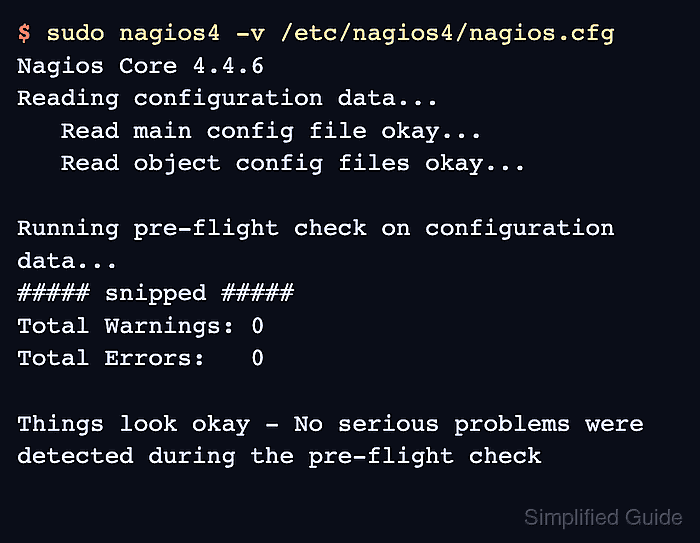
$ sudo nagios4 -v /etc/nagios4/nagios.cfg
Nagios Core 4.4.6
Reading configuration data...
   Read main config file okay...
   Read object config files okay...

Running pre-flight check on configuration data...
##### snipped #####
Total Warnings: 0
Total Errors:   0

Things look okay - No serious problems were detected during the pre-flight check
Use sudo /usr/local/nagios/bin/nagios -v /usr/local/nagios/etc/nagios.cfg on source installs that follow the upstream Nagios Core layout.
Related: How to validate the Nagios Core configuration - Start NPCD on the monitoring server.
$ sudo systemctl enable --now npcd
If the install did not create a systemd unit, start NPCD with /usr/local/pnp4nagios/bin/npcd -d -f /usr/local/pnp4nagios/etc/npcd.cfg.
- Reload Nagios Core after NPCD is running.
$ sudo systemctl reload nagios4
Reloading after NPCD starts prevents new performance data files from waiting in the spool without a processor.
Related: How to manage the Nagios Core system service - Wait for a service check that emits performance data.
Use the web UI Re-schedule the next check command when the next active check is too far away.
Related: How to reschedule an active check in Nagios Core - Check that PNP4Nagios created RRD graph data for the checked service.
$ sudo find /usr/local/pnp4nagios/var/perfdata -name '*.rrd' -print
/usr/local/pnp4nagios/var/perfdata/localhost/PING.rrd
If no RRD files appear, confirm the service detail page has a non-empty Performance Data field and review /usr/local/pnp4nagios/var/npcd.log for path, permission, or processor errors.
- Open the graph page for the checked service.
http://monitor.example.net/pnp4nagios/graph?host=localhost&srv=PING
A visible graph confirms that Nagios Core emitted performance data, NPCD processed the spooled file, and the PNP4Nagios web UI can read the generated RRD data.