How to monitor a Linux host with NRPE in Nagios Core
NRPE gives Nagios Core a way to run selected Nagios plugins on a remote Linux or Unix host and receive the plugin status over TCP. It fits checks such as disk usage, load, users, and process counts where the useful signal exists on the monitored host instead of on the network path to it.
The monitoring server needs the check_nrpe plugin, while the monitored host runs the nagios-nrpe-server daemon and local Nagios plugins. On current Debian and Ubuntu packages, Nagios object files live under /etc/nagios4/conf.d, the NRPE daemon reads /etc/nagios/nrpe.cfg, and custom NRPE command drop-ins can live in /etc/nagios/nrpe.d.
NRPE should expose only named commands to the monitoring server. Keep dont_blame_nrpe disabled unless a command specifically needs client-supplied arguments, limit TCP port 5666 to the Nagios server, and test the remote command manually before adding it to the Nagios object configuration.
Steps to monitor a Linux host with NRPE:
- Install the check_nrpe plugin on the Nagios Core server.
$ sudo apt install nagios-nrpe-plugin
- Install the NRPE daemon and Nagios plugins on the Linux host.
$ sudo apt install nagios-nrpe-server monitoring-plugins-basic monitoring-plugins-standard
The Linux host is the system being monitored, not the Nagios Core server.
Related: How to install the NRPE agent on Linux for Nagios Core - Edit the NRPE access list on the Linux host.
$ sudoedit /etc/nagios/nrpe.cfg
allowed_hosts=127.0.0.1,::1,monitor.example.net
Replace monitor.example.net with the real monitoring server address or DNS name, and allow TCP port 5666 only from that server.
- Create the remote disk check command on the Linux host.
$ sudoedit /etc/nagios/nrpe.d/check_disk_root.cfg
command[check_disk_root]=/usr/lib/nagios/plugins/check_disk -w 20% -c 10% -p /
This keeps dont_blame_nrpe disabled because the server calls a named command instead of passing plugin arguments over the network.
Related: How to add an NRPE command for Nagios Core - Restart the NRPE service on the Linux host.
$ sudo systemctl restart nagios-nrpe-server
- Run the remote command from the Nagios Core server.
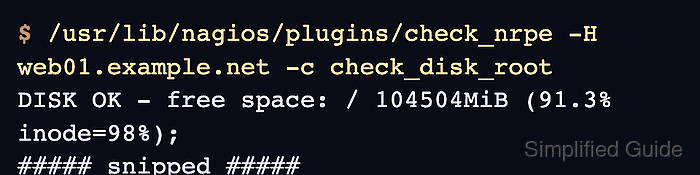
$ /usr/lib/nagios/plugins/check_nrpe -H web01.example.net -c check_disk_root
DISK OK - free space: / 104504MiB (91.3% inode=98%);
##### snipped #####
If the check is refused, confirm allowed_hosts on the Linux host and the firewall path from the monitoring server to TCP port 5666.
Related: How to run a Nagios plugin manually - Create a Nagios host and service object for the remote check.
$ sudoedit /etc/nagios4/conf.d/web01-nrpe.cfg
Use an existing host object when web01.example.net is already defined elsewhere. Do not define the same host_name in two object files.
Related: How to add a host in Nagios Core - Add the host and service objects.
define host {
    use                     linux-server
    host_name               web01.example.net
    alias                   Web server 01
    address                 web01.example.net
}

define service {
    use                     generic-service
    host_name               web01.example.net
    service_description     Disk Usage
    check_command           check_nrpe!check_disk_root
}
Debian and Ubuntu packages load the check_nrpe command definition from /etc/nagios-plugins/config/check_nrpe.cfg. Source installs may need a matching command definition before this service object works.
Related: How to add a host in Nagios Core
Related: How to add a service check in Nagios Core
Related: How to define a Nagios Core check command - Test the Nagios configuration.
$ sudo nagios4 -v /etc/nagios4/nagios.cfg
Nagios Core 4.4.6
Reading configuration data...
   Read main config file okay...
   Read object config files okay...

Running pre-flight check on configuration data...

Checking objects...
	Checked 9 services.
	Checked 2 hosts.
	Checked 1 host groups.
	Checked 0 service groups.
	Checked 1 contacts.
	Checked 1 contact groups.
	Checked 180 commands.
	Checked 5 time periods.
##### snipped #####
Total Warnings: 0
Total Errors:   0

Things look okay - No serious problems were detected during the pre-flight check
- Reload Nagios Core.
$ sudo systemctl reload nagios4
- Confirm the service reaches OK after the next active check.
Use the Services view in the Nagios web interface, or reschedule the service check if the interval has not elapsed.
Related: How to reschedule an active check in Nagios Core