How to monitor an HTTP service with Nagios Core
HTTP service monitoring in Nagios Core turns one web URL path into a scheduled service state with alerting. It fits health endpoints, public pages, and internal application routes where a server can still answer on port 80 while the page that matters returns an error or missing content.
Nagios runs the request through check_http, a monitoring plugin that can inspect status codes, response time, URI paths, and expected strings. Use the HTTP host name for the virtual-host header, keep the host object's address as the connection target, and choose thresholds that match the route's normal response time.
On Ubuntu and Debian package installs, plugins usually live under /usr/lib/nagios/plugins and object snippets can be placed under /etc/nagios4/conf.d. Use an existing host object when the endpoint already exists in Nagios; define one only when the host is new. A clean pre-flight check, a reload, and an OK result for HTTP /health prove that Nagios loaded the service and can reach the monitored URL.
Related: How to install Nagios plugins
Related: How to add a host in Nagios Core
Related: How to add a service check in Nagios Core
Steps to monitor an HTTP service with Nagios Core:
- Run check_http as the nagios user from the monitoring server.
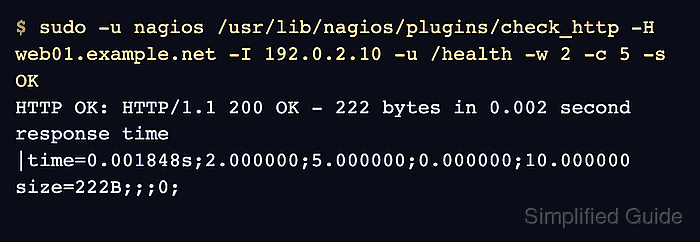
$ sudo -u nagios /usr/lib/nagios/plugins/check_http -H web01.example.net -I 192.0.2.10 -u /health -w 2 -c 5 -s OK
HTTP OK: HTTP/1.1 200 OK - 222 bytes in 0.002 second response time |time=0.001848s;2.000000;5.000000;0.000000;10.000000 size=222B;;;0;
Use -H for the HTTP Host header and -I for the address Nagios connects to. Choose a path and content string that prove the application route is alive, not only that the TCP port accepts connections.
Related: How to run a Nagios plugin manually
Tool: HTTP Header Checker - Create an object file for the HTTP service.
$ sudo vi /etc/nagios4/conf.d/http-service-monitor.cfg
Use an existing host object when one already represents the endpoint. Do not define the same host_name in two object files.
Related: How to add a host in Nagios Core - Add the host, command, and service objects.
define host{
    use                     linux-server
    host_name               web01.example.net
    alias                   Web application endpoint
    address                 192.0.2.10
}

define command{
    command_name            check_http_url
    command_line            $USER1$/check_http -H '$ARG1$' -I '$HOSTADDRESS$' -u '$ARG2$' -w '$ARG3$' -c '$ARG4$' $ARG5$
}

define service{
    use                     generic-service
    host_name               web01.example.net
    service_description     HTTP /health
    check_command           check_http_url!web01.example.net!/health!2!5!-s OK
}
The check_http_url command keeps the virtual host name, URI, warning time, critical time, and optional content check visible in the service definition. $USER1$ maps to the plugin directory defined in /etc/nagios4/resource.cfg on package installs.
- Validate the Nagios configuration before applying it.
$ sudo nagios4 -v /etc/nagios4/nagios.cfg
Nagios Core 4.4.6
Reading configuration data...
   Read main config file okay...
   Read object config files okay...

Running pre-flight check on configuration data...

Checking objects...
	Checked 9 services.
	Checked 2 hosts.
	Checked 1 host groups.
	Checked 0 service groups.
	Checked 1 contacts.
	Checked 1 contact groups.
	Checked 181 commands.
	Checked 5 time periods.
##### snipped #####
Total Warnings: 0
Total Errors:   0

Things look okay - No serious problems were detected during the pre-flight check
Fix every reported object or command error before reloading Nagios.
Related: How to validate the Nagios Core configuration - Reload the nagios4 service.
$ sudo systemctl reload nagios4
The packaged Ubuntu and Debian unit reloads Nagios with SIGHUP. Use the service name and control method from your installation when Nagios Core was installed from source.
Related: How to manage the Nagios Core system service - Check the service result in the Nagios Core web UI.
http://monitor.example.net/nagios4/
Open Services and confirm the HTTP /health row for web01.example.net shows OK with plugin output that starts with HTTP OK.