How to check active TCP connections in Windows
Checking established TCP connections in Windows shows which remote systems a machine is actively exchanging traffic with and which local processes own those sessions. That helps confirm that an application really opened a live network path, identify unexpected outbound activity, or separate a connection problem from a firewall or routing problem.
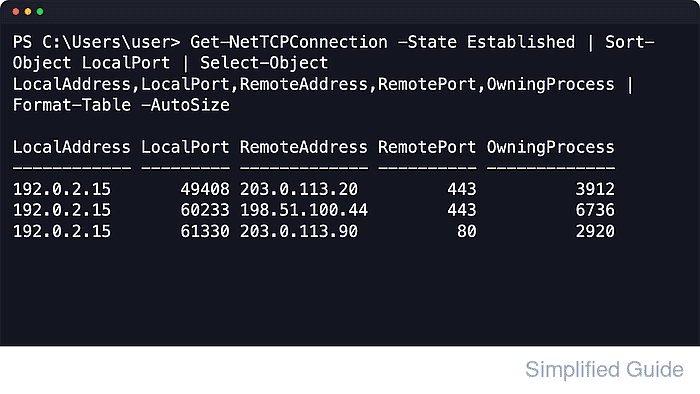
Windows exposes the current TCP socket table through the NetTCPIP PowerShell module. Get-NetTCPConnection can filter that table by state, local or remote address, local or remote port, and owning process, which makes it practical to inspect only the sessions that matter instead of scanning every socket on the system. The returned properties include the local endpoint, remote endpoint, connection state, and PID that owns each session.
The commands below focus on Established sessions that are already fully open. Listening sockets, handshake states, and UDP traffic are different cases, so an empty result often means the application is idle or using another protocol rather than broken. Start the workload first, and use an elevated PowerShell session when process lookups for protected services need additional access.
Steps to check active TCP connections in Windows with Get-NetTCPConnection:
- Open PowerShell from the Start menu.
Windows PowerShell and PowerShell both support Get-NetTCPConnection on current Windows systems that include the NetTCPIP module.
- List the current established TCP connections and sort them by local port.
PS C:\Users\user> Get-NetTCPConnection -State Established | Sort-Object LocalPort,RemotePort | Select-Object LocalAddress,LocalPort,RemoteAddress,RemotePort,State,OwningProcess | Format-Table -AutoSize

LocalAddress LocalPort RemoteAddress RemotePort       State OwningProcess
------------ --------- ------------- ----------       ----- -------------
192.0.2.15       49408 203.0.113.20         443 Established          3912
192.0.2.15       49409 203.0.113.20         443 Established          3912
192.0.2.15       60233 198.51.100.44        443 Established          6736
192.0.2.15       60254 198.51.100.45        443 Established          6736
192.0.2.15       61322 203.0.113.57         443 Established          5604
192.0.2.15       61324 198.51.100.78        443 Established          3532
192.0.2.15       61330 203.0.113.90          80 Established          2920
192.0.2.15       61331 203.0.113.90          80 Established          2920
-State Established limits the results to fully open sessions. RemotePort usually identifies the service more clearly than the ephemeral client-side LocalPort value, and OwningProcess is the PID for the process that owns the connection.
- Filter the results to one remote service by using -RemotePort.
PS C:\Users\user> Get-NetTCPConnection -State Established -RemotePort 443 | Format-Table LocalAddress,LocalPort,RemoteAddress,RemotePort,State,OwningProcess -AutoSize

LocalAddress LocalPort RemoteAddress RemotePort       State OwningProcess
------------ --------- ------------- ----------       ----- -------------
192.0.2.15       49408 203.0.113.20         443 Established          3912
192.0.2.15       49409 203.0.113.20         443 Established          3912
192.0.2.15       60233 198.51.100.44        443 Established          6736
192.0.2.15       60254 198.51.100.45        443 Established          6736
192.0.2.15       61322 203.0.113.57         443 Established          5604
192.0.2.15       61324 198.51.100.78        443 Established          3532
Replace 443 with the remote service port to isolate one class of traffic such as HTTPS, SMB, or RDP.
- Check only the connections owned by one process with -OwningProcess.
PS C:\Users\user> Get-NetTCPConnection -State Established -OwningProcess 3912 | Format-Table LocalAddress,LocalPort,RemoteAddress,RemotePort,State -AutoSize

LocalAddress LocalPort RemoteAddress RemotePort       State
------------ --------- ------------- ----------       -----
192.0.2.15       49408 203.0.113.20         443 Established
192.0.2.15       49409 203.0.113.20         443 Established
If this command returns no rows, that PID does not currently own any established TCP sessions.
- Resolve the PID to the process name so the connection can be tied back to an application or service.
PS C:\Users\user> Get-Process -Id 3912 | Format-Table Id,ProcessName -AutoSize

  Id ProcessName
  -- -----------
3912 svchost
Replace 3912 with the OwningProcess value from the previous step. Built-in Windows services often appear under svchost or System instead of under an application executable name.
- Run the query again while the application is actively transferring data if the expected session is missing.
If the command returns no rows, Windows currently has no established TCP sessions that match the filter. Use -RemoteAddress or -LocalPort for narrower queries, and check How to check listening ports in Windows when the application is only waiting for inbound traffic.