Checking which TCP ports are listening on a Windows system helps confirm that a service is actually waiting for inbound connections before you change firewall rules, test from another host, or troubleshoot why an application is unreachable. It is also a fast way to separate an application bind problem from a routing or firewall problem, because a service cannot accept TCP traffic until Windows has the port open in a listening state.
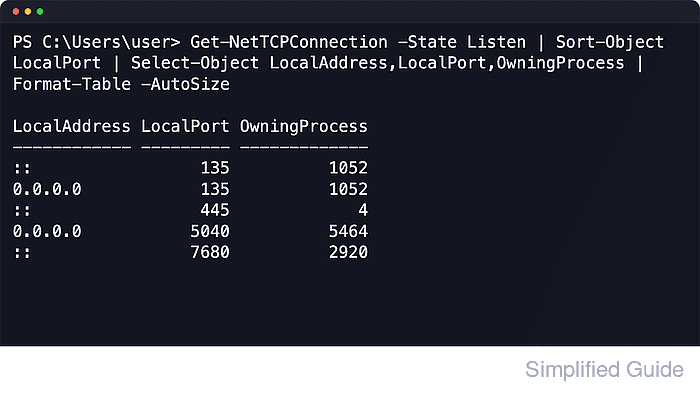
Windows exposes the live TCP socket table through the NetTCPIP PowerShell module. Get-NetTCPConnection reads the current TCP connection table and can filter by state or port, which makes it useful for listing every listening TCP socket or checking whether one specific application port is bound. The output includes the local address, local port, and owning process ID so you can map a listener back to the process that opened it.
This guide stays focused on TCP listeners on Windows 11. Some ports appear more than once because the same service can bind separate IPv4 and IPv6 sockets, and a query that returns no rows means Windows is not currently listening on that TCP port. Use an elevated PowerShell session when you need consistent access to protected system listeners or want to compare the results with firewall configuration.
Steps to check listening ports in Windows with Get-NetTCPConnection:
- Open PowerShell from the Start menu.
You can use either Windows PowerShell or PowerShell. Open it as administrator if you also need to inspect protected system listeners or compare the output with firewall rules.
- List the current listening TCP ports and sort them by port number.
PS C:\Users\user> Get-NetTCPConnection -State Listen | Sort-Object LocalPort | Select-Object LocalAddress,LocalPort,OwningProcess | Format-Table -AutoSize

LocalAddress LocalPort OwningProcess
------------ --------- -------------
::                 135          1052
0.0.0.0            135          1052
192.0.2.10         139             4
::                 445             4
0.0.0.0           5040          5464
::                7680          2920
127.0.0.1        30631          3840
0.0.0.0          49664           908
::               49664           908
0.0.0.0          49665           736
::               49665           736
::               49666          1656
0.0.0.0          49666          1656
::               49667          2500
0.0.0.0          49667          2500
::               49669          3148
0.0.0.0          49669          3148
::               49675           896
0.0.0.0          49675           896
-State Listen limits the results to TCP sockets that are waiting for inbound connections, and OwningProcess shows the PID that opened each listener.
- Review the listening address before testing from another machine.
0.0.0.0 means the service is listening on all IPv4 interfaces, :: means all IPv6 interfaces, and 127.0.0.1 means the listener accepts only local loopback traffic.
The same port can appear more than once when Windows has separate IPv4 and IPv6 listeners for the same service.
- Check whether one specific TCP port is listening by filtering with -LocalPort.
PS C:\Users\user> Get-NetTCPConnection -State Listen -LocalPort 445 | Format-Table LocalAddress,LocalPort,State,OwningProcess -AutoSize

LocalAddress LocalPort  State OwningProcess
------------ ---------  ----- -------------
::                 445 Listen             4
If this command returns no rows, nothing is currently listening on that TCP port.
- Resolve the listening port's PID to a process name.
PS C:\Users\user> Get-Process -Id 4 | Format-Table Id,ProcessName -AutoSize

Id ProcessName
-- -----------
 4 System
Replace 4 with the OwningProcess value returned by your previous query. Some built-in Windows services listen under System or svchost instead of under an application executable name.
- Repeat the query after starting or restarting the service you are testing.
Comparing the output before and after a service change is a simple way to confirm whether the application actually bound the expected TCP port, separate from any firewall or remote connectivity issue.

Mohd Shakir Zakaria is a cloud architect with deep roots in software development and open-source advocacy. Certified in AWS, Red Hat, VMware, ITIL, and Linux, he specializes in designing and managing robust cloud and on-premises infrastructures.


