How to enable OpenSSH Server in Windows
Enabling OpenSSH Server in Windows provides an encrypted remote shell and file-transfer endpoint for administration, automation, and recovery work without depending on Remote Desktop or a separate SSH server package.
Windows exposes OpenSSH Server through the sshd service. On Windows Server 2025 it is installed by default, while older supported server releases and Windows 10 or Windows 11 provide it as the optional capability OpenSSH.Server~~~~0.0.1.0. When the service is running, it listens on TCP port 22 and setup normally creates the inbound firewall rule named OpenSSH-Server-In-TCP.
An elevated PowerShell session is required to install the capability or change the service state. On managed or offline systems, capability installation can fail until Windows Update, Windows Server Update Services (WSUS), or a matching Features on Demand source is reachable, and opening TCP port 22 adds a new sign-in surface that should stay limited to intended accounts and trusted networks. The workflow checks the current state first, installs the server only when needed, then verifies the sshd service and firewall rule.
Steps to enable OpenSSH Server in Windows from PowerShell:
- Open PowerShell as an administrator.
- Check whether the OpenSSH Server capability is already installed.
PS C:\Windows\system32> Get-WindowsCapability -Online | Where-Object Name -like 'OpenSSH.Server*'

Name  : OpenSSH.Server~~~~0.0.1.0
State : NotPresent
If the state is Installed, skip the install step. On Windows Server 2025, this capability is typically already present by default.
- Install the OpenSSH Server capability only when it is not already present.
PS C:\Windows\system32> Add-WindowsCapability -Online -Name OpenSSH.Server~~~~0.0.1.0

Path          :
Online        : True
RestartNeeded : False
If installation fails with errors such as 0x800F0954 or 0x800F0950, the host usually cannot reach the required optional-feature payload through Windows Update, WSUS, or a matching Features on Demand source.
- Start the sshd service and configure it to start automatically.
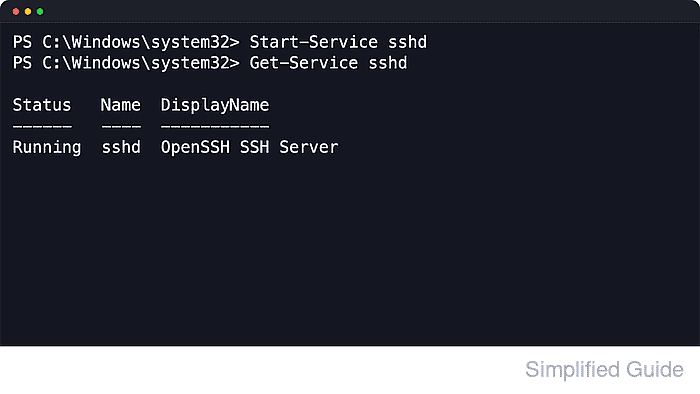
PS C:\Windows\system32> Start-Service sshd
PS C:\Windows\system32> Set-Service -Name sshd -StartupType Automatic
PS C:\Windows\system32> Get-Service sshd

Status   Name               DisplayName
------   ----               -----------
Running  sshd               OpenSSH SSH Server
Automatic keeps the service enabled after reboot. If Windows reports that a restart is required after installation, reboot before starting the service.
- Confirm that the inbound firewall rule for SSH exists and create it only if it is missing.
PS C:\Windows\system32> if (!(Get-NetFirewallRule -Name 'OpenSSH-Server-In-TCP' -ErrorAction SilentlyContinue)) {
>>     New-NetFirewallRule -Name 'OpenSSH-Server-In-TCP' -DisplayName 'OpenSSH Server (sshd)' -Enabled True -Direction Inbound -Protocol TCP -Action Allow -LocalPort 22
>> }
PS C:\Windows\system32> Get-NetFirewallRule -Name 'OpenSSH-Server-In-TCP' | Select-Object Name, Enabled, Direction, Action

Name                  Enabled Direction Action
----                  ------- --------- ------
OpenSSH-Server-In-TCP True    Inbound   Allow
Setup usually creates this rule automatically. Related: How to configure Windows Defender Firewall from the command line
- Test that the host is accepting local connections on TCP port 22.
PS C:\Windows\system32> Test-NetConnection -ComputerName localhost -Port 22

ComputerName     : localhost
RemoteAddress    : ::1
RemotePort       : 22
InterfaceAlias   : Loopback Pseudo-Interface 1
SourceAddress    : ::1
TcpTestSucceeded : True
TcpTestSucceeded : True confirms that sshd is listening locally. Remote sign-in still depends on network reachability, allowed accounts, and the SSH authentication settings on the host.