Enabling the OpenSSH Client in Windows adds the built-in ssh, scp, and sftp commands for encrypted remote logins, secure file transfers, and quick checks against servers, network appliances, or cloud hosts without installing a separate SSH package first.
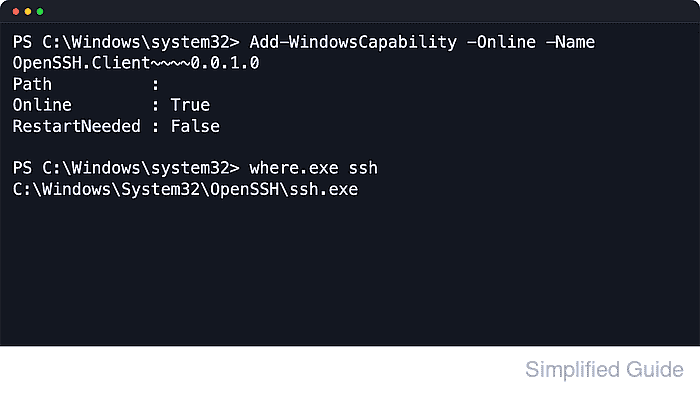
Windows 10 and Windows 11 expose the client as an optional capability. When it is installed, Windows places the OpenSSH tools in C:\Windows\System32\OpenSSH and makes them available from PowerShell, Command Prompt, and Windows Terminal. Microsoft's current installation path still uses the Get-WindowsCapability and Add-WindowsCapability cmdlets.
This workflow needs an elevated shell because Windows is adding a system capability. Managed systems that rely on WSUS, Configuration Manager, or an offline Features on Demand source can fail until the optional-component payload is reachable, and Windows Server 2025 behaves differently because OpenSSH is already installed there by default. For typical Windows 10 and Windows 11 client systems, the success state is an Installed capability plus a working ssh.exe command on the system path.
Steps to enable OpenSSH Client in Windows from PowerShell:
- Open an elevated PowerShell session.
Use Run as administrator. The same commands work from Windows PowerShell, PowerShell, or an elevated Windows Terminal tab.
- Check whether the OpenSSH Client capability is already installed.
PS C:\> Get-WindowsCapability -Online | Where-Object Name -like 'OpenSSH.Client*'

Name  : OpenSSH.Client~~~~0.0.1.0
State : NotPresent
If the state already shows Installed, skip the install step and continue to the command check.
- Install the OpenSSH Client capability when the state is NotPresent.
PS C:\> Add-WindowsCapability -Online -Name OpenSSH.Client~~~~0.0.1.0

Path          :
Online        : True
RestartNeeded : False
Microsoft currently publishes the client as the OpenSSH.Client~~~~0.0.1.0 Windows capability. If RestartNeeded returns True, restart Windows before verifying the install.
On managed systems, errors such as 0x800F0954 or messages that optional content was not found usually mean Windows cannot reach the required Features on Demand payload through the configured update source. Retry only after direct Windows Update access or an approved internal feature source is available.
- Verify that the built-in OpenSSH client command is now on the system path.
PS C:\> where.exe ssh
C:\Windows\System32\OpenSSH\ssh.exe
The same OpenSSH directory also contains other client tools such as scp.exe, sftp.exe, ssh-keygen.exe, ssh-agent.exe, and ssh-add.exe.

Mohd Shakir Zakaria is a cloud architect with deep roots in software development and open-source advocacy. Certified in AWS, Red Hat, VMware, ITIL, and Linux, he specializes in designing and managing robust cloud and on-premises infrastructures.


