How to query DNS records in Windows
Querying DNS records in Windows shows which address, mail exchanger, or text record a DNS server is returning before time is lost on application logs or firewall changes. It is one of the fastest ways to confirm whether a hostname problem is actually in DNS or somewhere later in the connection path.
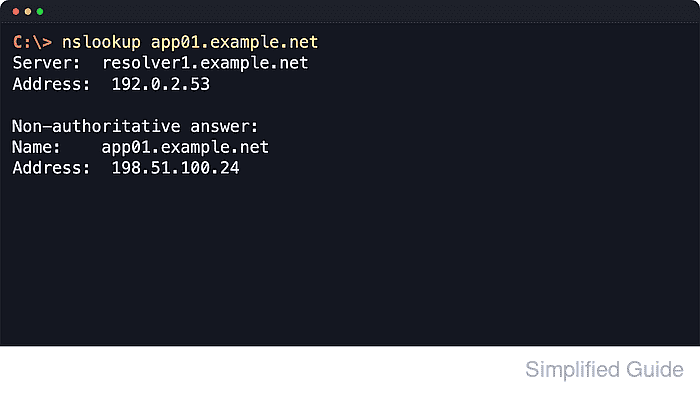
The built-in nslookup command can query common record types such as A, AAAA, MX, NS, TXT, and PTR on current Windows 11, Windows 10, and Windows Server releases. In Microsoft's command reference, the first argument is the hostname or IP address to look up, the second optional argument is the DNS server to use, and -type= changes the record type returned.
Administrator rights are not required for normal lookups, but the result depends on which DNS server answers the request. Internal zones often resolve only through corporate or VPN DNS servers, and a short hostname can be expanded by the local DNS search suffix list. When the server itself has no reverse record, nslookup can show UnKnown instead of a server name even when the query still succeeds.
Related: How to change DNS servers in Windows
Related: How to flush DNS cache in Windows
Tool: DNS Record Lookup
Steps to query DNS records in Windows with nslookup:
- Open Command Prompt or PowerShell.
Normal DNS queries with nslookup do not require an elevated console.
- Query the default A record for the fully qualified hostname.
C:\> nslookup app01.example.net
Server:  resolver1.example.net
Address:  192.0.2.53

Non-authoritative answer:
Name:    app01.example.net
Address:  198.51.100.24
If the answer comes from an unexpected resolver, repeat the query with a specific DNS server in a later step. Use the full hostname to avoid ambiguity from the local DNS search suffix.
- Change the record type when a hostname needs more than its default A record.
C:\> nslookup -type=AAAA app01.example.net
Server:  resolver1.example.net
Address:  192.0.2.53

Non-authoritative answer:
Name:    app01.example.net
Address:  2001:db8:100::24

C:\> nslookup -type=MX example.net
Server:  resolver1.example.net
Address:  192.0.2.53

example.net    MX preference = 10, mail exchanger = mail1.example.net
example.net    MX preference = 20, mail exchanger = mail2.example.net
Microsoft documents -type= for record-specific queries. Common values for day-to-day checks include AAAA, MX, NS, and TXT.
- Query a specific DNS server when comparing public and internal answers or when the default resolver is not trusted.
C:\> nslookup -type=TXT example.net 192.0.2.53
Server:  resolver1.example.net
Address:  192.0.2.53

example.net    text =

        "v=spf1 include:mail.example.net -all"
The second argument overrides the default DNS server for that one query only.
Related: How to change DNS servers in Windows
- Run a reverse lookup when starting from an IP address instead of a hostname.
C:\> nslookup 198.51.100.24
Server:  resolver1.example.net
Address:  192.0.2.53

Name:    app01.example.net
Address:  198.51.100.24
A reverse lookup uses the PTR record for the IP address. Missing reverse records are common on private networks, so a failed reverse lookup does not automatically mean the host is unreachable.
- Interpret the common failure messages before moving to the next fix.
C:\> nslookup app02.example.net
*** resolver1.example.net can't find app02.example.net: Nonexistent domain

C:\> nslookup -type=MX app01.example.net
*** resolver1.example.net can't find app01.example.net: No records

C:\> nslookup app01.example.net 192.0.2.200
DNS request timed out.
    timeout was 2 seconds.
Nonexistent domain means the name itself does not exist on the queried DNS server. No records means the name exists but not for the current record type. DNS request timed out points to an unreachable or non-responsive DNS server.
- Compare the result with another Windows name-resolution path when the answer still looks wrong.
nslookup queries DNS servers directly, so its answer can differ from ping or an application that uses the local resolver cache or the hosts file.