How to add a disk to an LVM volume group
Adding a new disk to an existing LVM volume group increases the storage pool available to logical volumes without moving the data already stored in that group. The important boundary is the new block device, because pvcreate writes LVM metadata to the disk or partition named on the command line.
LVM stores usable capacity in physical volumes, and a volume group combines those physical volumes into one allocation pool. Initializing the new device with pvcreate makes the disk visible to LVM, and vgextend attaches that physical volume to the existing group.
Extending the volume group does not resize any logical volume or filesystem by itself. After vgs shows the extra free space, allocate that capacity with lvextend and grow the filesystem only when an application or mount point needs the space.
Related: How to create an LVM volume group
Steps to add a disk to an LVM volume group:
- Check the current volume group capacity.
$ vgs data_vg
  VG      #PV #LV #SN Attr   VSize   VFree
  data_vg   1   2   0 wz--n- 500.00g 120.00g
Replace data_vg with the volume group that should receive the new disk.
- Identify the new disk or partition.
$ lsblk -o NAME,SIZE,TYPE,FSTYPE,MOUNTPOINTS /dev/sdc
NAME   SIZE TYPE FSTYPE MOUNTPOINTS
sdc    200G disk
Use a whole disk such as /dev/sdc only when the entire device is dedicated to LVM. Use the intended partition path, such as /dev/sdc1, when only one partition should join the volume group.
- Initialize the new device as an LVM physical volume.
$ sudo pvcreate /dev/sdc
  Physical volume "/dev/sdc" successfully created.
pvcreate writes an LVM label and metadata to the named device. Stop if the path points to an existing filesystem, a mounted device, or the wrong disk.
Related: How to create an LVM physical volume
- Add the new physical volume to the existing volume group.
$ sudo vgextend data_vg /dev/sdc
  Volume group "data_vg" successfully extended
vgextend can initialize a device that is not already a physical volume, but running pvcreate first keeps disk selection and signature warnings separate from the volume group change.
- Verify that both physical volumes belong to the volume group.
$ sudo pvs -o pv_name,vg_name,pv_size,pv_free /dev/sdb /dev/sdc
  PV         VG      PSize   PFree
  /dev/sdb   data_vg 500.00g 120.00g
  /dev/sdc   data_vg 200.00g 200.00g
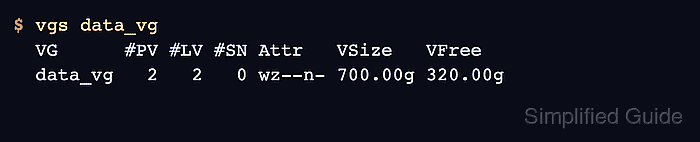
- Verify that the volume group reports the added capacity.
$ vgs data_vg
  VG      #PV #LV #SN Attr   VSize   VFree
  data_vg   2   2   0 wz--n- 700.00g 320.00g
The new space remains free in the volume group until a logical volume consumes it.